
"The resize menu is、The aspect ratio of the image is fixed、I can't just change the vertical size or just the horizontal size.、How can I change the aspect ratio of an image??”, so I would like to explain.。
I'm worried that there are many people who don't notice this because I don't explain it very well in the tutorial.、Actually, if you tap inside the trimming frame in trimming mode,、A menu for selecting aspect ratio will appear.。(Menu does not appear and would drag the crop frame)
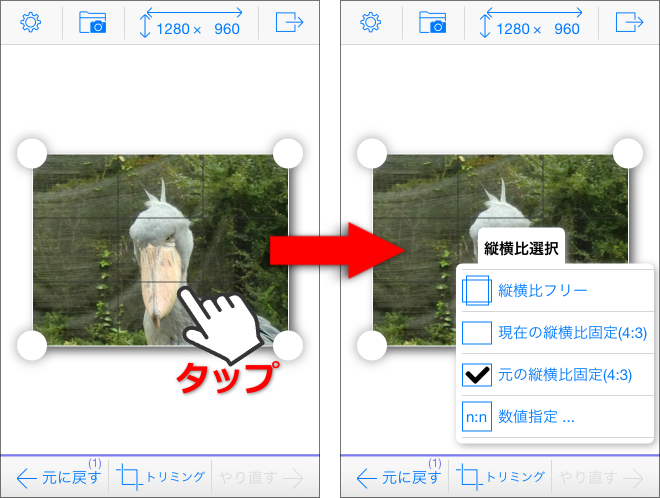
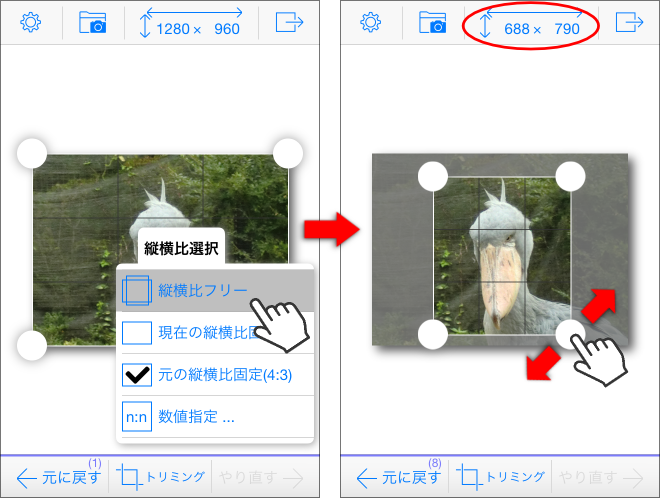
You can change the aspect ratio of the cropping frame using this aspect ratio selection menu.。here、Select "Free Aspect Ratio"、trimming frame(○ button corners and sides)When you drag、You can freely change the aspect ratio and set the cropping frame.。
At this time、The size display of the resize menu button will change.、You can set the specified size while looking at it.。
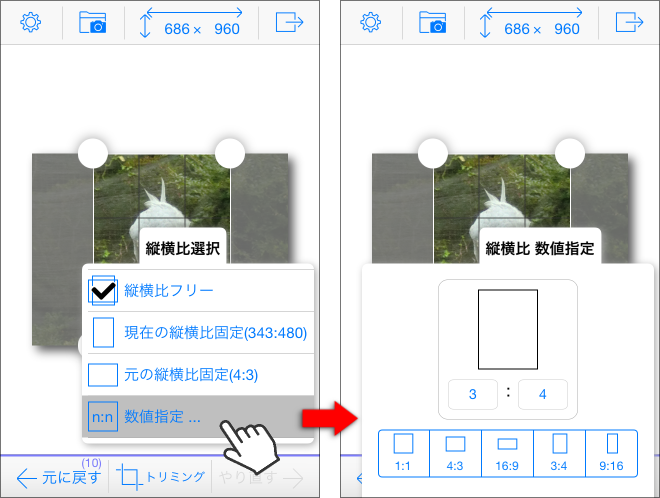
Also、When you select "Numerical specification" in the aspect ratio selection menu、The following screen will appear.、Do you want to enter the vertical and horizontal sizes directly using numerical values?、By tapping the five typical aspect ratio patterns、You can also lock it to that aspect ratio。
When sending images、The image within this cropping frame will be sent。
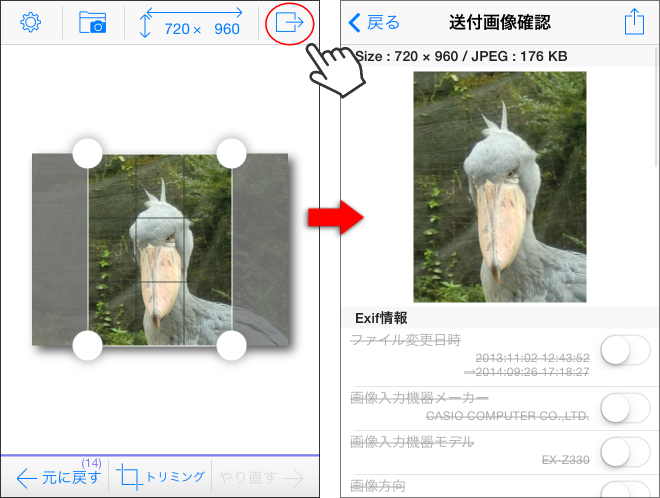
Also、The resize menu、Cut out the cropping frame and resize it。
once、If you only want to cut、Just select the menu labeled "Trimming only" at the top of this resizing menu.。
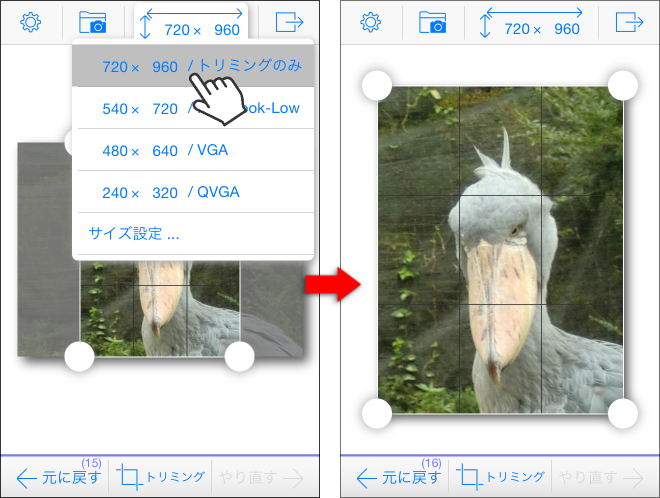
This trimming frame and resize also undo/redo(Undo and redo)so you can、Please try various things。If you fail, Undo will return you immediately.。Moreover, you can repeat by long pressing the Undo/Redo button.。