
*This explanation、For Walking Player v1.0~v1.02。
about v1.10 or later "Walking Player screen descriptionPlease refer to。
[Table of contents]
- Initial screen
- Player screen 1
- Player screen 2
- Artwork screen
- Play song list screen 1
- Play song list screen 2
- Play song list screen 3
- Manual tempo measuring screen
- Playback tempo changes
- Settings screen
- Tempo setting screen 1
- Tempo setting screen 2
- Tempo list Setup screen 3
- Tempo settings screen
- Tempo Analyzer settings screen
- Play song list settings screen
- Limit function screen 1
- Limit function screen 2
- Clear screen
Initial screen
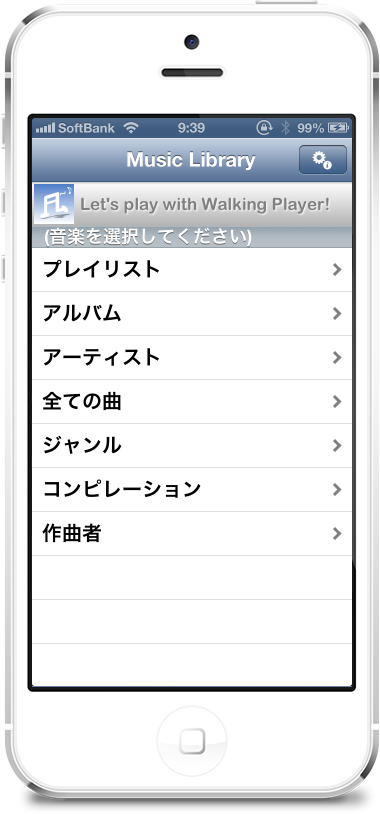 |
This is the initial screen that appears when you first launch Walking Player.。 Just like a standard music player、7You can select the song you want to play from the type of classification.。 *What is “compilation”?、This is an album made up of multiple artists.。 |
Player screen 1
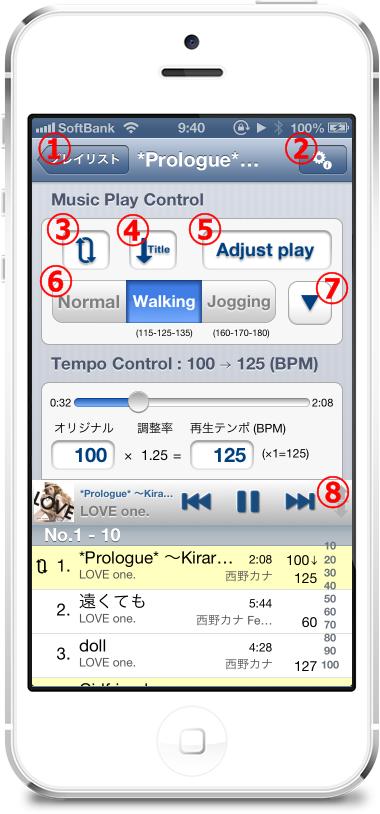 |
select a song、When you start playing, you will see a screen like the one on the left.。
[Screen parts explanation]
[Support information] |
Player screen 2
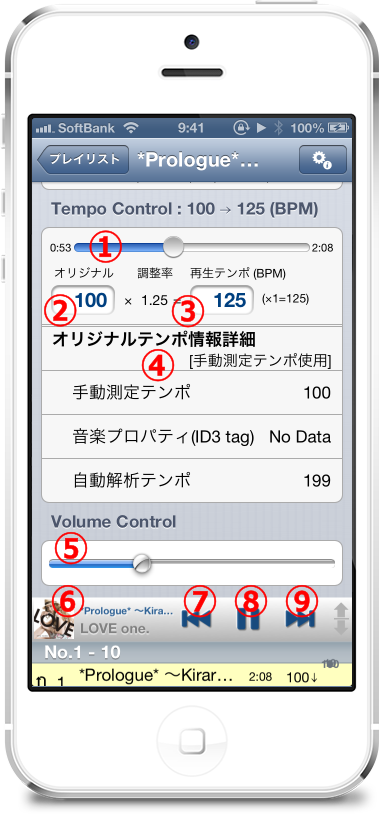 |
Continuation of the player screen。
[Screen parts explanation]
[Support information]
|
Artwork screen
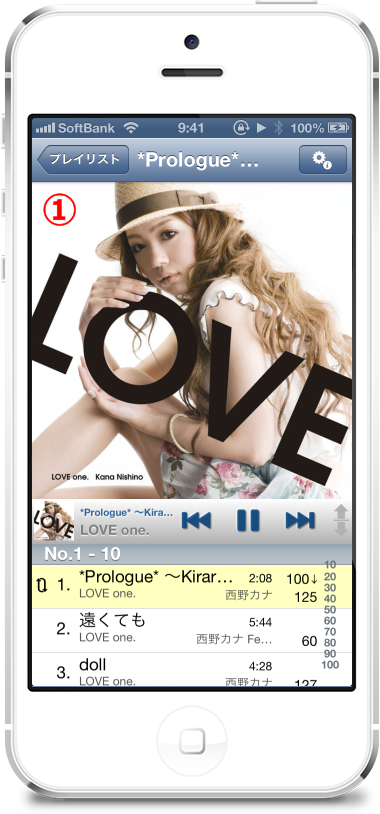 |
Artwork display screen。
[Screen parts explanation]
|
Play song list screen 1
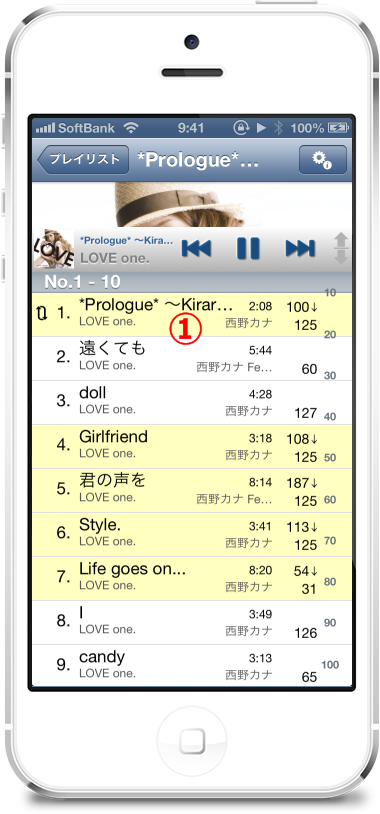 |
Playing songs list view screen(Adjust play time)is。
[Screen parts explanation]
[Support information]
|
Play song list screen 2
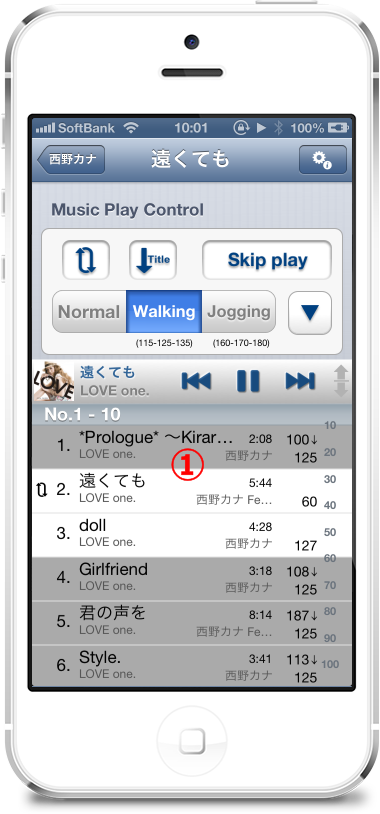 |
Playing songs list view screen(When you skip play)is。
[Screen parts explanation]
[Support information]
|
Play song list screen 3
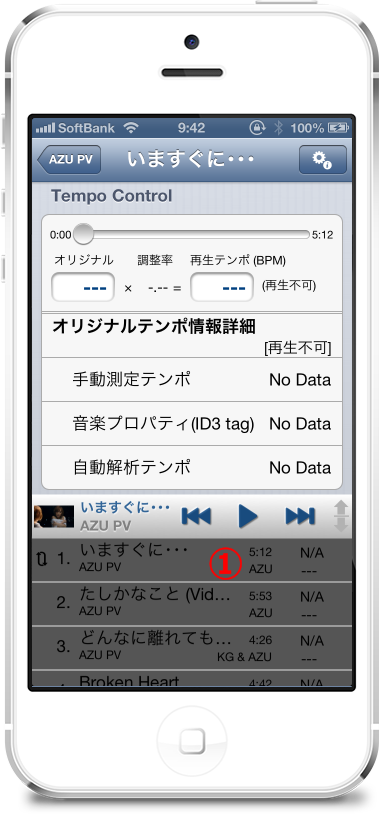 |
Playing songs list view screen(If the non-playing songs)is。
[Screen parts explanation]
[Support information]
|
Manual tempo measuring screen
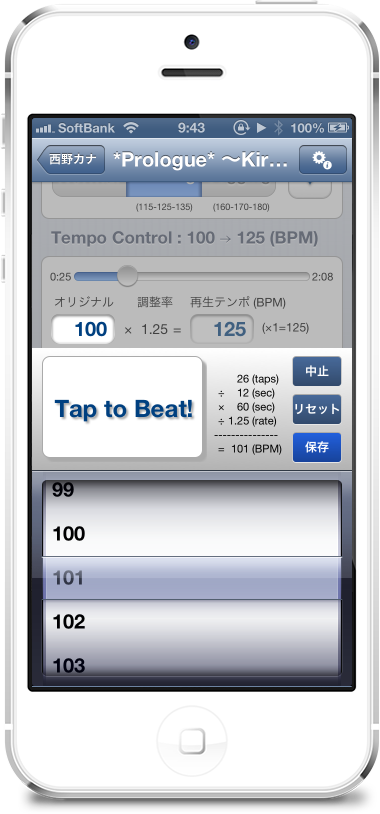 |
Manual tempo measurement screen。
[Support information]
|
Playback tempo changes
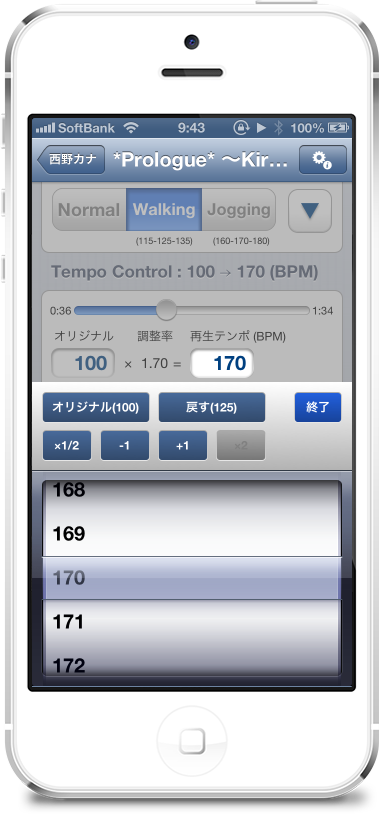 |
Playback tempo change screen。
[Support information] |
Settings screen
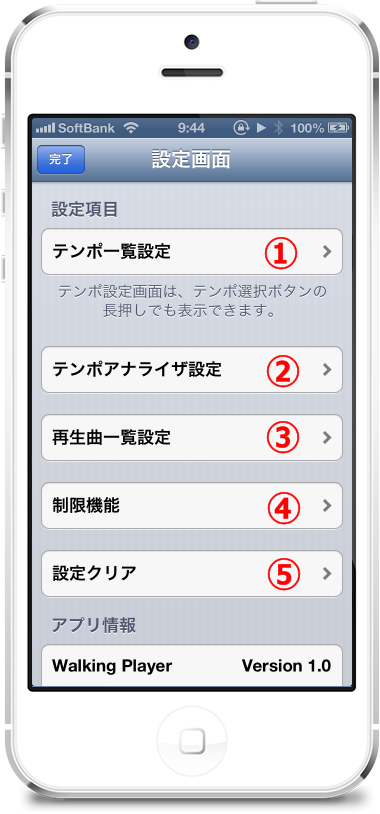 |
Settings screen(Top)is。 Tap an item、Transition to each setting screen。 |
Tempo setting screen 1
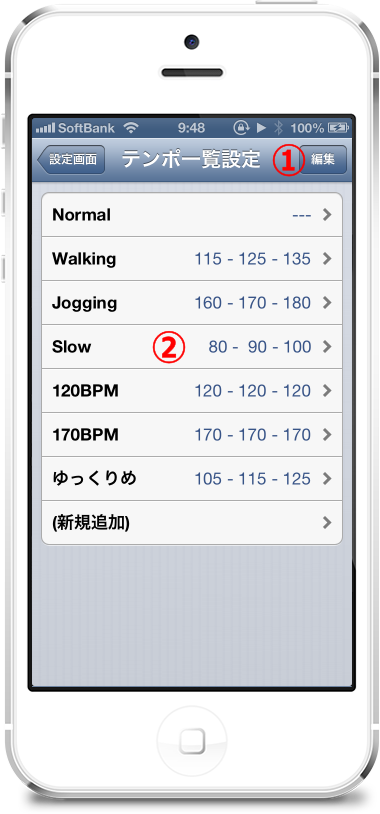 |
Tempo list setting display screen。
[Screen parts explanation]
|
Tempo setting screen 2
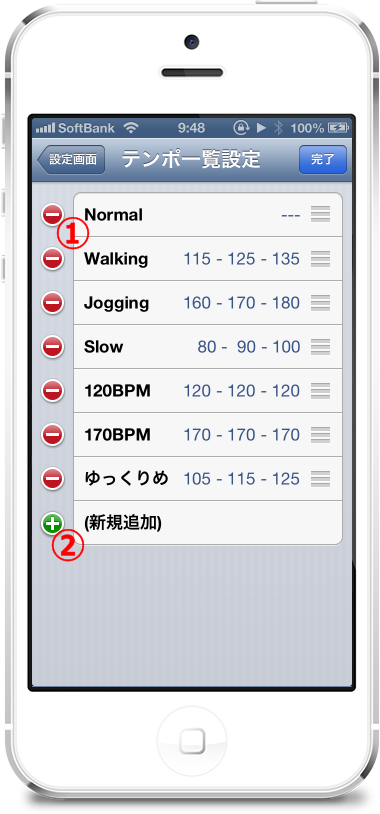 |
Tempo list settings screen(Edit mode)is。
[Screen parts explanation]
|
Tempo list Setup screen 3
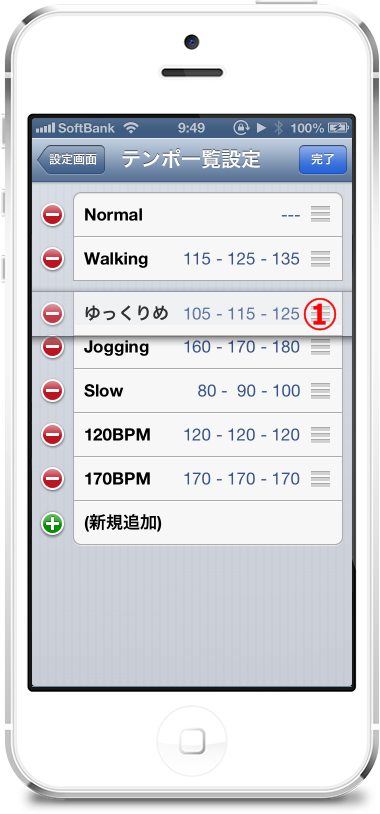 |
Tempo list settings screen(Edit mode – While moving)is。
[Screen parts explanation]
|
Tempo settings screen
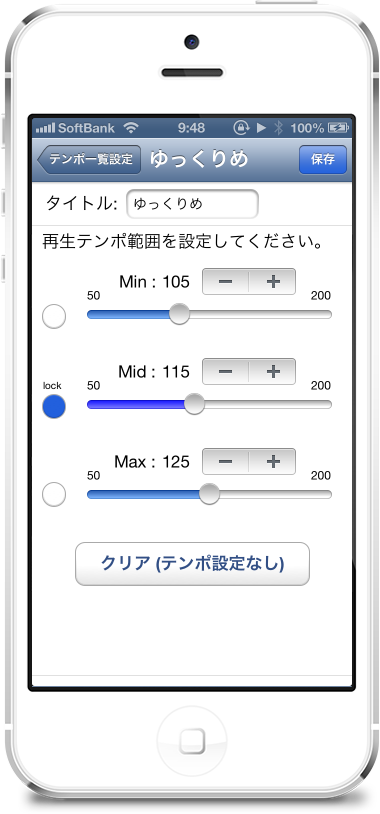 |
This is the tempo setting screen。
[Support information] |
Tempo Analyzer settings screen
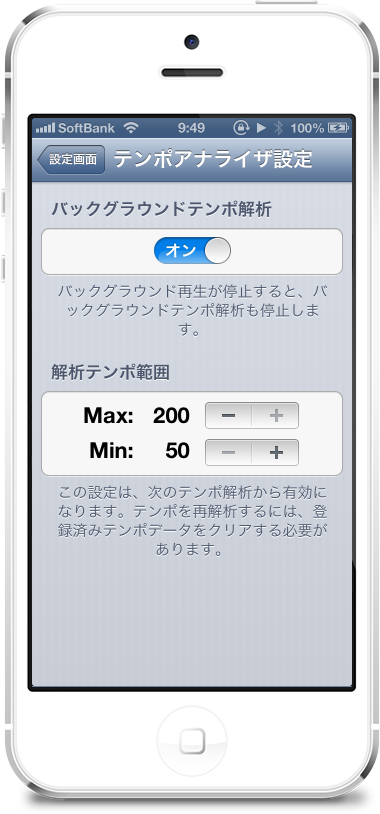 |
Tempo analyzer setting screen。 |
Play song list settings screen
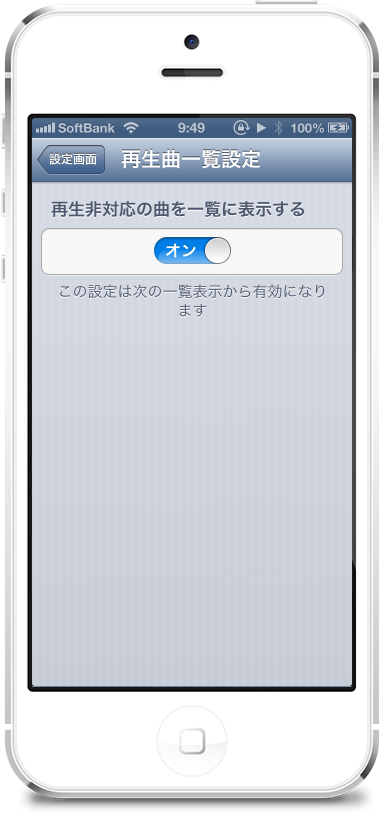 |
Playback song list setting screen。 |
Limit function screen 1
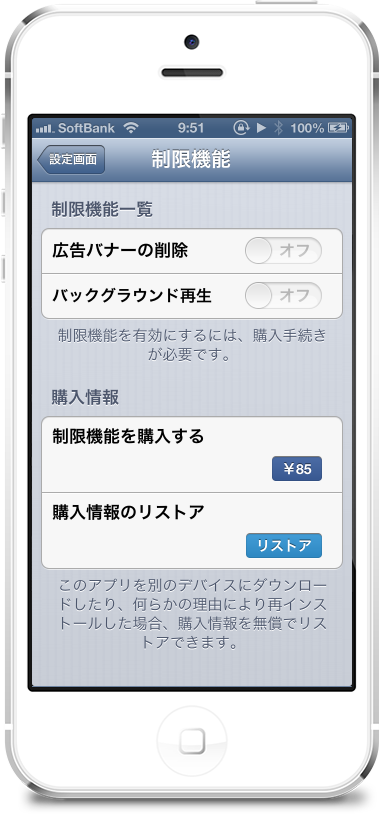 |
Limited functional screen(Tao status)is。 *Due to price revision in October 2013、購入価格は「\85」→「\100」に変更されています。(2013Year 11-current) |
Limit function screen 2
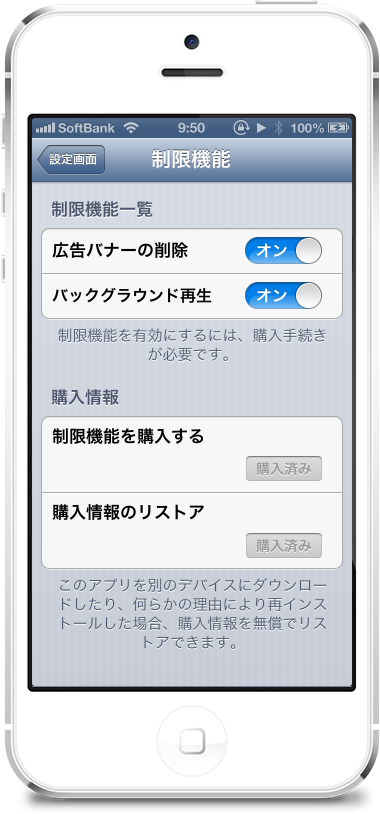 |
Limited functional screen(Purchase State)is。 |
Clear screen
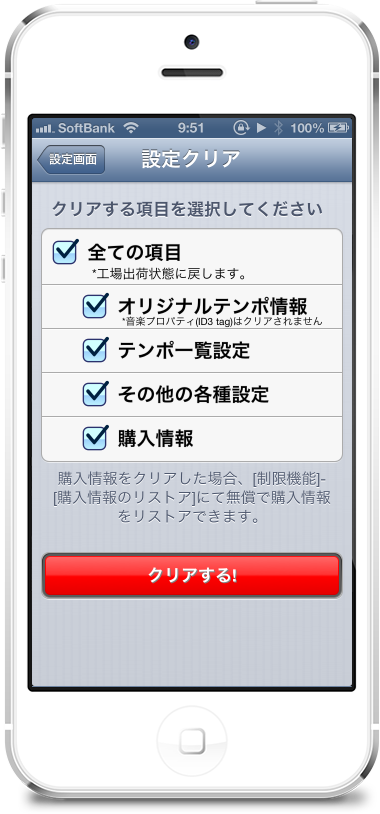 |
This is the screen to clear setting items.。 |