Screen description

[Table of contents]


Initial screen


Initial screen
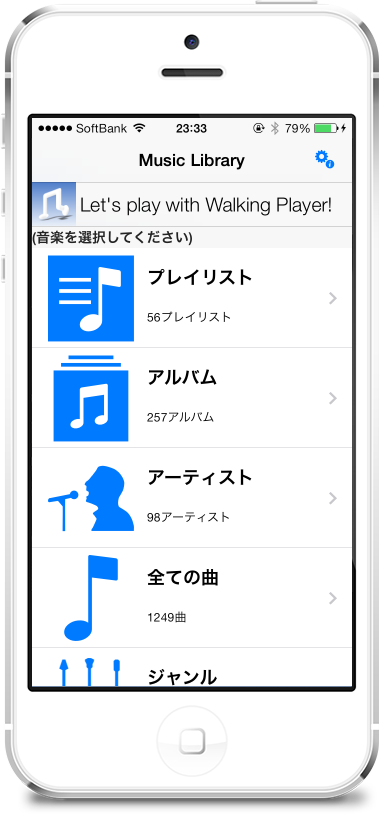
This is the initial screen that appears when you first launch Walking Player.。
Just like a standard music player、"Playlist"、"album"、"Artist"、"All songs"、"Genre"、"Compilation"、You can select the song you want to play from 7 types of "composer" classifications.。

*What is “compilation”?、This is an album made up of multiple artists.。


Player screen 1


Player screen 1
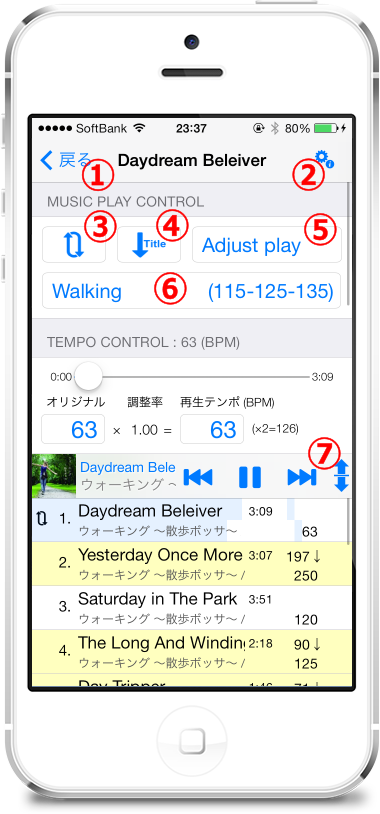
select a song、When you start playing, you will see a screen like the one on the left.。

[Screen parts explanation]

  1. Navigation button
    When you tap、Return to song selection screen。
  2. Settings screen button
    When you tap、Settings screenwill transition to。
  3. Playback repeat status display
    When you tap、A repeat state selection picker appears.、"Whole repeat"、"Repeat song"、You can select the repeat state from "No repeat"。
  4. Sorting status display
    When you tap、A sort state selection picker appears.、"Title order"、"Tempo order"、You can select the sorting state from "Shuffle"。
  5. Playback mode display
    When you tap、A playback mode selection picker will appear.、「Adjust play」、You can select the playback mode from "Skip play"。
  6. Play tempo range display
    Displays the currently selected playback tempo range。
    When you tap、A playback tempo selection picker will appear.、You can select a preset playback tempo range。
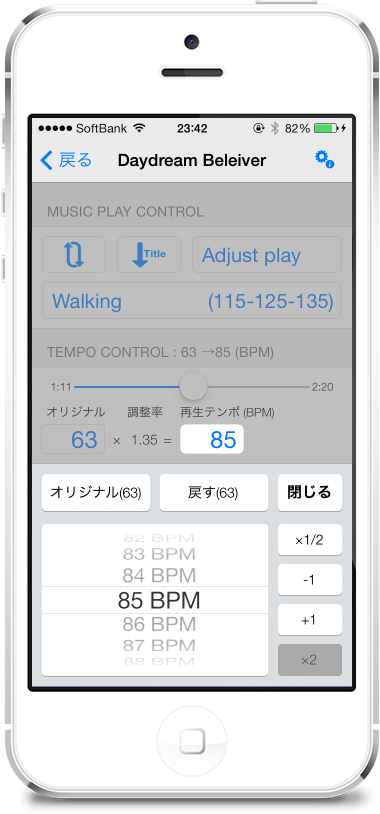
    If you press and hold this display、Tempo settings screenwill transition to。
    Also、If you press and hold the picker while the playback tempo selection picker is displayed,、Edit selected tempo settingsTempo settings screenwill transition to。
  7. Floating bar
    Flick up and down、You can change the display size of the player screen and playback song list screen.。

[Support information]


Player screen 2


Player screen 2
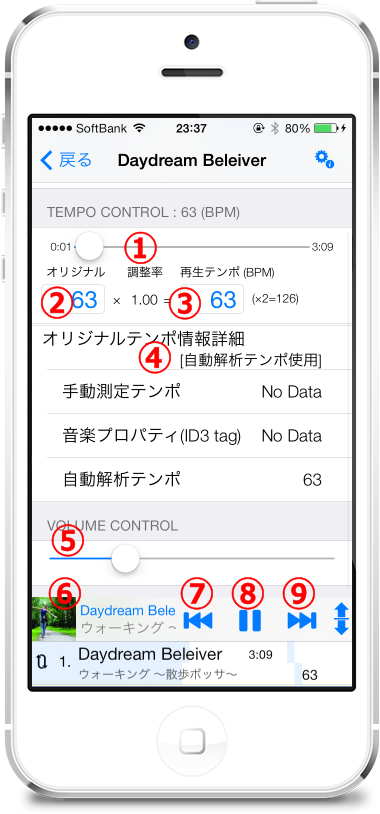
Continuation of the player screen。

[Screen parts explanation]

  1. Play position slider
    When you drag、You can change the song playback position。
  2. Original tempo display
    When you tap、Manual tempo measuring screenwill transition to。
  3. Playback tempo display
    When you tap、Playback tempo changeswill transition to。
  4. Original tempo for more info
    Display details of original tempo information。
  5. Volume control
    When you drag、You can change the volume。
  6. Playing in the title display
    Tap on the player screen、Artwork screenAndPlayer screentoggle alternately。Tap on the song selection screen、Player screenwill transition to。
  7. Prev button
    When you tap、Return to the beginning of the song。Tap at the beginning of a song to return to the previous song。Press and hold to rewind。
  8. Play/pause button
    When you tap、Start/pause playback。
  9. Fwd button
    When you tap、play next song。Long press to fast forward。

[Support information]


Artwork screen


Artwork screen
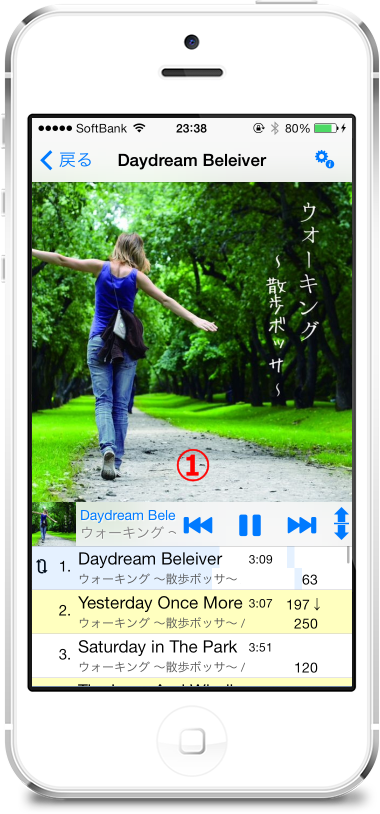
Artwork display screen。

[Screen parts explanation]

  1. Artwork display
    When you tap、Player screenwill transition to。Also、Pinch out to enlarge images up to 20x。

Play song list screen 1


Play song list screen 1
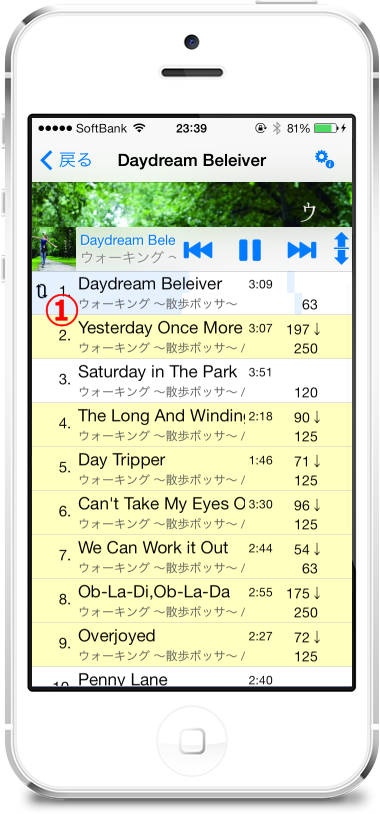
Playing songs list view screen(Adjust play time)is。

[Screen parts explanation]

  1. Currently playing song list
    When you tap、Starts playing the specified song。
    The song being played is、The level meter is displayed in a light translucent color.。
    If the level meter display is obstructive or、When you want to reduce your iPhone's power consumption
    Display settings screenYou can turn off the display with。

[Support information]


Play song list screen 2


Play song list screen 2
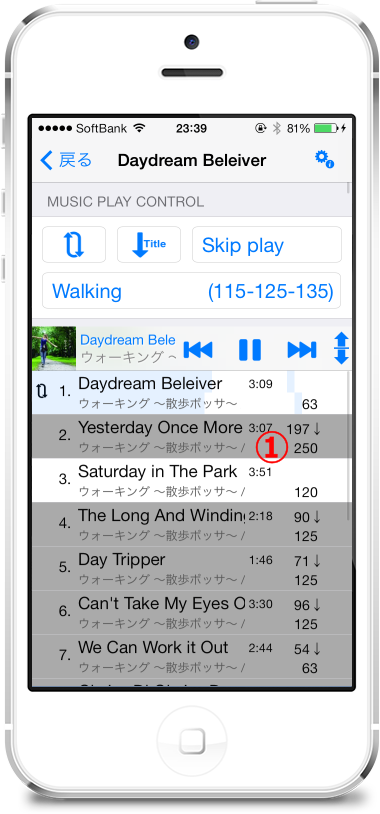
Playing songs list view screen(When you skip play)is。

[Screen parts explanation]

  1. Currently playing song list
    When you tap a song with a gray background、Starts playing from the next song with a white background color。If there are no songs with a white background color, playback will stop。

[Support information]


Play song list screen 3


Play song list screen 3
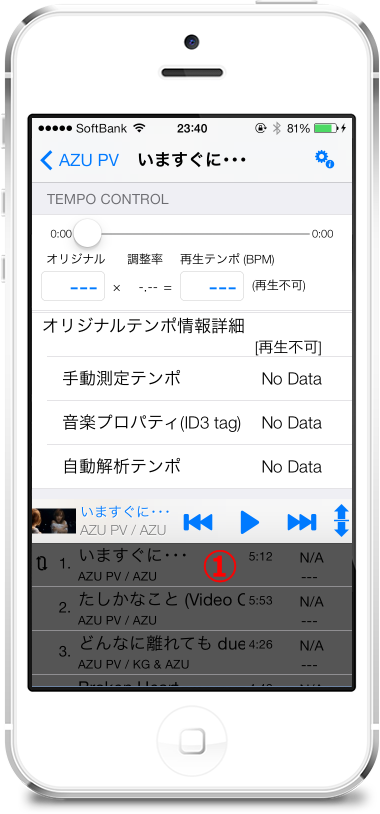
Playing songs list view screen(If the non-playing songs)is。

[Screen parts explanation]

  1. Currently playing song list
    When you tap a song with a gray background、Starts playing from the next song with a white background color。If there are no songs with a white background color, playback will stop。

[Support information]


Manual tempo measuring screen


Manual tempo measuring screen
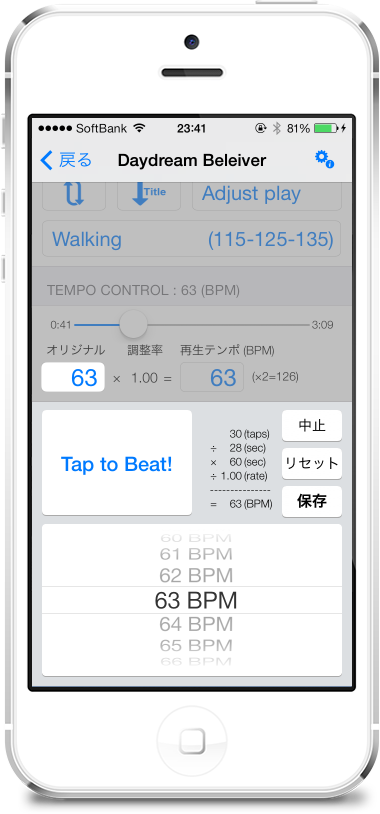
Manual tempo measurement screen。

[Support information]


Playback tempo changes


Playback tempo changes
Playback tempo change screen。

[Support information]


Settings screen


Settings screen
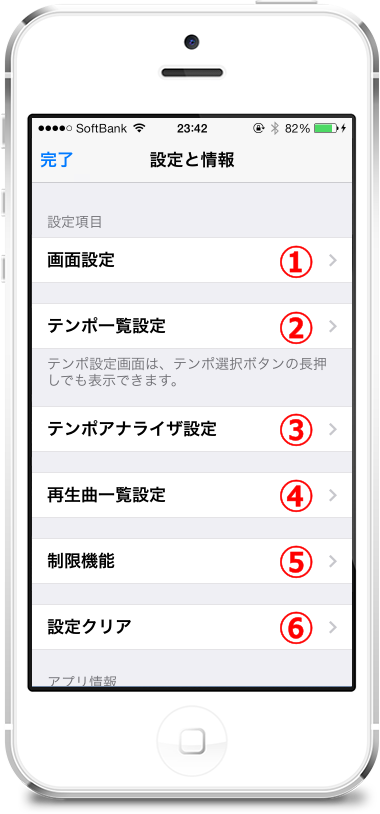
Settings screen(Top)is。
Tap an item、Transition to each setting screen。

  1. Display settings screenTo
  2. Tempo settings screenTo
  3. Tempo Analyzer settings screenTo
  4. Play song list settings screenTo
  5. Limited functional screenTo
  6. Clear screenTo

Display settings screen


Display settings screen
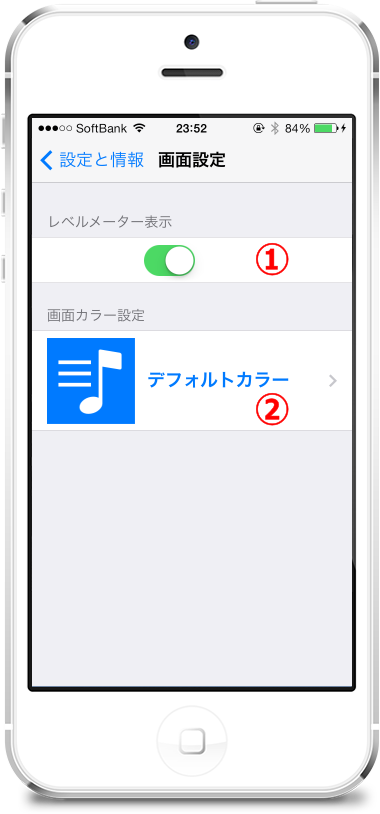
Display settings screen。

[Screen parts explanation]

  1. Level meter display
    Play song list screenSet whether to display the level meter of the currently playing song.。Default is ON。If the level meter display is obstructive or、If you want to reduce the power consumption of your iPhone, you can turn it off.。In addition、Even if the level meter display is ON during background playback, there is no effect on power consumption.。
  2. Screen color settings(only iOS7)
    This setting item is、Displayed only when running on iOS7。
    Displays the current screen color。Tap this item toColor selection screen”、You can change the screen color。

Color selection screen


Color selection screen
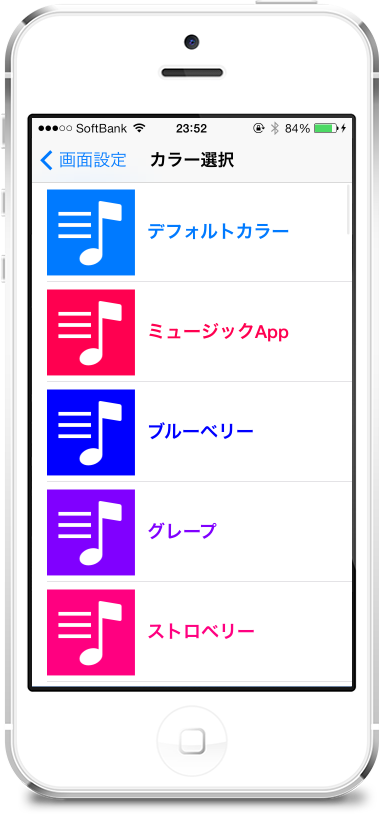
Color selection screen。(Color selection is only possible when running on iOS7。)
You can choose your favorite color from 50 pre-registered colors.。
This screen to scroll down to the bottom and seeCustom color screen' will appear.。

[Support information]


Custom color screen


Custom color screen
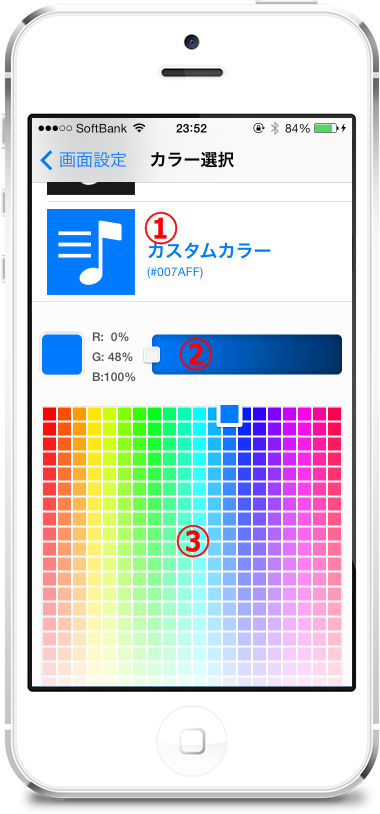
Custom color creation screen。
You can set the screen color to your favorite color other than the pre-registered colors.。

[Screen parts explanation]

  1. Custom color display
    Show generated custom colors。Tap this item to set the custom color as the screen color。
  2. Specify the brightness slider
    Specify the brightness of the custom color。
  3. Hue、Saturation picker
    custom color hue、Specify the saturation。

[How to custom color settings]

  1. "③Hue、Select your favorite hue using the “Saturation Picker”、Tap Saturation。
  2. Adjust the brightness to your preference with “② Brightness specification slider”。
  3. Tap "① Custom color display"、Set the generated custom color to the screen color。
    *If you return to the original screen on the navigation bar without tapping "① Custom color display"、Screen color does not change。

Tempo setting screen 1


Tempo setting screen 1
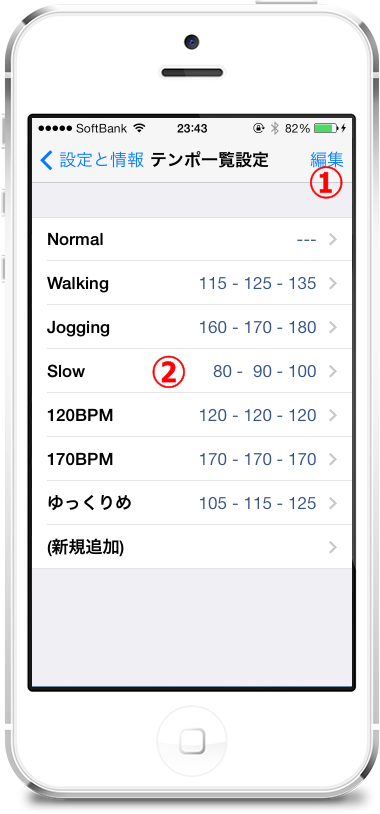
Tempo list setting display screen。

[Screen parts explanation]

  1. Edit button
    When you tapTempo setting screen 2transition to、Add tempo settings、delete、You can sort。
  2. Tempo setting line
    When you tapTempo settings screentransition to、You can change the tempo settings。
    Swipe left、A "Delete" button will appear。Tap the "Delete" button、remove this config line。

Tempo setting screen 2


Tempo setting screen 2
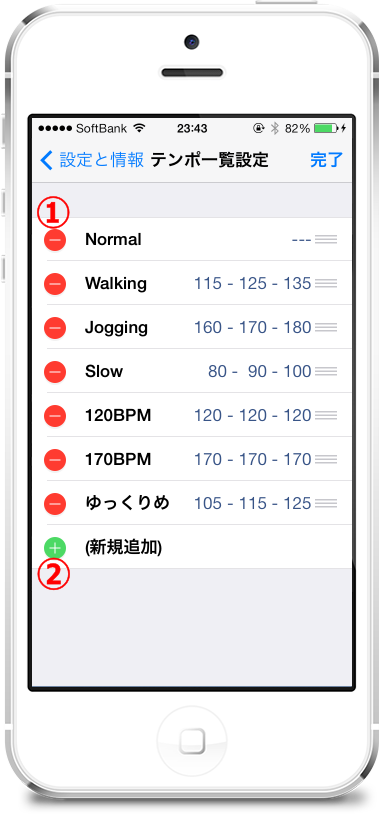
Tempo list settings screen(Edit mode)is。

[Screen parts explanation]

  1. 'Minus' button
    Tap it and a "Delete" button will appear.。Tap the "Delete" button、remove this config line。
  2. The "plus" button
    Tap to add a setting line。

Tempo list Setup screen 3


Tempo list Setup screen 3
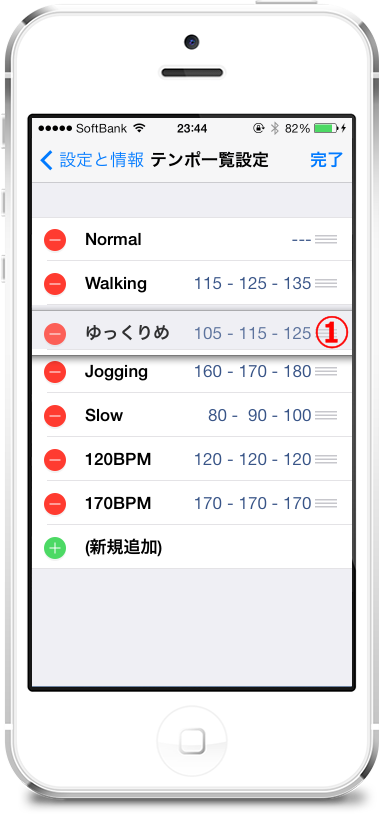
Tempo list settings screen(Edit mode – While moving)is。

[Screen parts explanation]

  1. Move handle
    Drag up and down、Move configuration lines up or down。


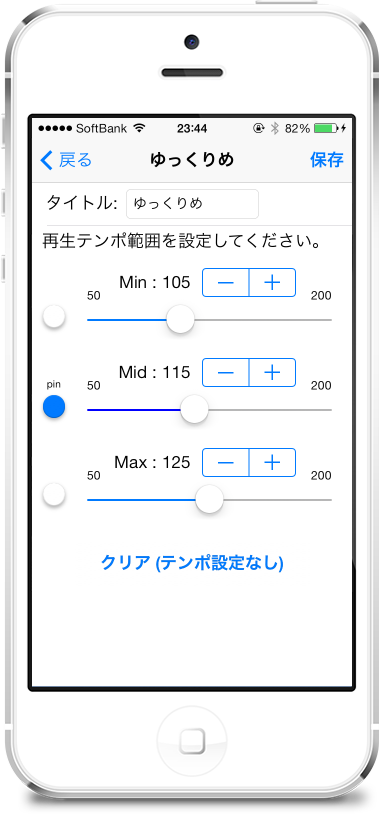
Tempo settings screen


Tempo settings screen
This is the tempo setting screen。

[Support information]


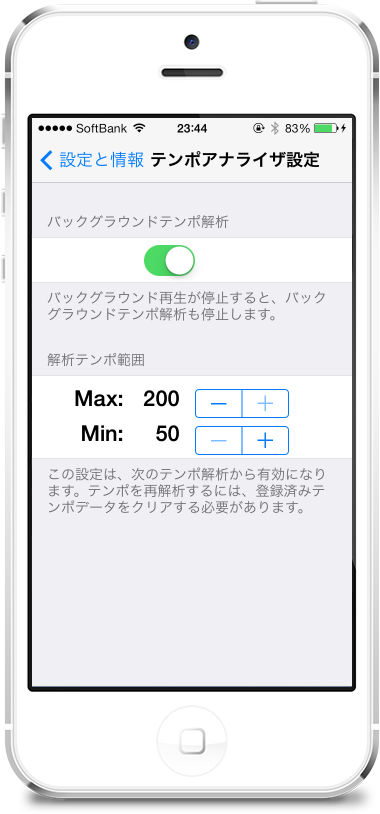
Tempo Analyzer settings screen


Tempo Analyzer settings screen
Tempo analyzer setting screen。

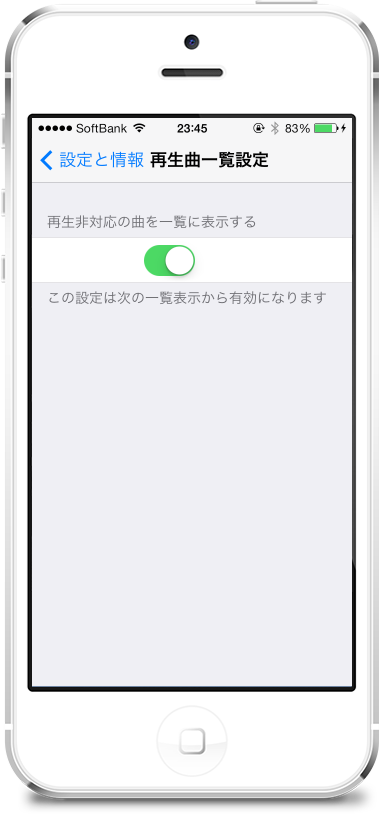
Play song list settings screen


Play song list settings screen
Playback song list setting screen。

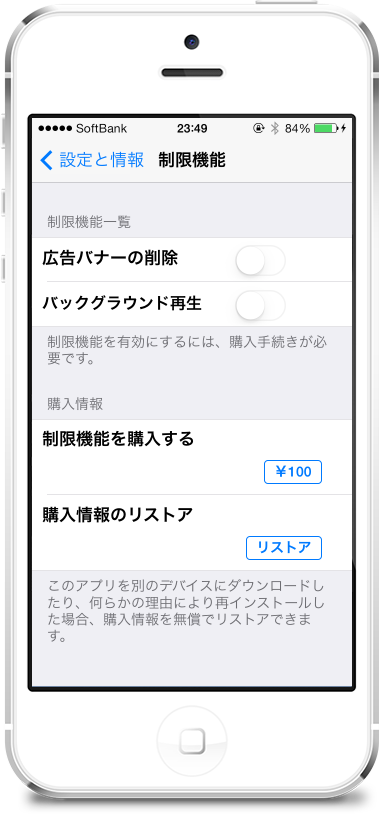
Limit function screen 1


Limit function screen 1
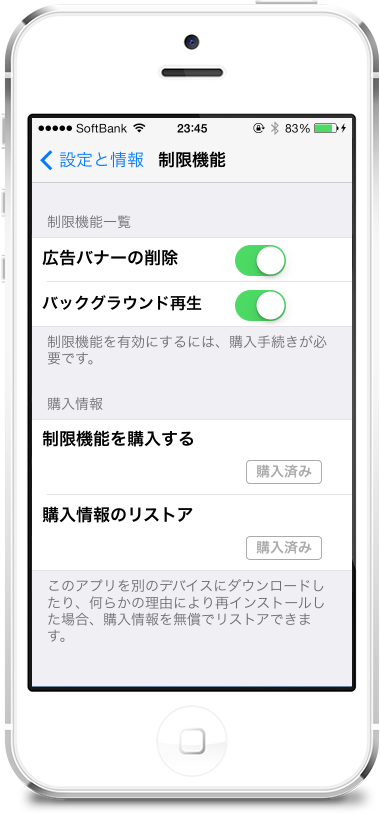
Limited functional screen(Tao status)is。

Limit function screen 2


Limit function screen 2
Limited functional screen(Purchase State)is。

Clear screen


Clear screen
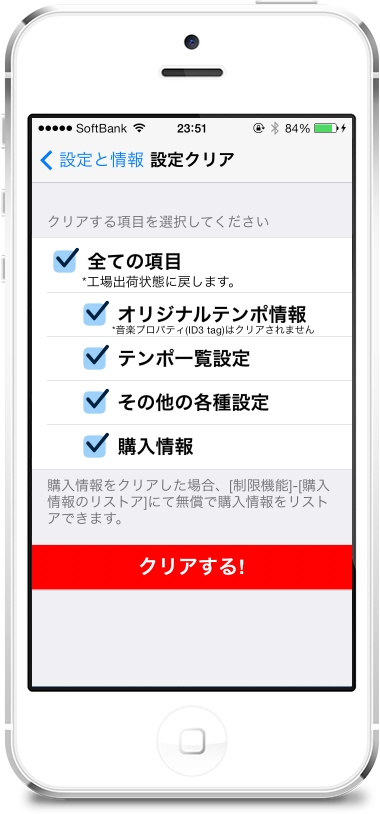
This is the screen to clear setting items.。