
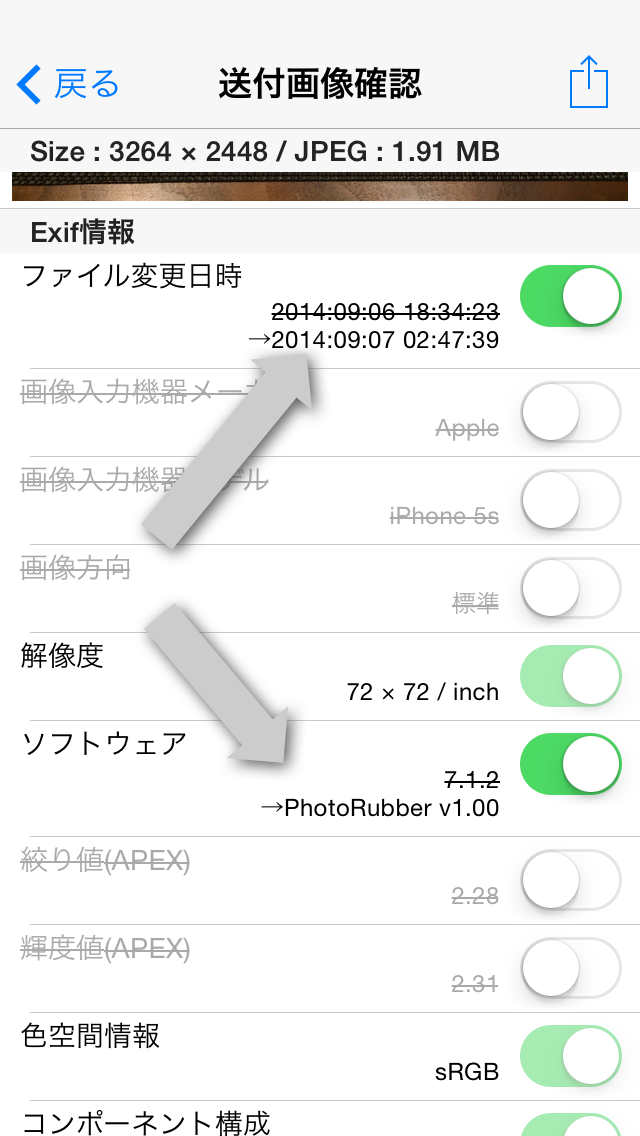
As indicated by the arrow in the photo above、Some items in the photo information have their original values crossed out.、Some have new values set。These items are、When you turn on the switch and send、Update to new values and submit the image(Of course, if the switch is OFF, the item will be deleted.。)。
The following six types of information、This is an item that will be updated to a new value.。
- File change date and time
→ Change the current file sending date and time。 - Software
→ see Photo Rubber (The version number)”。 - Image orientation
→If the image direction is other than "Standard"、Change to "Standard"。 - Image size
- Subject area
- Subject position
→The above three items are、change the image direction、When changing the image size by cropping or resizing、change in conjunction。
These information、Exif specification(For digital still camera image file format standard)in、This is an item that is recommended to be updated and recorded when the app saves an image.。Photo eraser、respect this standard、Updating and saving values。
actually、Some image processing apps、The "Image direction" item is not recognized correctly.、Some images may be displayed in the wrong direction.。If you want to use an app like this but are having trouble displaying images correctly.、If you pass the photo eraser、Image orientation is updated to "Standard"、The image will now be displayed in the correct orientation。In addition、The "Image direction" item is a deletable item.、If this item does not exist, it is assumed that "Standard" is set.。therefore、There is no problem even if you erase the "Image direction" item with the Photo eraser.。Photo eraser、Delete "Image direction" item(Or update to the 'standard')instead of doing、Rotate and save the image image to its original correct orientation。In conjunction with this, the image size and coordinates of the subject area are also properly corrected.。
Leave a Reply