Category: Frequently asked questions

  • [Sending function] A link to the AppStore site is automatically embedded in the tweet content.、Can I post this link without embedding it??(2015/12/18Update)

    Photo eraser from v2.03、The automatic embedding of links to the AppStore site has been removed.、Please use v2.03 or higher from now on.。
    Specification change history "Click herePlease see。

    Below is、This is old information from v2.02 or earlier.。I will keep this as reference information for previous versions.。


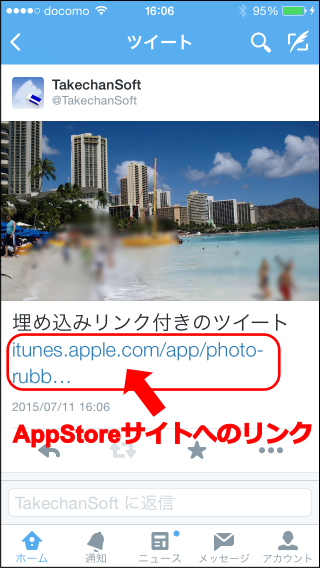
    When posting to Twitter from the Photo Eraser's send menu、AppStore site as below(Photo-Eraser page)The link will be automatically embedded in the tweet content.。

    [Select Twitter from the Photo-Eraser's send to menu, send]
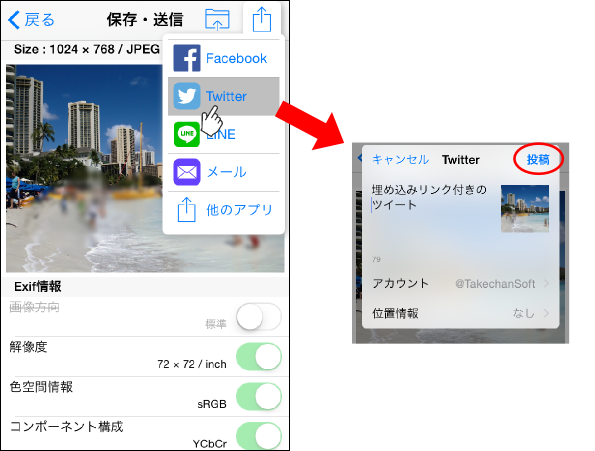
    info013-1

    [View on Twitter]
    info013-2

    This link is、It has played a major role in increasing the popularity of Photo erasers.、If you don't mind, please just tweet with the link.、That's very helpful(Embedding these links、Widely used in other free apps)。

    If you tweet with a link、There are also benefits for users such as:。

    • For acquaintances who carelessly post photos without worrying about the privacy of others、We can casually let you know that there is such a useful app without making a big deal about it.、It will be easier to ask your friends to respect your privacy.。
    • My tweet was posted using a privacy protection app.、You can subtly show that you are paying close attention to the privacy of others.。

    but、I think some people may be reluctant to have links embedded without permission.。For this reason、Photo Eraser offers another way to tweet without embedding this link。

    If you want to tweet without embedding a link、Please follow the steps below to post。
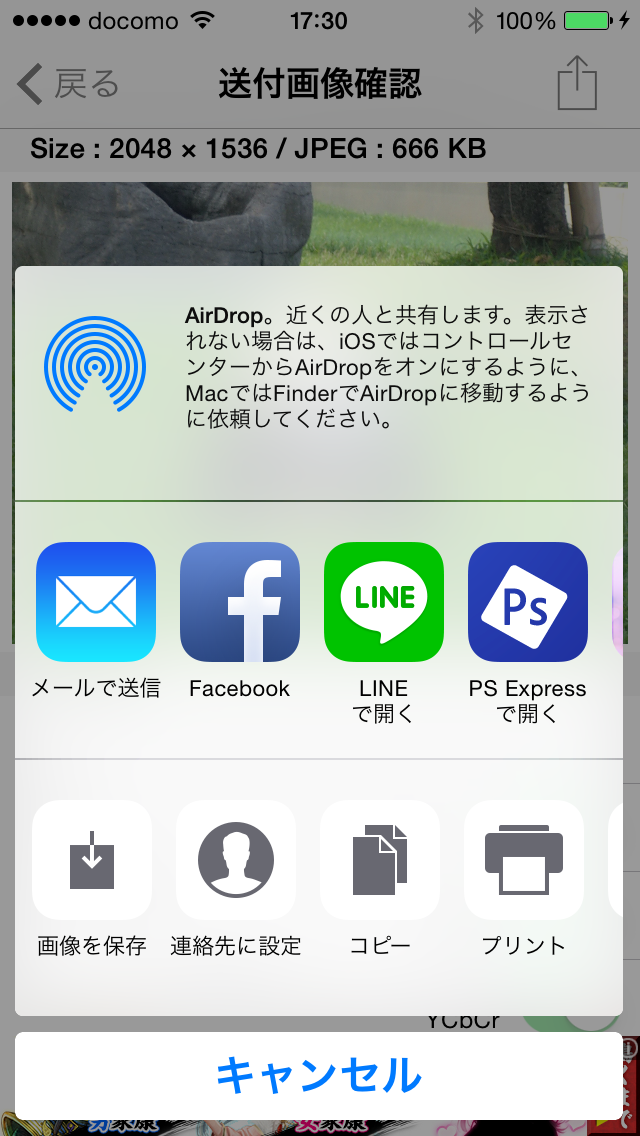
    first、Select "Other apps" in the send menu。

    [Photo-Eraser send menu select "other apps"]
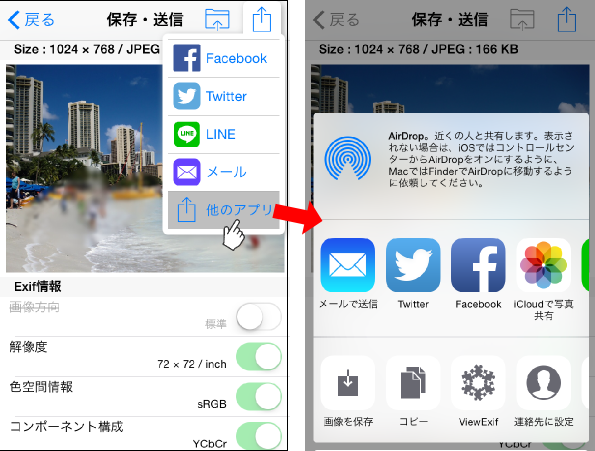
    info013-3

    Then、An icon that allows you to send will appear.、From there select Twitter。

    [Sends a Twitter icon]

    info013-4

    If you send from here、Links to AppStore will not be embedded。

    [View on Twitter]
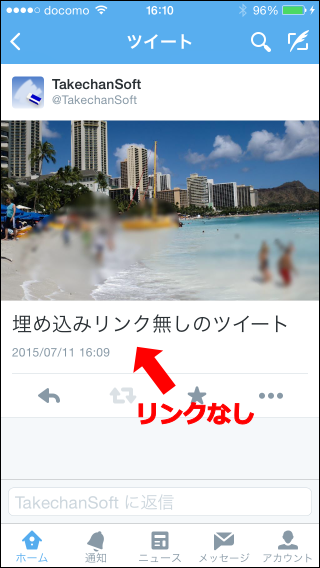
    info013-5

    In addition、For those using iOS8.0 to 8.2、Twitter icon does not appear in the list of icons that can be sent。We apologize for the inconvenience, but、If you are using iOS8.0~8.2, please update your iOS version to the latest version.(7/11The current version 8.4.)Please update to。

    (Update history)
    2015/5/29 Initial creation
    2015/7/11 Renewal
    2015/12/18 Update due to specification changes
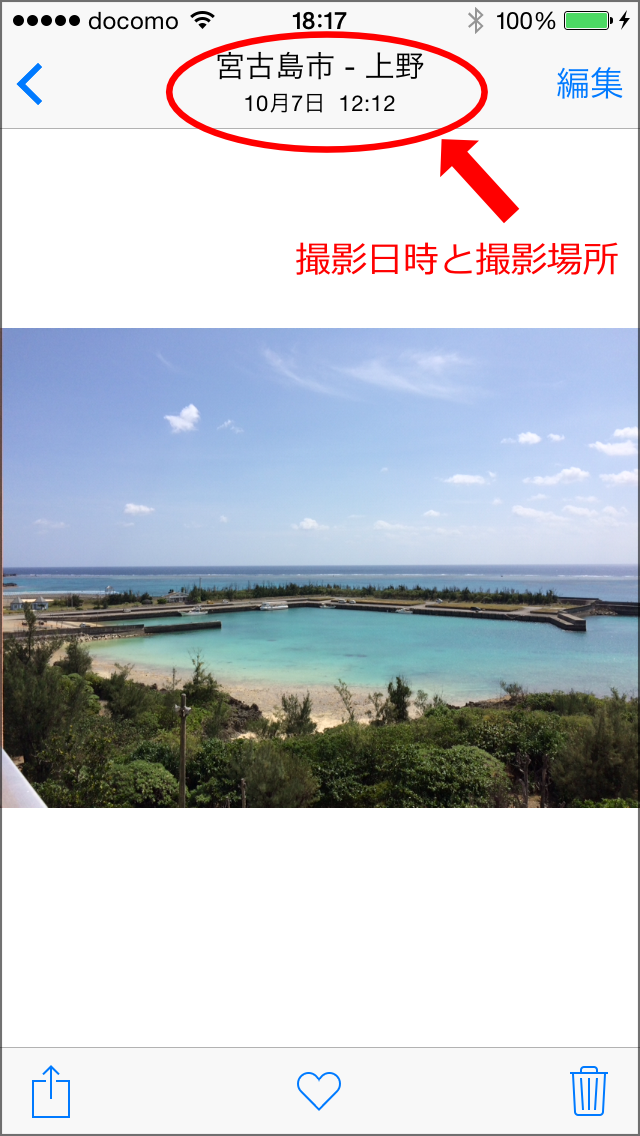
  • [Photo editing extension] I called up Photo Eraser from the photo app and deleted the shooting date and time and GPS information.、The photo app displays information about the original date and location of the photo.。Is this okay??It is really deleted??

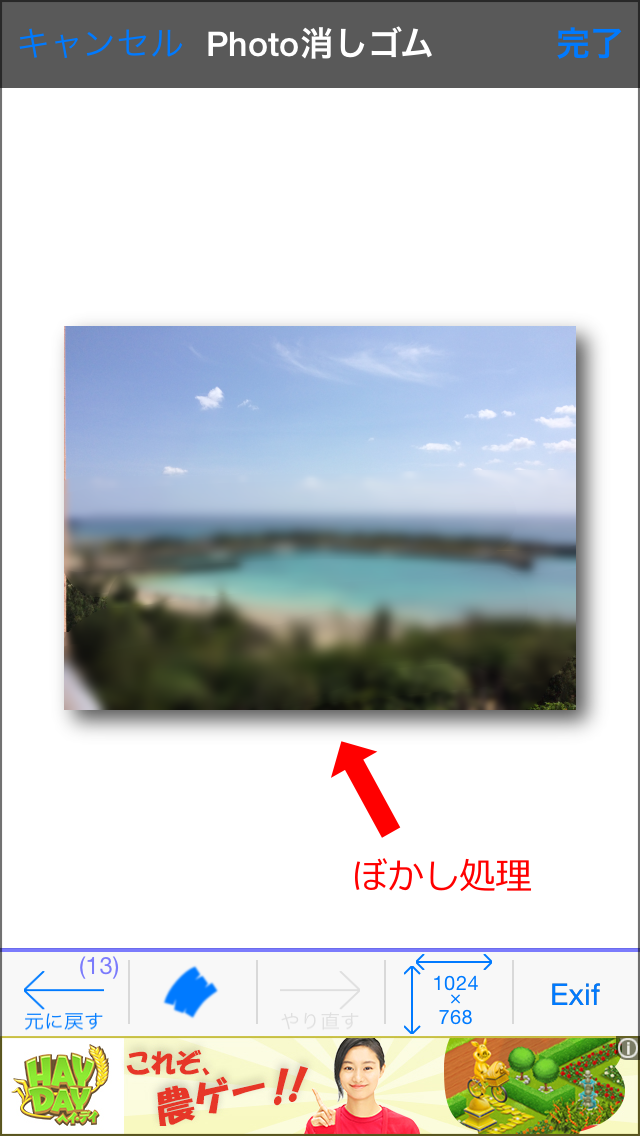
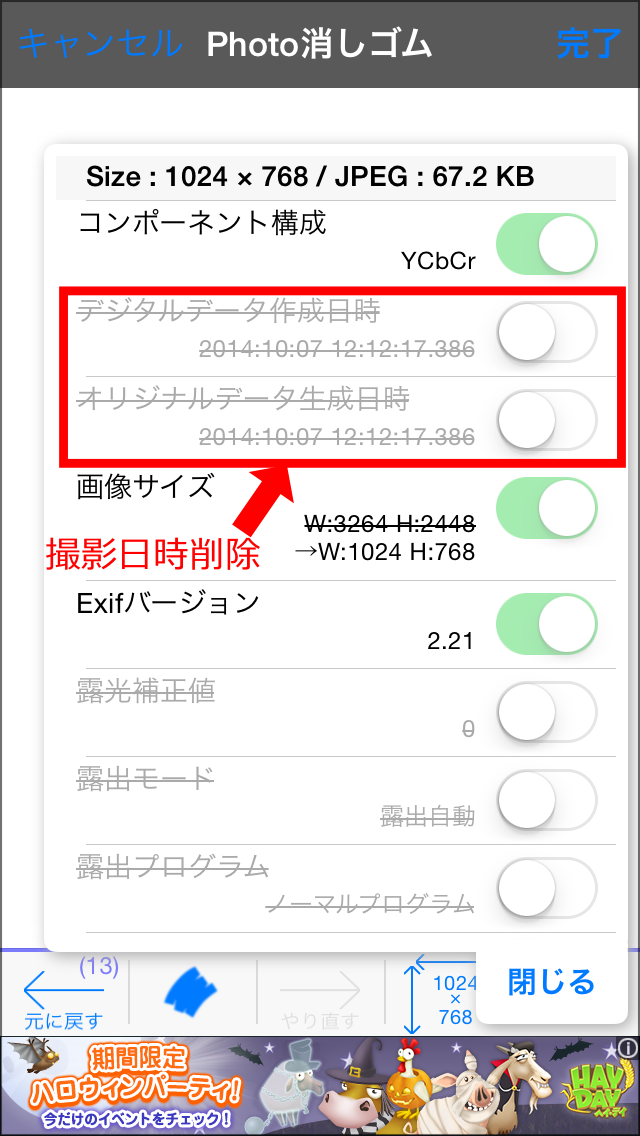
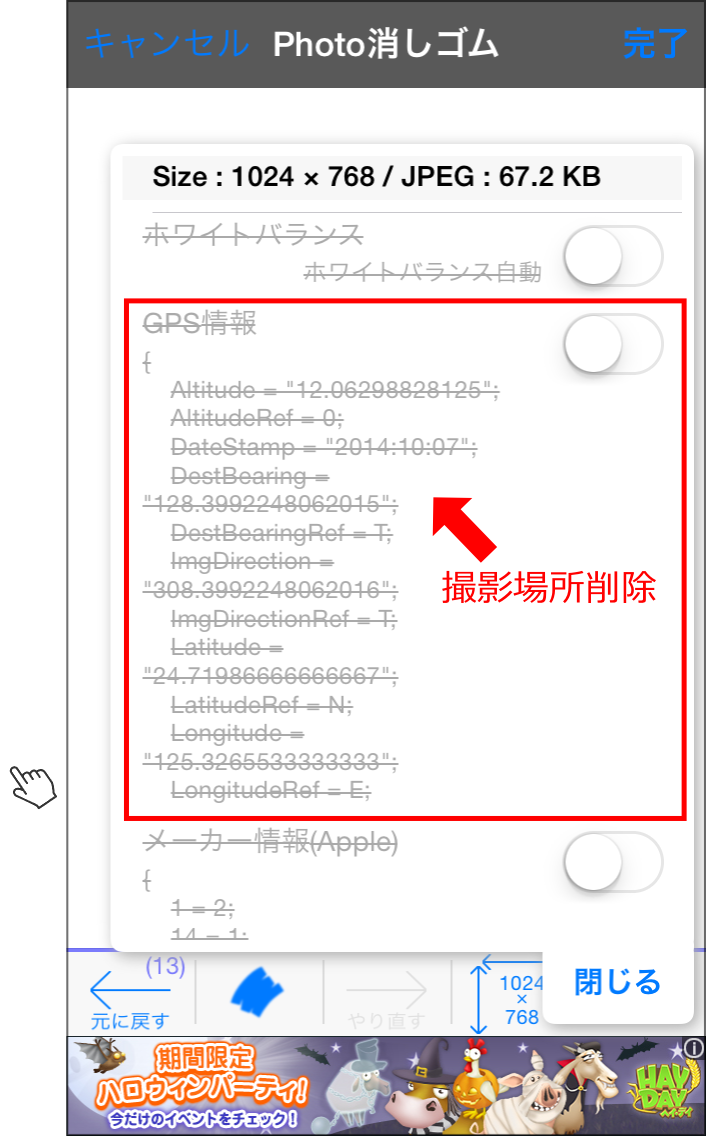
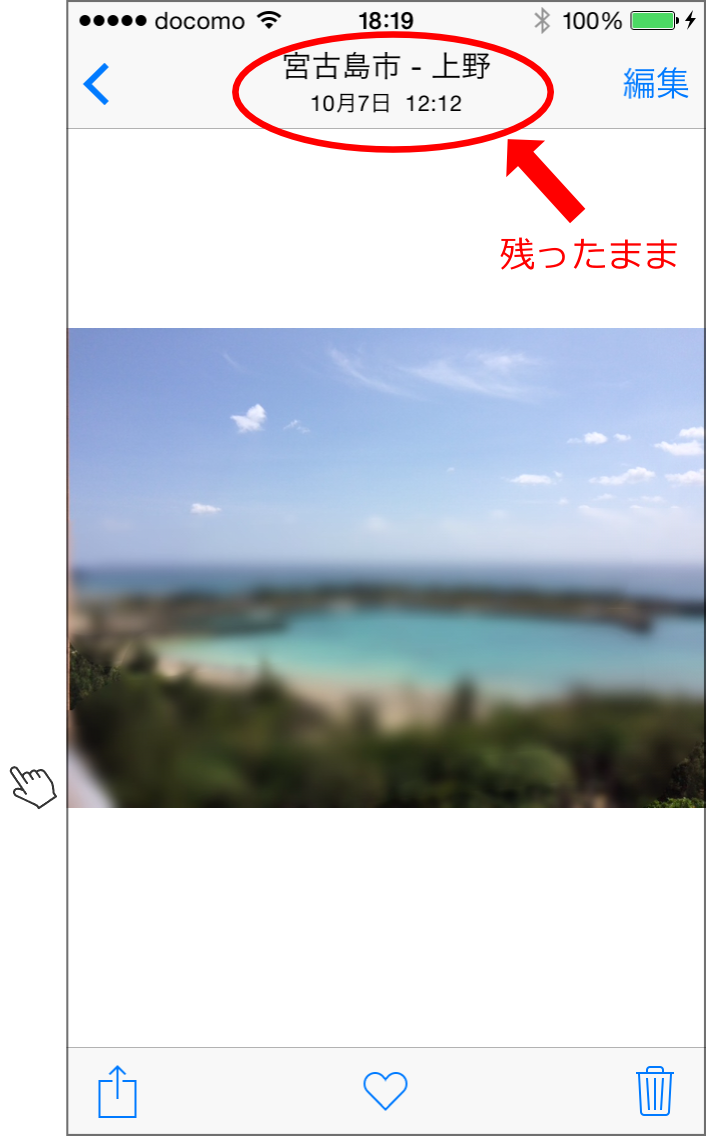
    as below、Call up Photo Eraser from the Photos app、Blur processing and Exif information(Shooting date and GPS information)Even if you delete、When I go back to the photo app, the date and time the photo was taken and the location of the photo are still there.、It looks like it's still there。

    (The original image)
    faq009-1

    (Edit Photo Eraser)
    faq009-2

    (Verify that the date and time delete)
    faq009-3

    (Verify that the location has been removed)
    faq009-4

    (After editing the photos app view)
    faq009-5

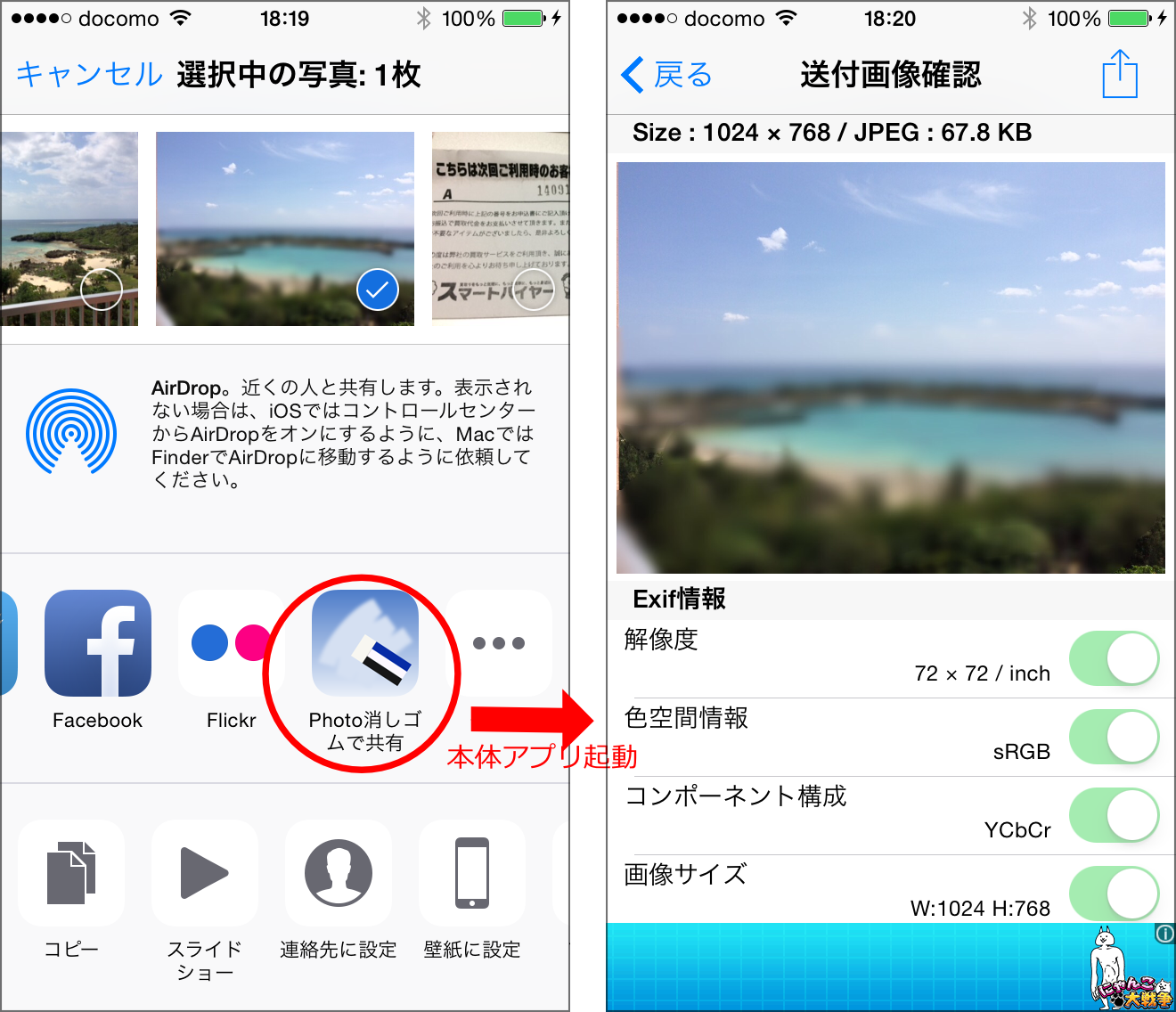
    this is、The photo app's editing function retains the original image information.、Because that information will be displayed。Please be assured that the photo information in the edited photo will be deleted.。If you are worried, "Send to Photo Eraser"Share with Photo-Eraser(button name changes in v2.00)using、Once sent to the Photo Eraser itself,、It is safe to perform a final confirmation of the Exif information and send it to SNS.。As shown below, you can confirm that the photo has been sent with the date and time of the photo and the location erased.。

    faq009-6


  • When trying to send to Photo Eraser from other photo editing apps、Two options were displayed in the destination app list: "Share with Photo Eraser" and "Open with Photo Eraser"。this is、What is the difference??Can I send in??

    This information、Past version(v1.10)It is for。For v2.00, “On the Send button to a Photo EraserI wrote a more detailed article on this, so please refer to it here.。

    Below is、I will keep this as reference information for previous versions.。


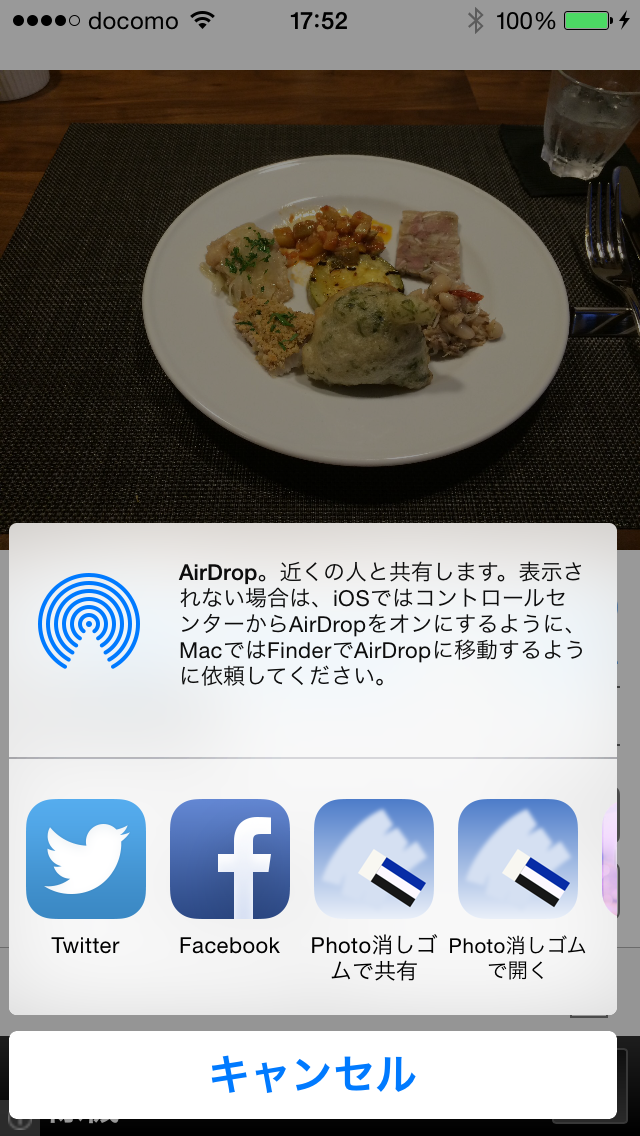
    In the send menu of some photo editing apps、Both "Share with Photo Eraser" and "Open with Photo Eraser" icons may be displayed in the destination application list as shown below.。

    faq008

    this is、As a way for Photo Eraser to receive images、This is because it supports both image opening and sharing methods.。Some apps can only be sent using one of the methods.。For example, the standard iOS photo app only supports the sharing method.、Old general apps created before iOS7 often only support the image opening method.。Apps created after iOS8、It is expected that the number of apps that can send using either method will increase.。2If the type icon is displayed、It's the same no matter which way you send it.。

  • When using Photo Eraser v1.10 on iOS8、When you press the send button, a selection menu will now appear with the options ``Send to an app that supports the share function'' and ``Send to an app that supports image opening.''。how is this different? Which to chose the is??

    This information earlier.(Version1.10)against、Not valid in current latest version。I will keep this as past reference information.。


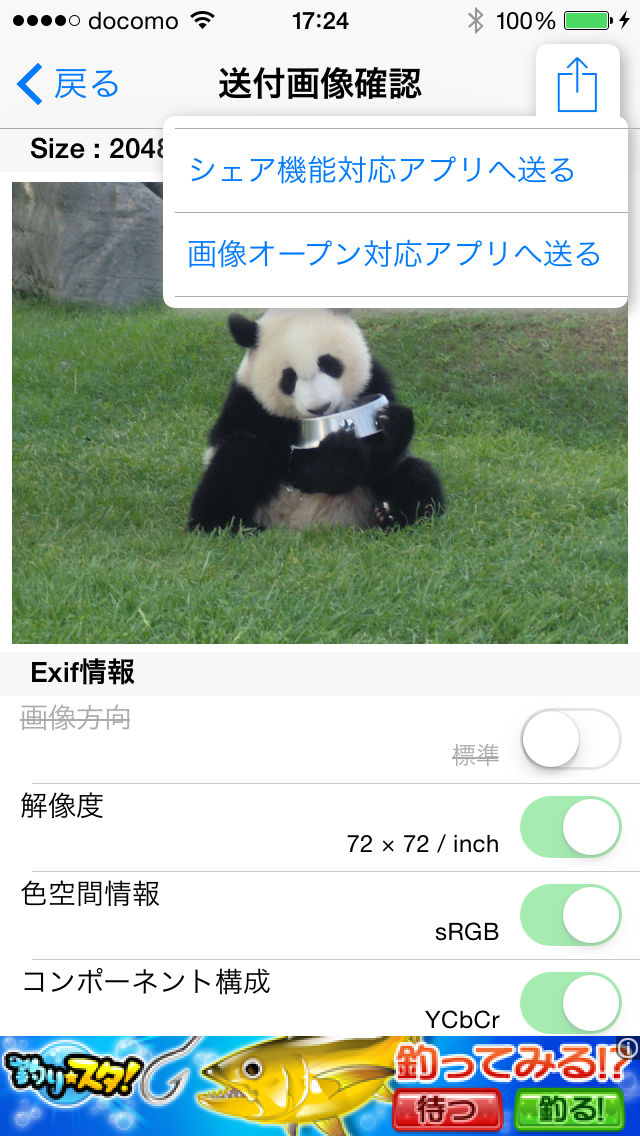
    When using Photo Eraser v1.10 on iOS8、When you press the send button、A pop-up menu will appear as shown below.、You will have to select the destination from a list of two types of apps with slightly different icon arrangements.。

    (Pop-up menu)
    faq007-1

    If you choose send to share functionality enabled apps
    faq007-2

    If you choose send to image open for applications
    faq007-3

    To send to Twitter、The icon will only be displayed for "Send to app compatible with share function".、Please select here。For other general apps, the icon will often be displayed under "Send to image open compatible app".。In the current version of LINE, there is an icon only for this person.。"Send by email"、「Facebook」、"Save image" etc.、If both have icons, you can choose either one.。

    [Commentary]
    So far(until v1.00)was sending image data to other apps using the "send to image open compatible app" method.。Twitter and FaceBook are not apps that support image opening.、This is an app that is specially supported by the iOS system.、If you display the list of apps using the ``Send to image open compatible app'' method, an icon will be displayed in the list of apps that support image open, just like ``Messages'' and ``Mail.''。others、Apps that have the function of receiving images、Most of them support image opening.、Until now, it was sufficient to implement only this method.。
    However,、For unknown reasons, the Twitter app icon no longer appears in the list of apps that can be sent using this method since iOS8.(Not just a photo eraser、Similar problems occurred with other apps using the same method after iOS8.)。
    As a countermeasure to this problem、Because Twitter supports the share function、 In v1.10, a "Send to share compatible app" menu has been added.、The icon for sending to Twitter is now displayed when displaying the list of apps that support sharing.。
    Share support、So far(up to iOS7)Twitter, Facebook, etc.、This could only be done with a special app that is standardly supported by the OS.、"Share expansion" in iOS8(Share Extension)” function has been added.、General apps can now also share。It is expected that the number of apps that only support sharing will increase in the future.。For this reason、Photo Eraser allows you to send apps that support either.。Apps that support both、You can choose whichever you can send it to.。
    By the way, the Photo Eraser itself、As a function to receive images、In addition to the conventional image open support, v1.10 adds share support.、I am open to receiving either。For more details、Click herePlease take a look at。

  • [Photo editing extension] Out of memory error often occurs when using Photo Eraser called from the Photos app.。Is there any countermeasure??

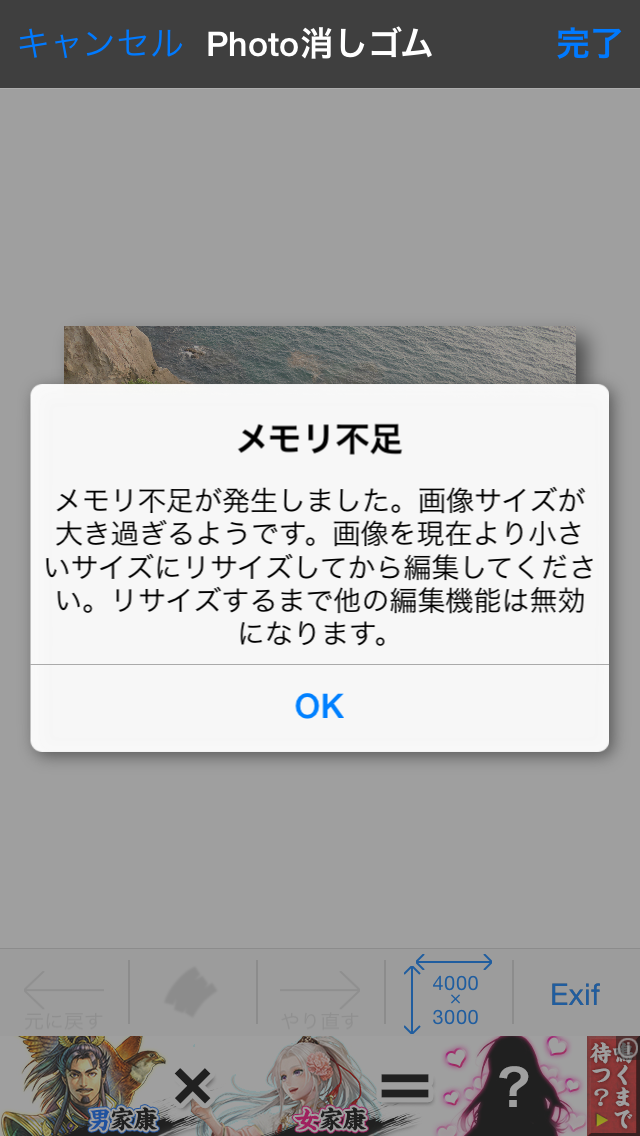
    When loading a large image with Photo Eraser called from the Photos app、You may see an out-of-memory screen like the one below.。Also、Before this screen is displayed, the Photo Eraser itself may stop at a black screen.。This is also caused by insufficient memory。

    faq006

    (Why the memory shortage)
    Compared to when the Photo eraser works within the app itself.、When called from the photo app and works、The Photo Eraser function works while the Photo app is running at the same time.、The amount of memory available for Photo Eraser is very low.。

    (Measures)
    The smaller the size of the image to be edited, the less memory is used.、Messages like this will be less likely to appear。When loading and editing images using the main app、Because sufficient memory is available、Editing larger images is less likely to run out of memory。The conditions for the occurrence of memory shortage are also related to the memory usage status of other applications.、Although it is not possible to give an exact value、As a guideline, if you resize and edit to the following size or less, you will rarely run out of memory.。

    • In a call from the photo app to edit → up to 1280 pixels
    • To edit the loaded images in a console app if → up to 3264 pixels

    v1.10 adds an "automatic resizing function"、If you specify the size in advance, the size will be automatically converted when an image larger than the specified size is loaded.。Take advantage of this feature、We recommend resizing the post to a size that suits the destination before editing.。

    (About the future)
    Enhanced photo editing(Photo Editing Extension)If it works with、Apple has also explained to developers that the memory available for the extension will be reduced because it will be used simultaneously with the photo app.、At present, there is still too little memory available.(It's not really that you don't have enough memory.、Something is wrong with how memory is used, and the memory that can be allocated to the extension is not properly allocated.)There are passages that seem to be。After organizing this matter a little more information,、I would like to separately submit a bug report to Apple.。If there is any progress、Report it on this support site。

  • I can't find the settings menu in the Photo Eraser called up from the Photos app.。How can I change the brush size and blur strength??

    This information earlier.(Version1.10)against、Not valid in current latest version。I will keep this as past reference information.。


    Photo eraser called from the photo app、The settings of the main app will be inherited.、Please start the main application and change the settings.。In addition、Reflection of setting changes、This will happen the next time you start editing with Photo Eraser。If you want to change settings while editing、We apologize for the inconvenience, but please return to the Photos app and try editing again.。

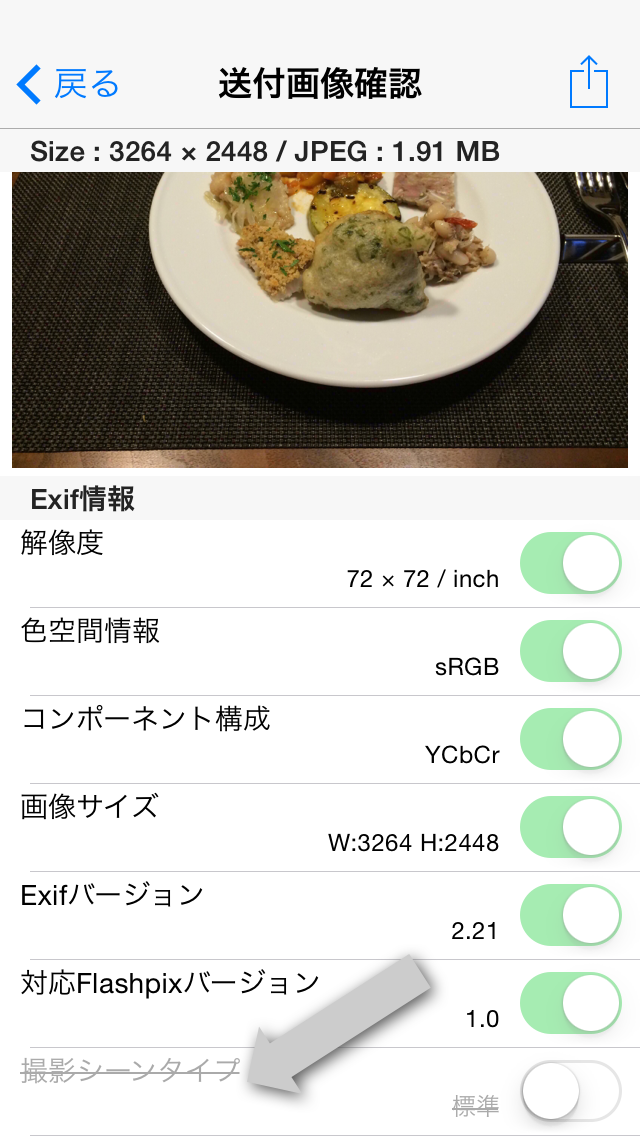
  • [Exif confirmation] Some photo information may be saved with different values ​​from the original.。Why not just keep the original value intact??

    update

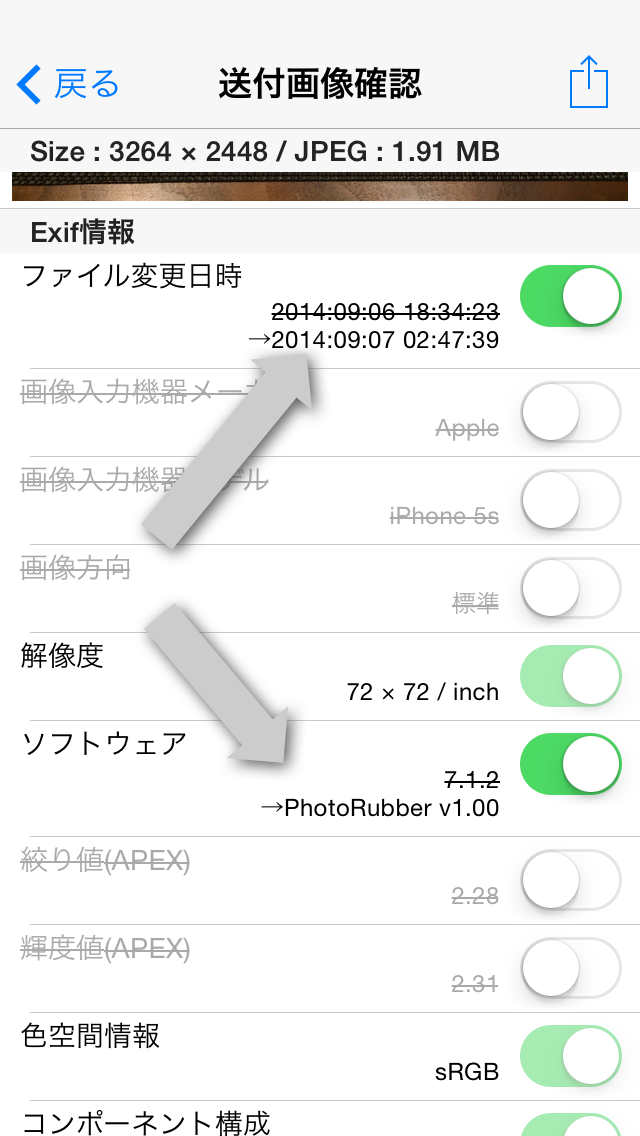
    As indicated by the arrow in the photo above、Some items in the photo information have their original values ​​crossed out.、Some have new values ​​set。These items are、When you turn on the switch and send、Update to new values ​​and submit the image(Of course, if the switch is OFF, the item will be deleted.。)。

    The following six types of information、This is an item that will be updated to a new value.。

    • File change date and time
      → Change the current file sending date and time。
    • Software
      → see Photo Rubber (The version number)”。
    • Image orientation
      →If the image direction is other than "Standard"、Change to "Standard"。
    • Image size
    • Subject area
    • Subject position
      →The above three items are、change the image direction、When changing the image size by cropping or resizing、change in conjunction。

    These information、Exif specification(For digital still camera image file format standard)in、This is an item that is recommended to be updated and recorded when the app saves an image.。Photo eraser、respect this standard、Updating and saving values。

    actually、Some image processing apps、The "Image direction" item is not recognized correctly.、Some images may be displayed in the wrong direction.。If you want to use an app like this but are having trouble displaying images correctly.、If you pass the photo eraser、Image orientation is updated to "Standard"、The image will now be displayed in the correct orientation。In addition、The "Image direction" item is a deletable item.、If this item does not exist, it is assumed that "Standard" is set.。therefore、There is no problem even if you erase the "Image direction" item with the Photo eraser.。Photo eraser、Delete "Image direction" item(Or update to the 'standard')instead of doing、Rotate and save the image image to its original correct orientation。In conjunction with this, the image size and coordinates of the subject area are also properly corrected.。

  • [Exif confirmation] Delete all photo information that can be deleted.、Even though I saved it to the photo library, the information "shooting scene type" does not seem to be deleted.、why??

    scene

    Delete all photo information that can be deleted.、After saving to photo library、When you reload with Photo Eraser and check the photo information、As shown by the arrow in the photo above, it appears that the information "shooting scene type" remains without being deleted.。

    this is、Photo eraser is not because you forgot to delete it、When saving deleted photos、This is because the photo library automatically adds and saves the "shooting scene type" information.。Instead of saving to your photo library、When sending to email or other apps、We have confirmed that the "shooting scene type" information has been deleted and received.。Please use with confidence。

    Depending on the image、There are images where essential information such as "Exif version" and "component configuration" does not originally exist.、The Photo eraser will remain in a state where there are no required items.、Once you check what you have saved in your photo library,、The item may have been added after all.。This too、This is because the photo library is automatically adding the item。like this、Depending on the app、There are some items that can be added without permission.。Even in that case、If you can send photos directly to Photo Eraser using the app's sending function、With Photo Eraser, you can clearly see the storage status of photo information.。Please take advantage of it。

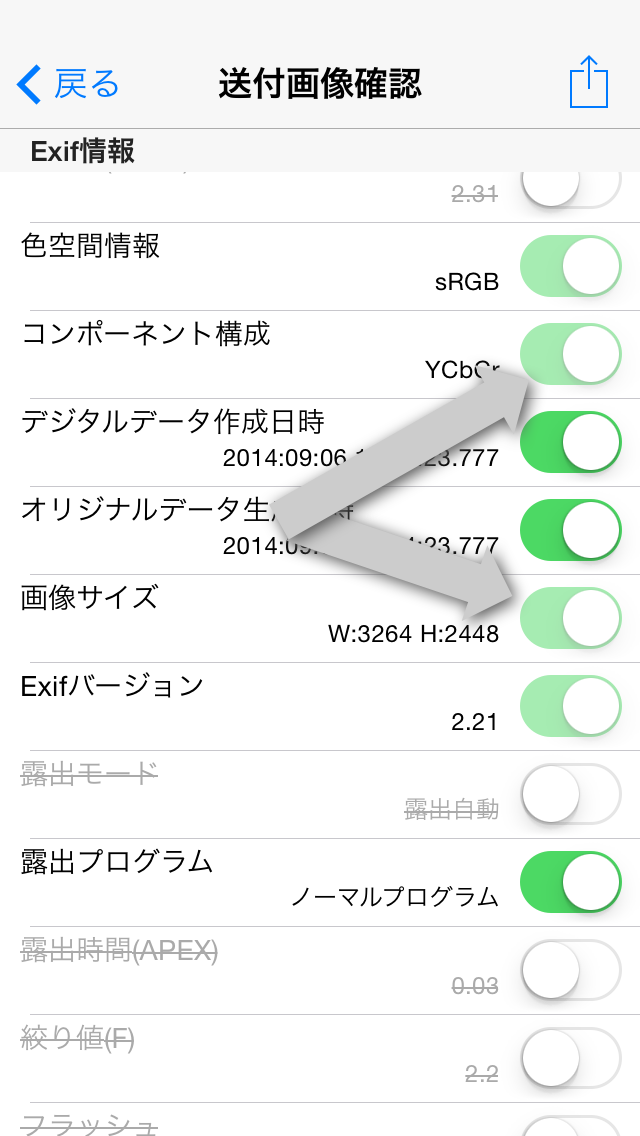
  • [Exif confirmation] Some switches are displayed dimly in the photo information and cannot be turned off.。can't this be deleted?

    disable

    As indicated by the arrow in the photo above、Photo information(EXIF information)There are items in the list that have dimmed switches.。This item cannot be deleted、Can't turn it off。

    The following six types of information cannot be deleted.。

    • RES
    • Color space information
    • Component configuration
    • Image size
    • EXIF version
    • Flashpix version

    • Resolution
    • A color space information
    • Meaning of each component
    • EXIF version
    • Supported Flashpix version


    These information、Exif specification(For digital camera image file format standard)Because it is specified as "required" in、Photo eraser will try to keep it instead of deleting it。

    In addition、Some images may be inherently missing some of these essential information。Photo eraser if required information does not exist、No particular information added、remain non-existent。but、After saving to photo library、If you open the photo again, the required information may have been added.。this is、Not given by Photo Eraser、This is because the photo library automatically fills in the required information.。For more detailsClick herePlease take a look at。

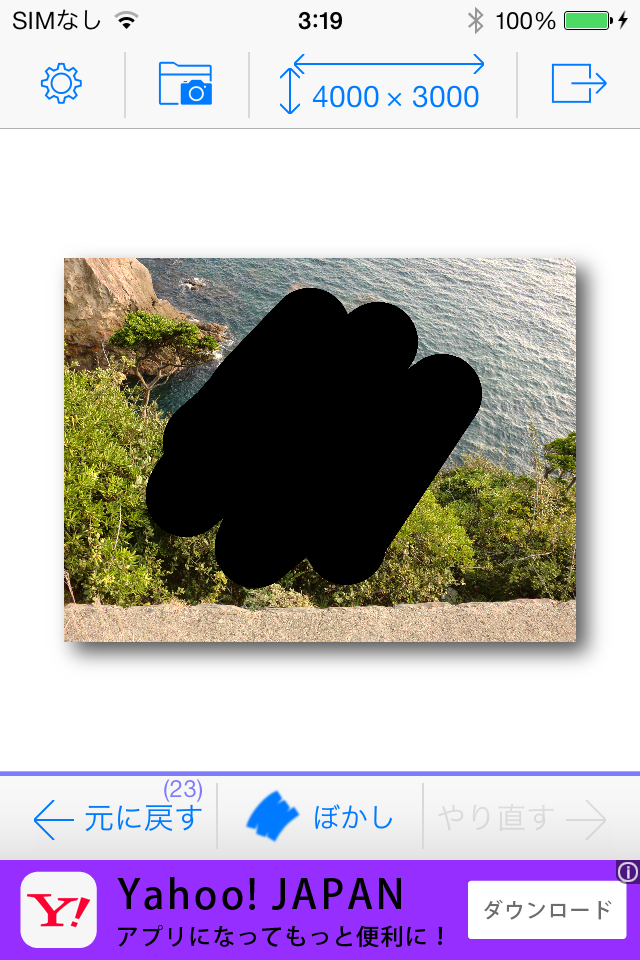
  • [Blur function] When blurring a large image、Why does it sometimes suddenly turn black??

    Screenshot 2014.09.07 03.19.02

    like the picture above、4000×3000When trying to blur an image with large pixels、The traces traced with your finger do not become blurred、We have confirmed the phenomenon of being painted black.。
    It is assumed that the blurring processing library is malfunctioning due to image processing overload.、We are currently unable to determine the exact cause.、No effective measures have been taken on the app side.。
    actual、In large images where this phenomenon occurs,、The response of the blurring process itself is very poor.、This will be edited in a very stressful situation.。
    We apologize for the inconvenience, but、If such a phenomenon occurs,、Please resize and edit it to the size appropriate for the destination in advance.。
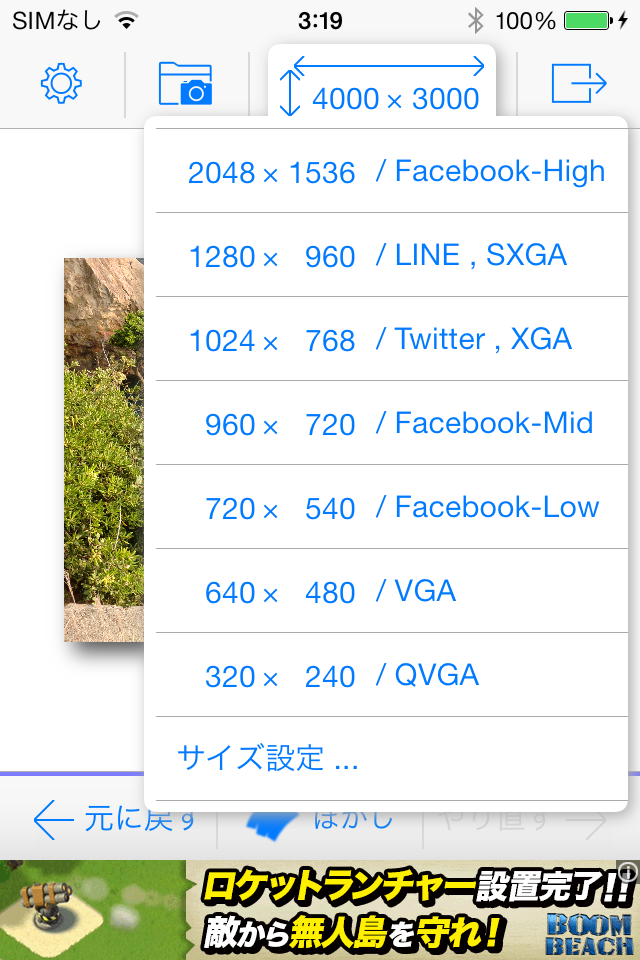
    Tap the size display area at the top of the menu、A menu like the one below will appear.、If you choose a smaller size、You can edit smoothly from now on.。Redo the resizing process(Undo)Because you can、How small will the image quality and operability be?、You can try various things。


    Screenshot 2014.09.07 03.19.24

    In addition、If this black-painting phenomenon occurs,、You need to restart the app once。To restart the app、Double-click the home button to launch the multitasking screen、Delete Photo Eraser(App screens on flick)After that、Tap the Photo eraser icon from the home screen。

    Now、This phenomenon has been confirmed by、iPad2,iPhone4s,It's iPhone5。It is thought that a similar phenomenon will probably occur with the iPhone 5c and models released before the iPhone 5.。iPhone5s,iPad Air、Because of its high processing capacity、4000×3000This phenomenon is not observed even in pixels.。Also、3264 which is the camera shooting size of iPhone5s×2448within pixels、This phenomenon has not been observed on any model.。Please be careful when transferring large pixel-sized images taken with a digital camera to your iPhone for editing.。