Category: Screen description

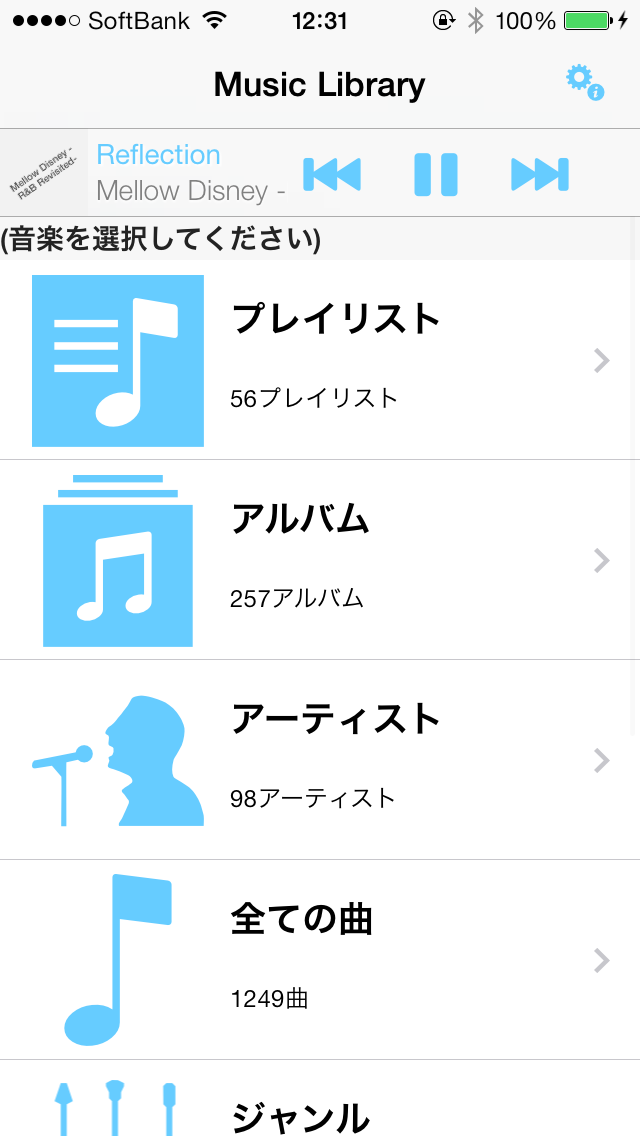
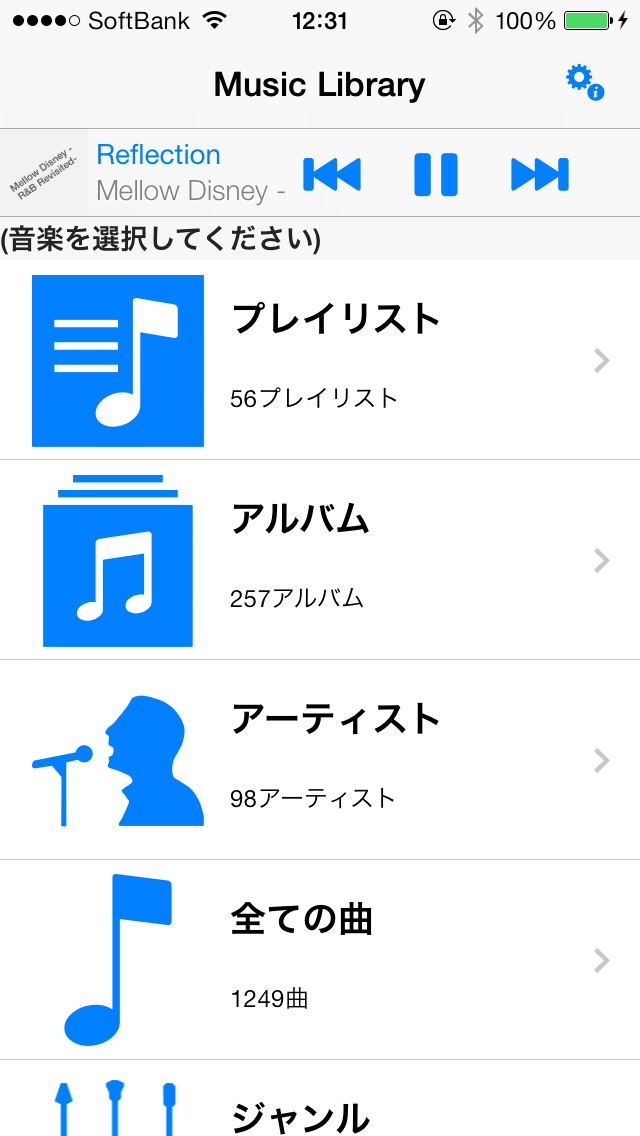
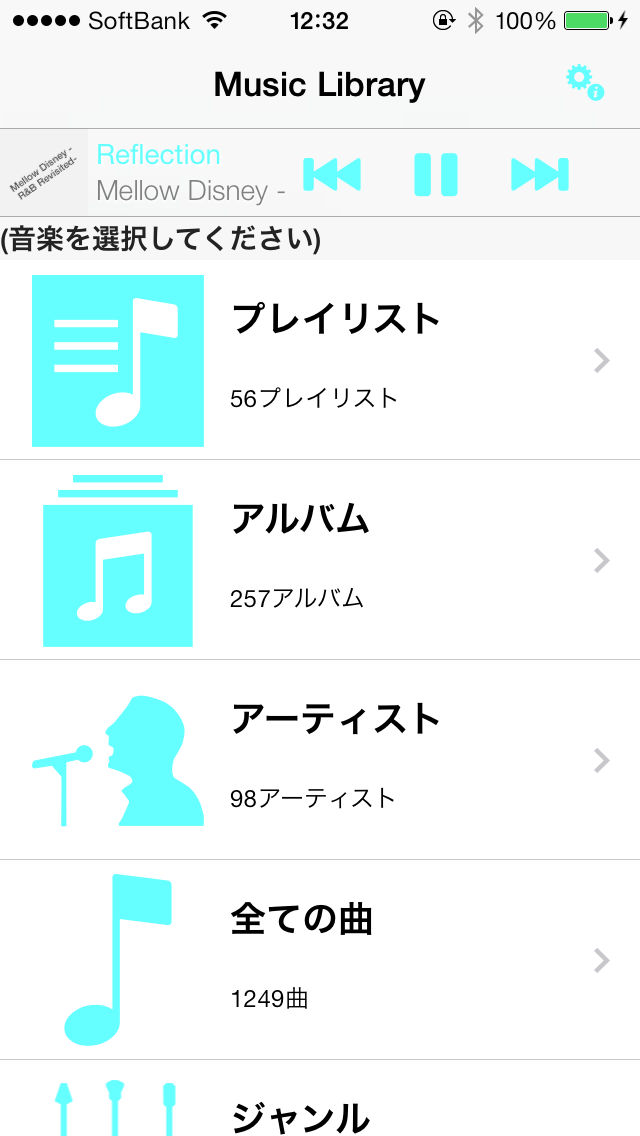
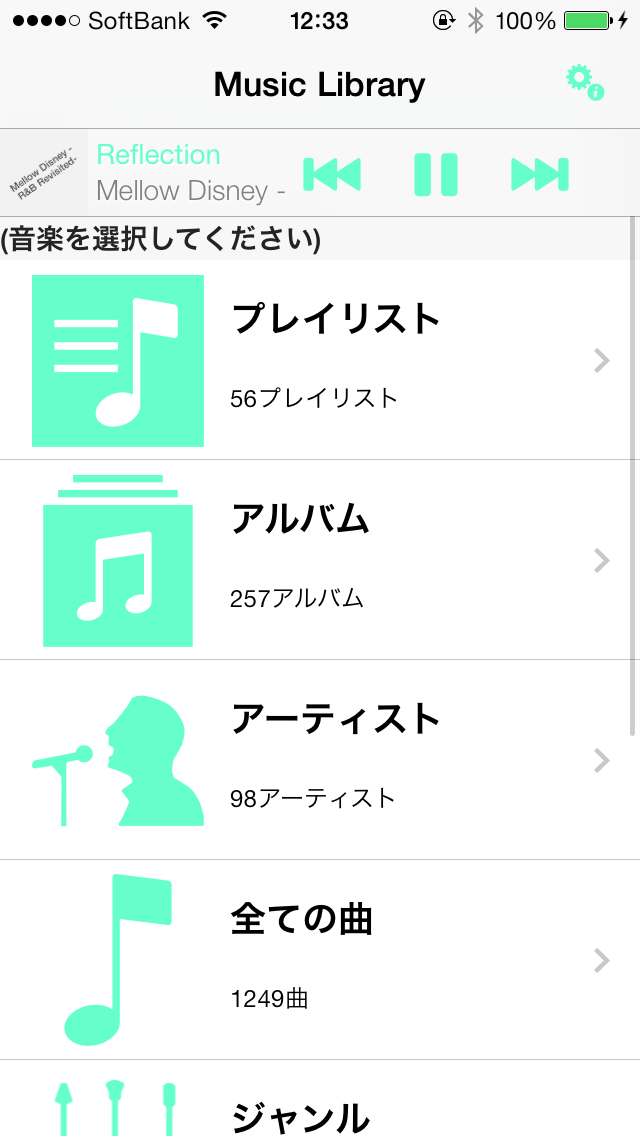
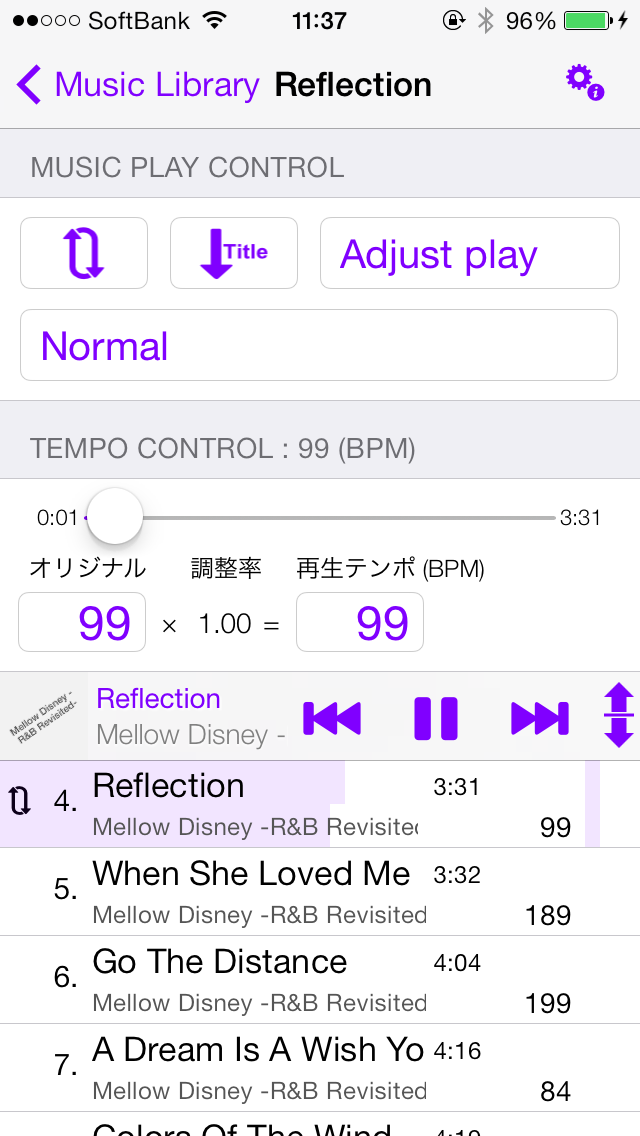
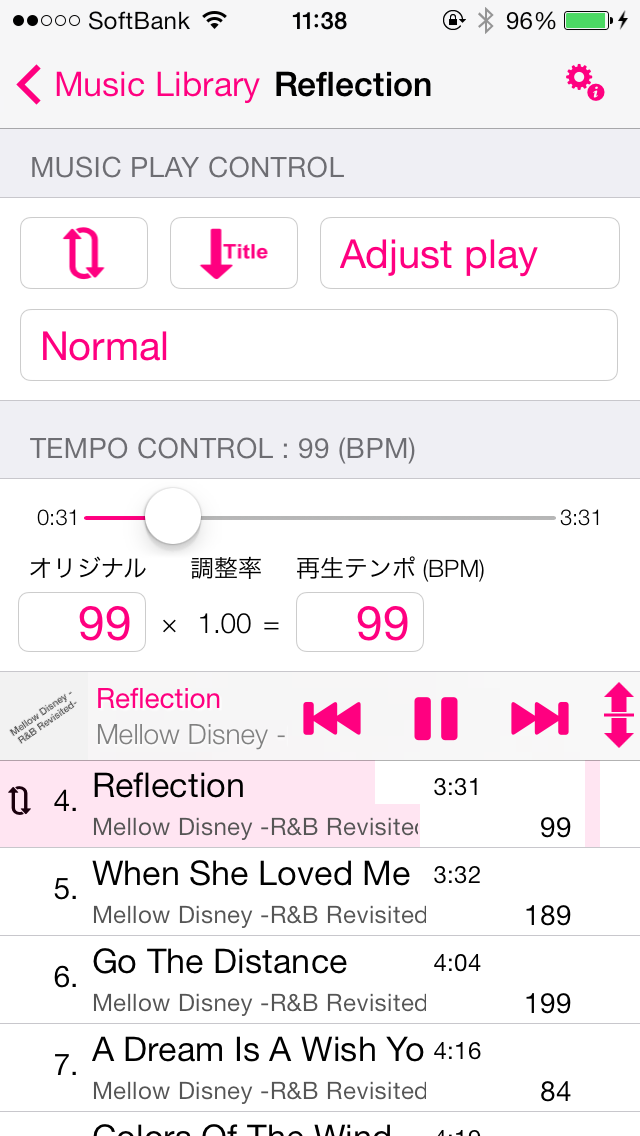
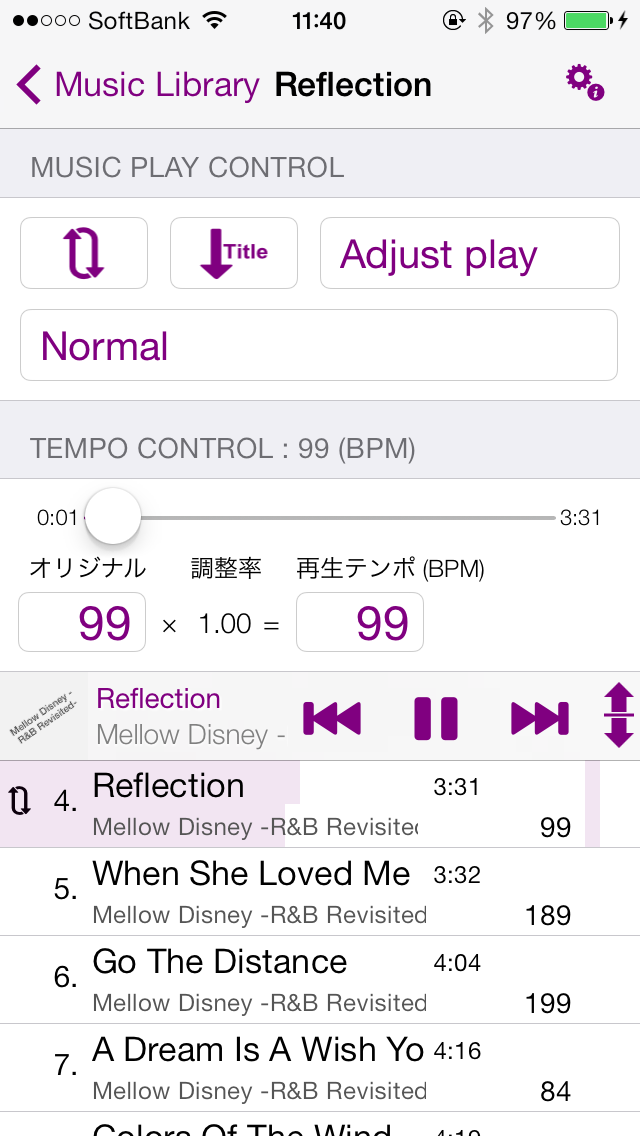
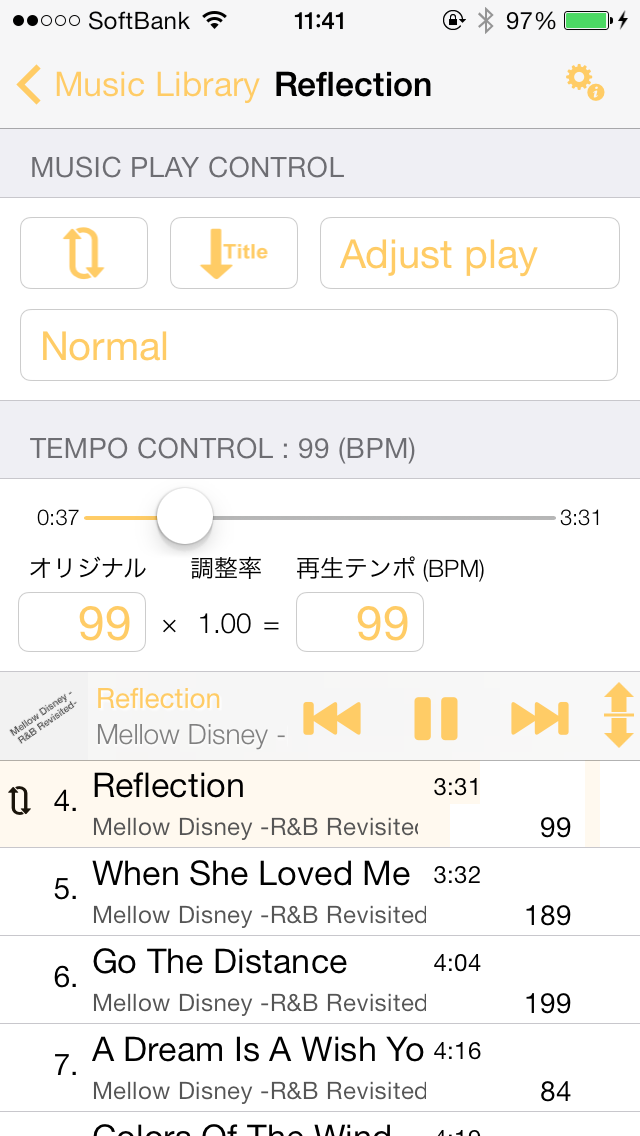
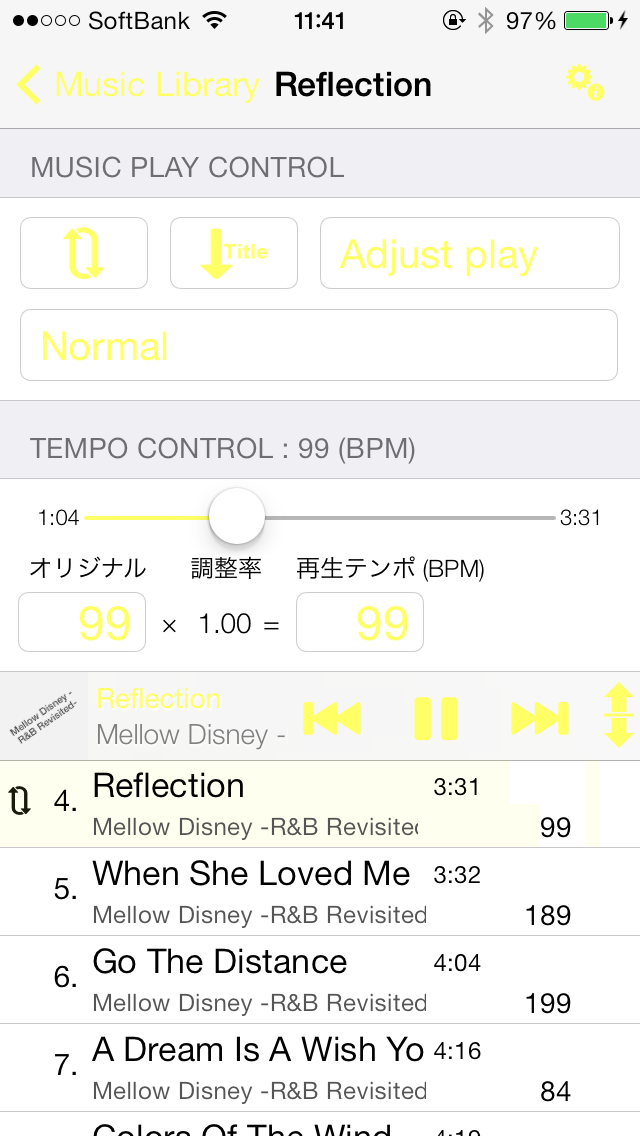
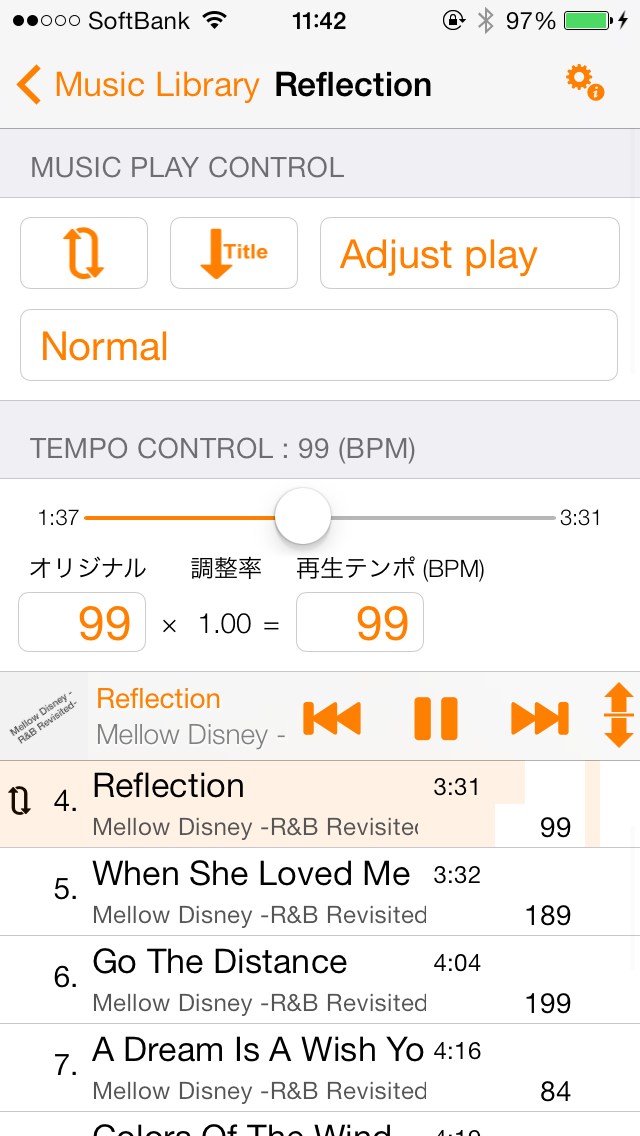
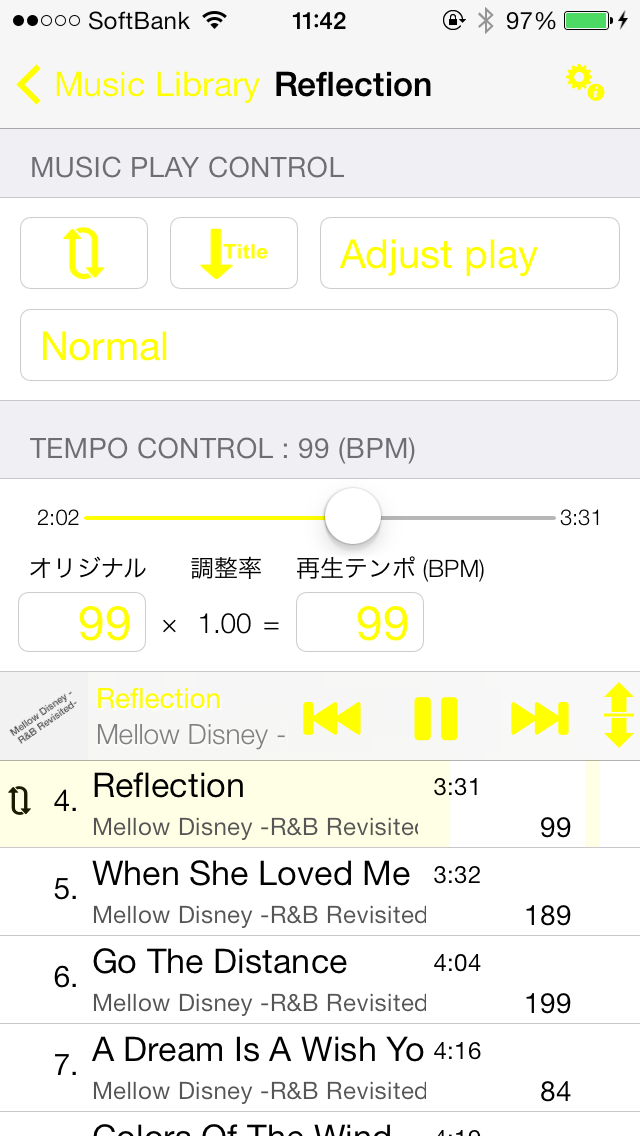
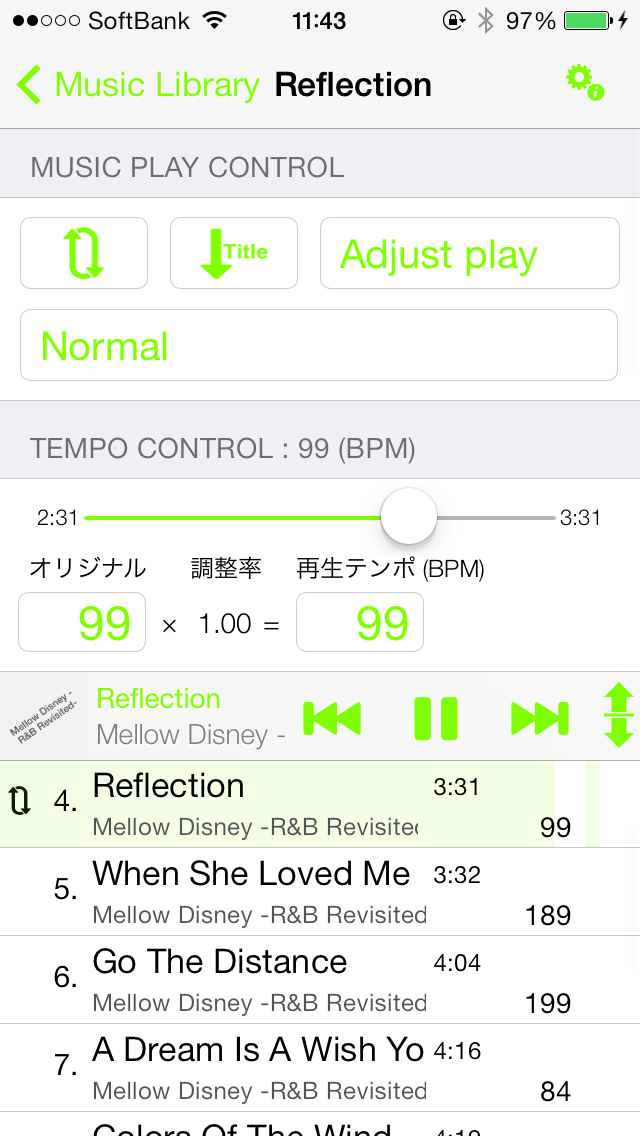
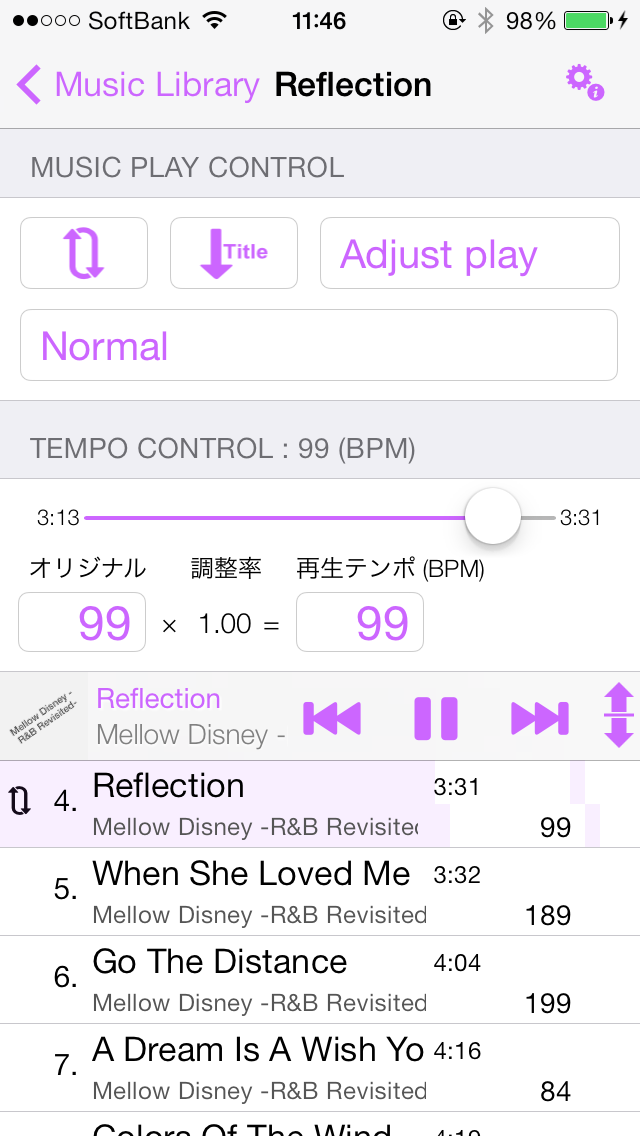
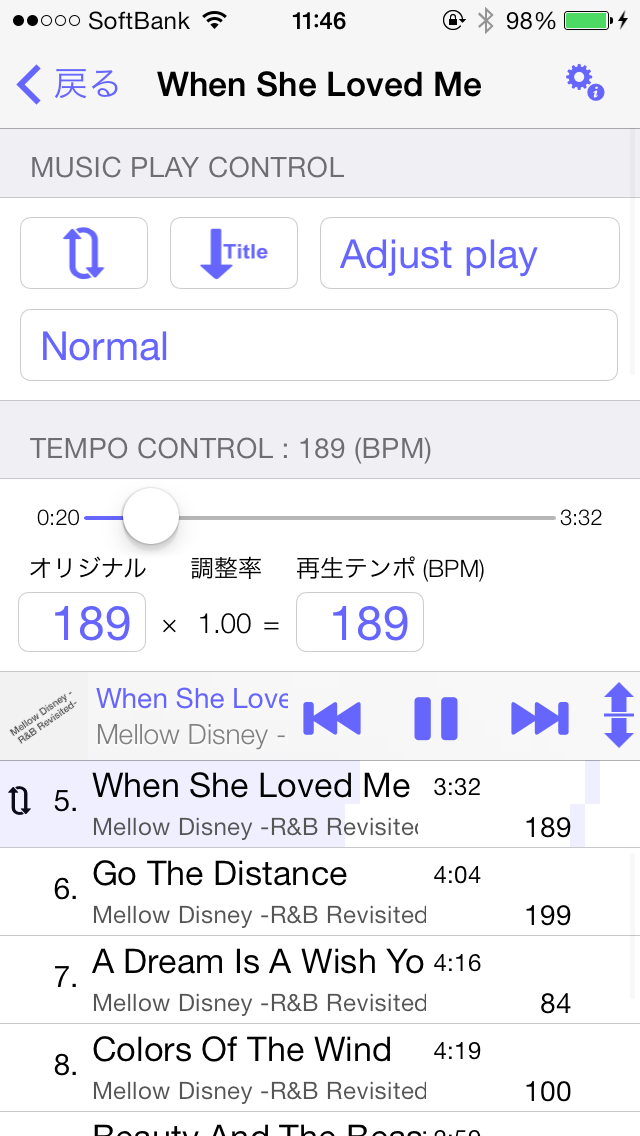
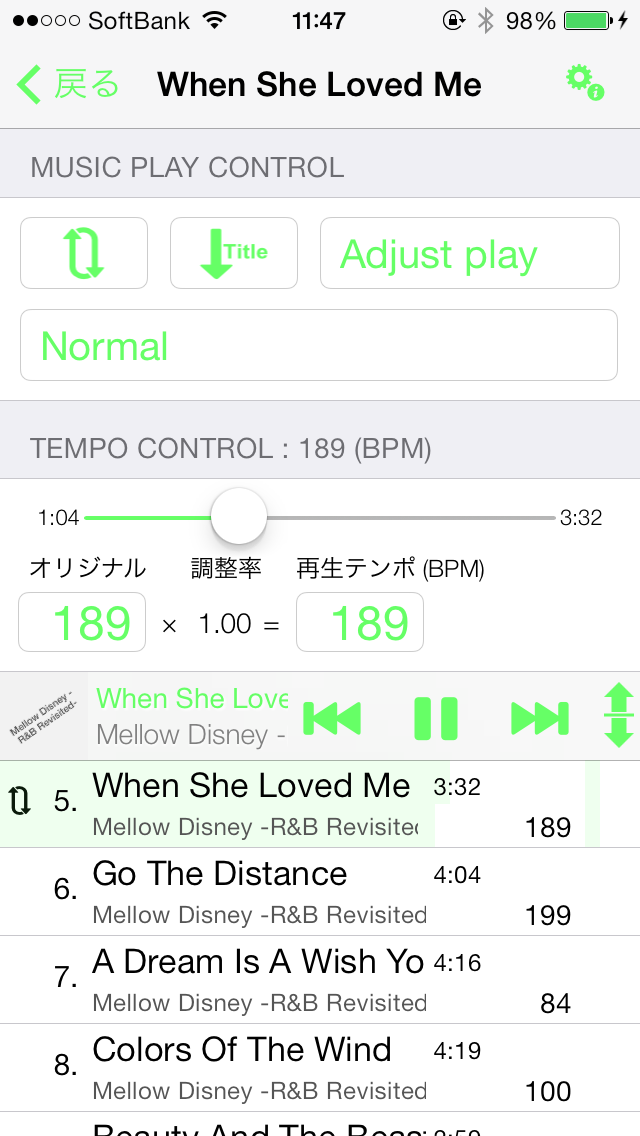
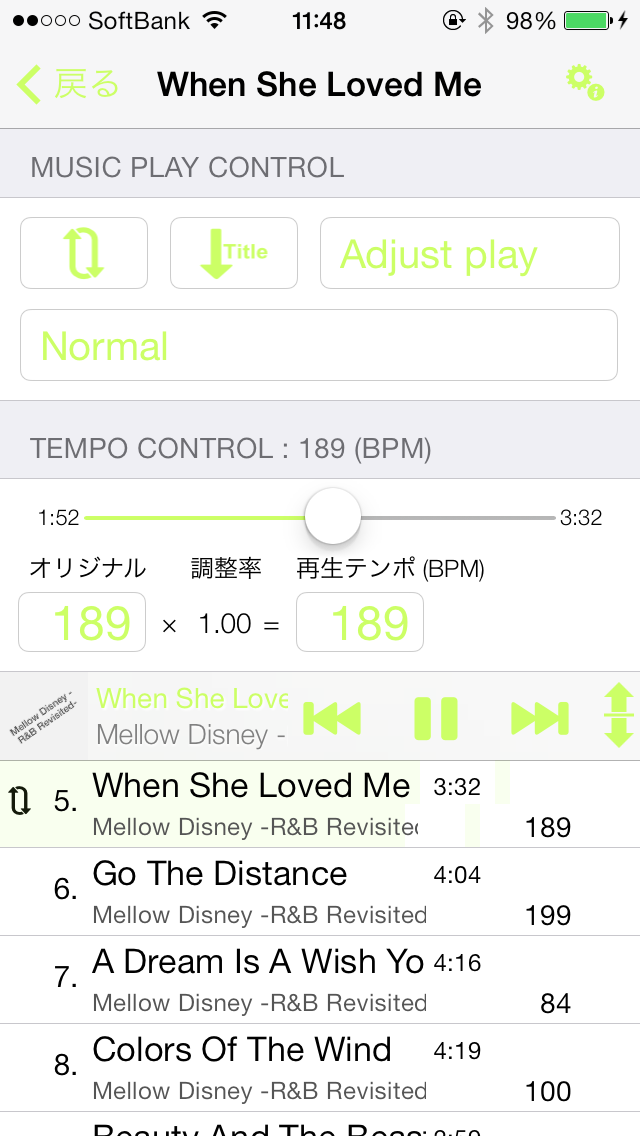
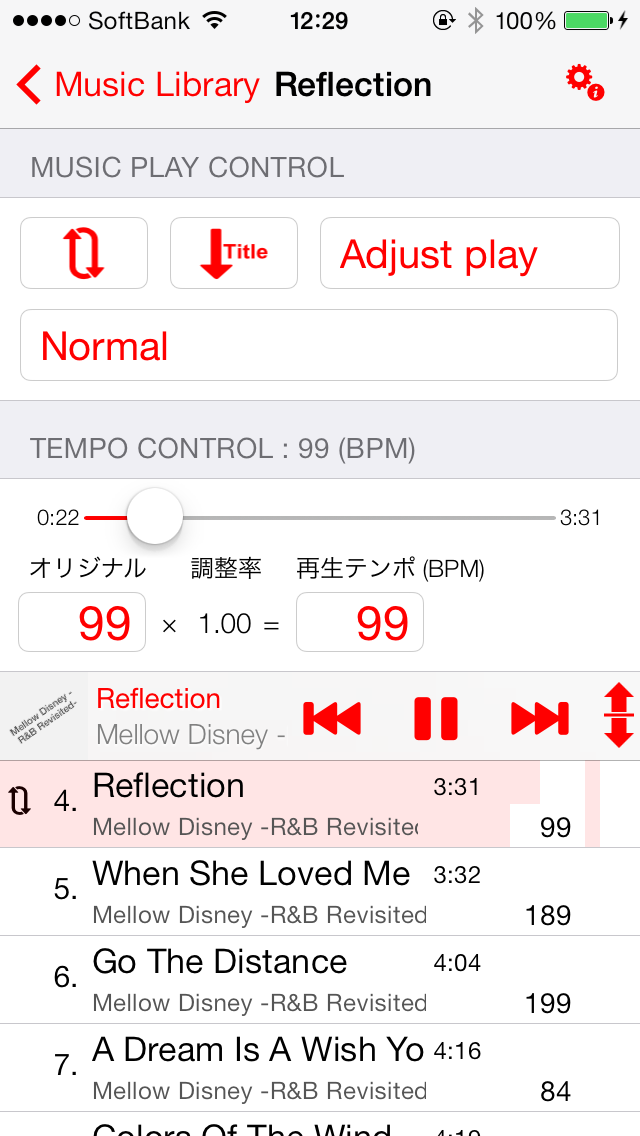
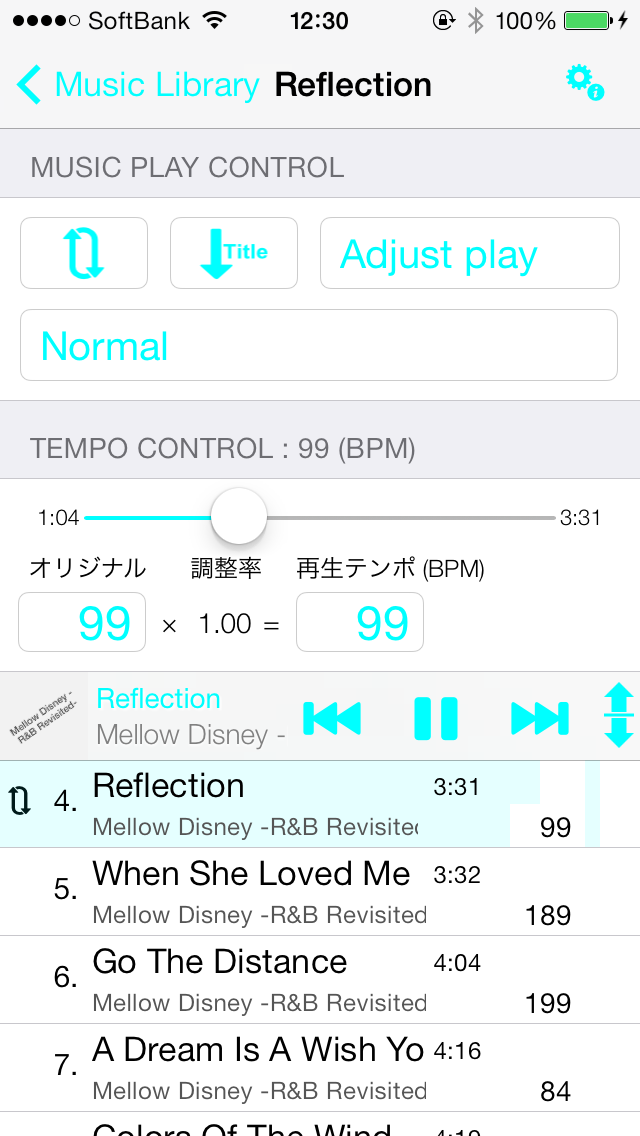
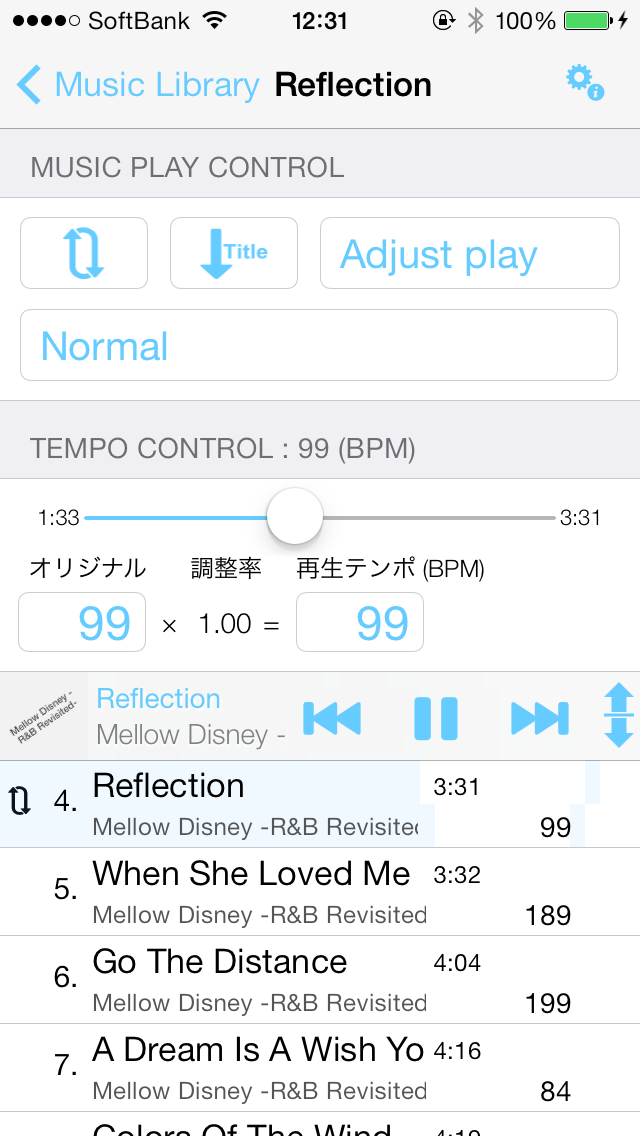
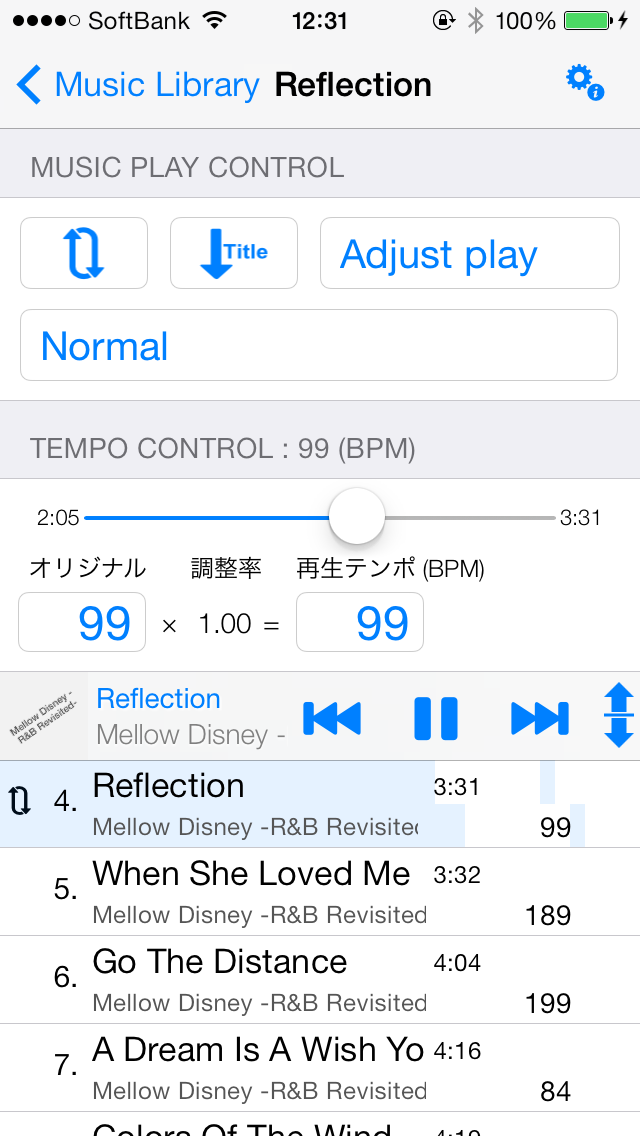
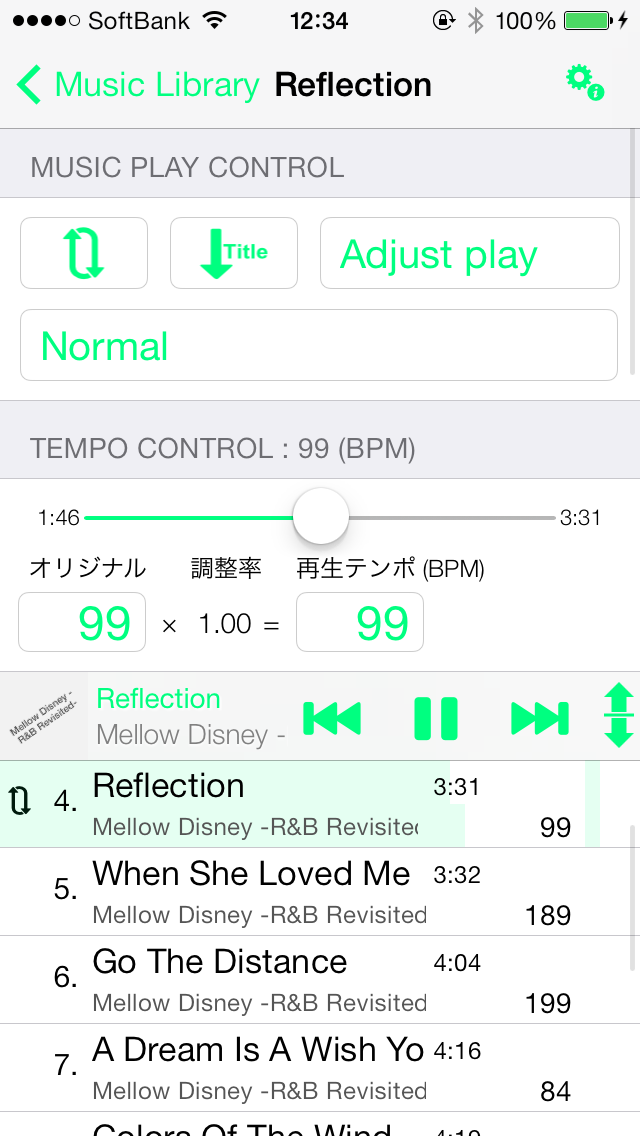
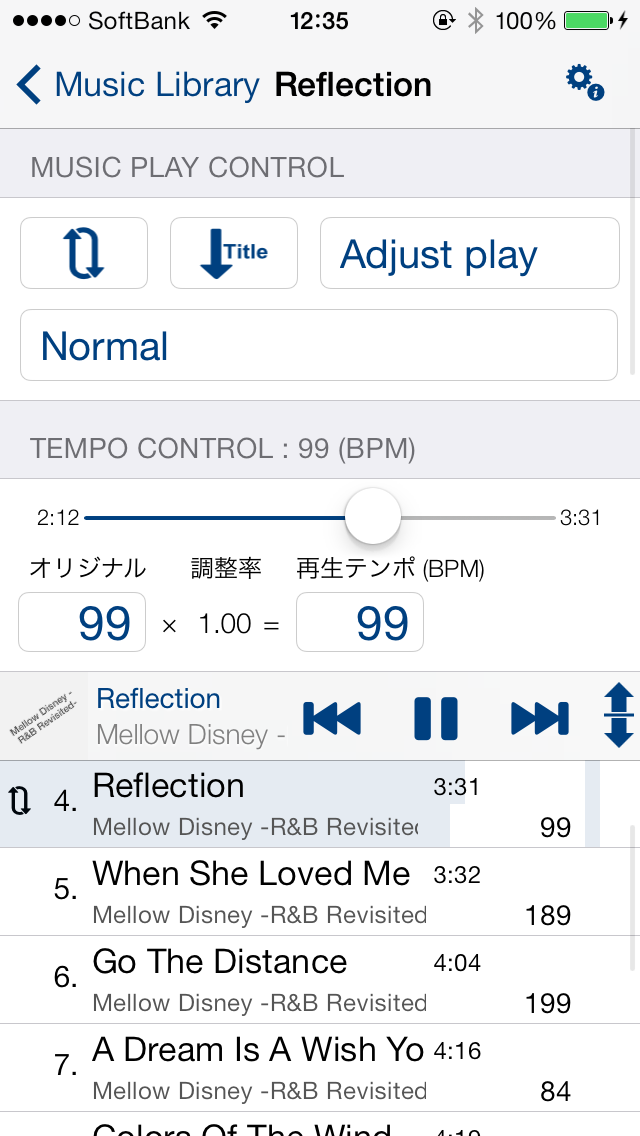
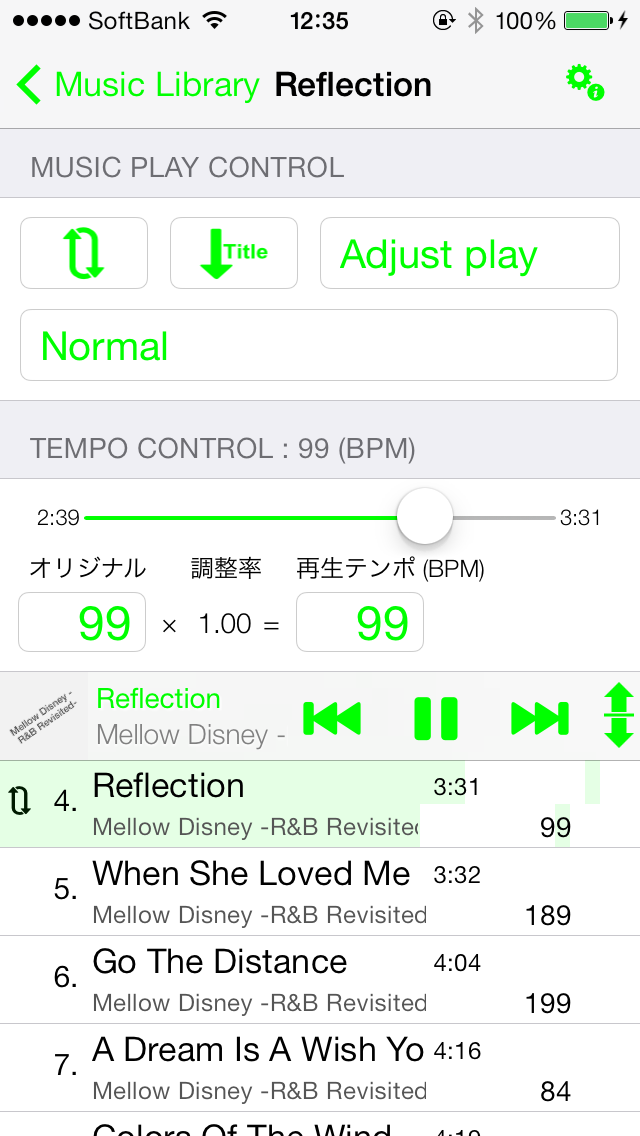
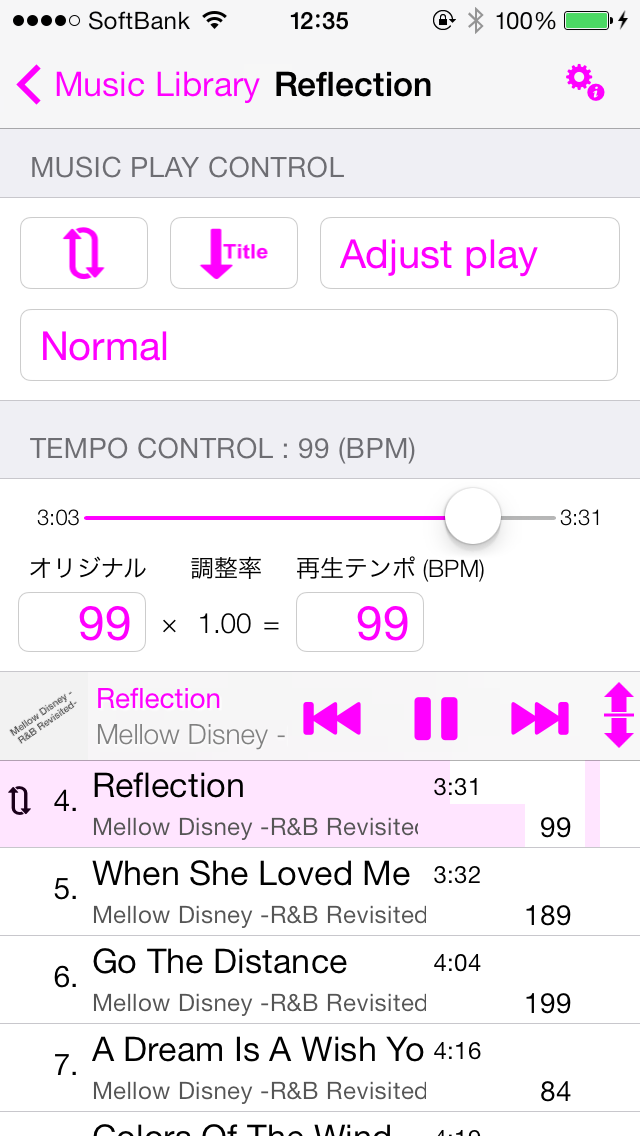
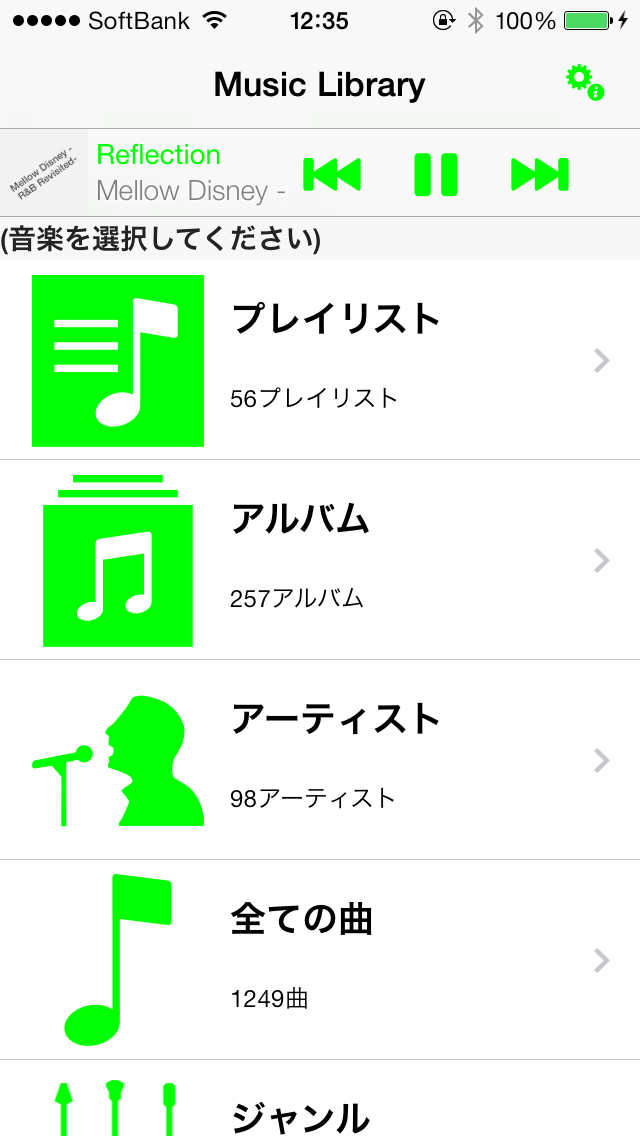
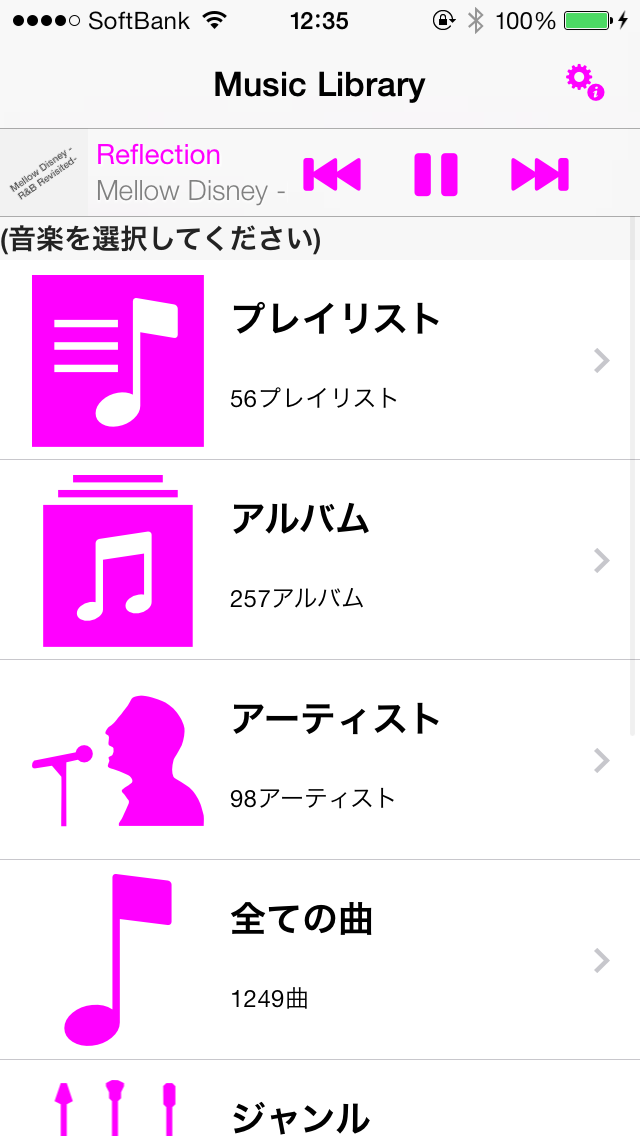
  • Walking Player screen color samples

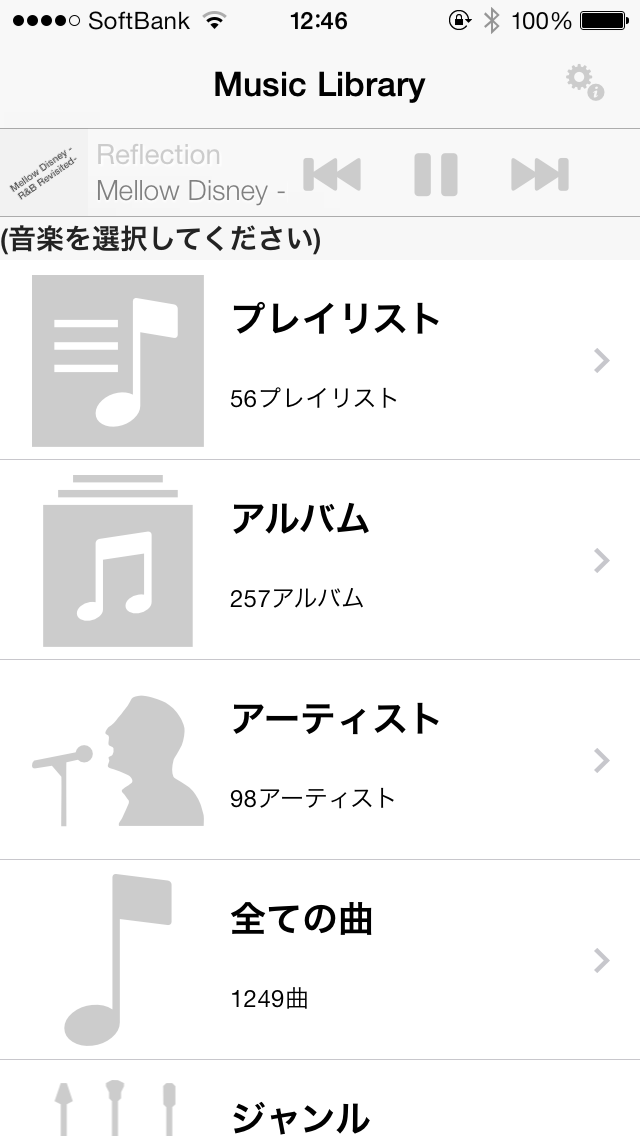
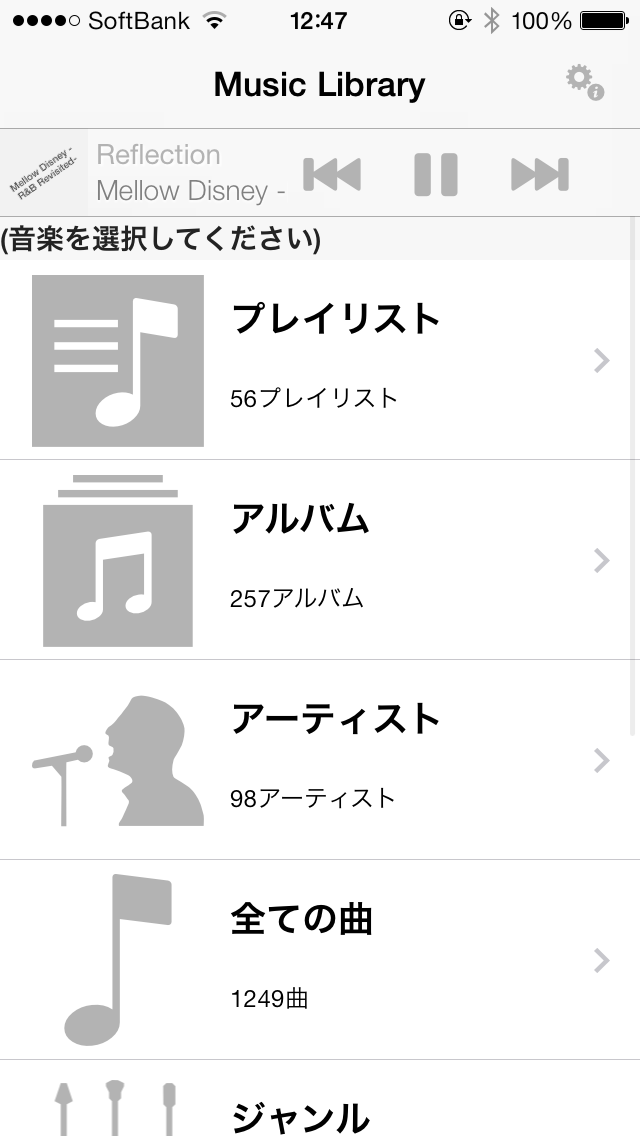
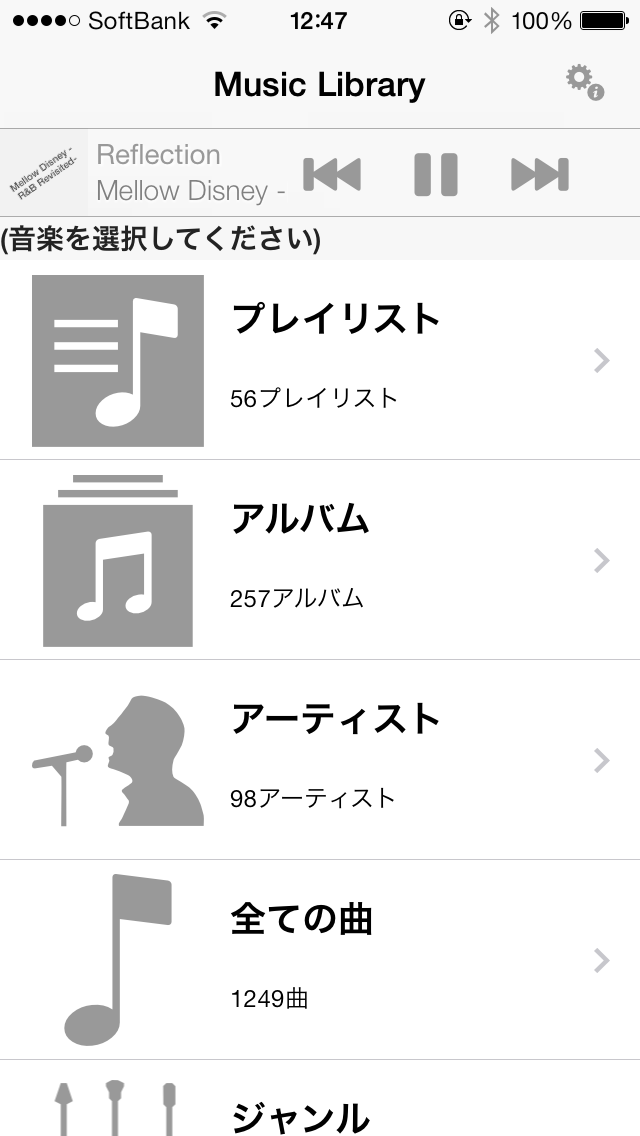
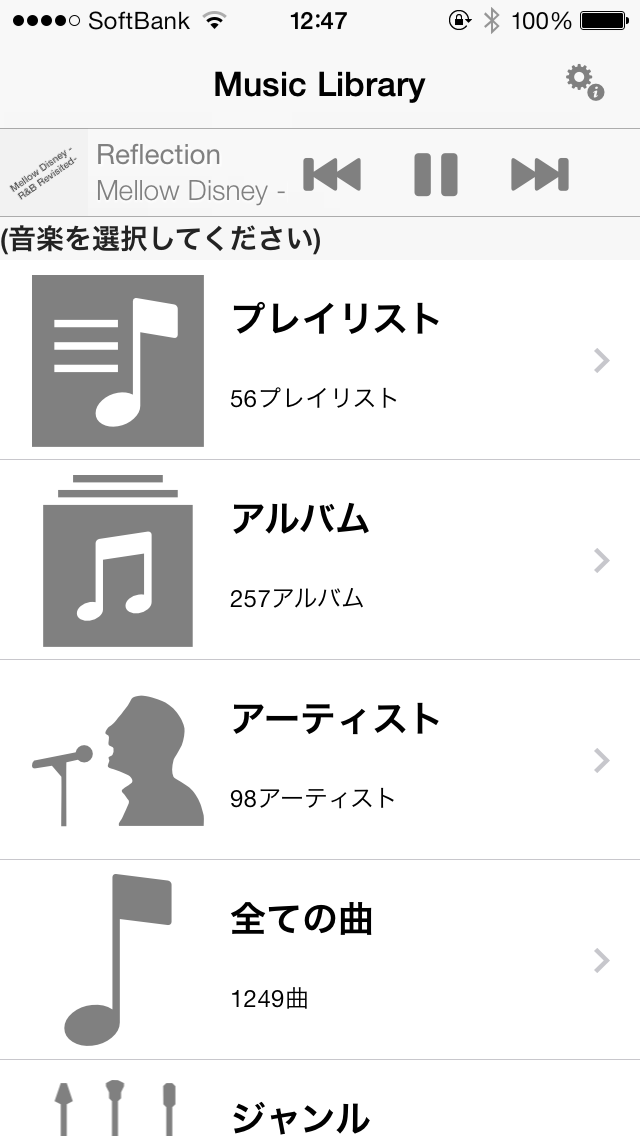
    Walking Player v1.10(for iOS7)画面色を自由に変更できるようになっています
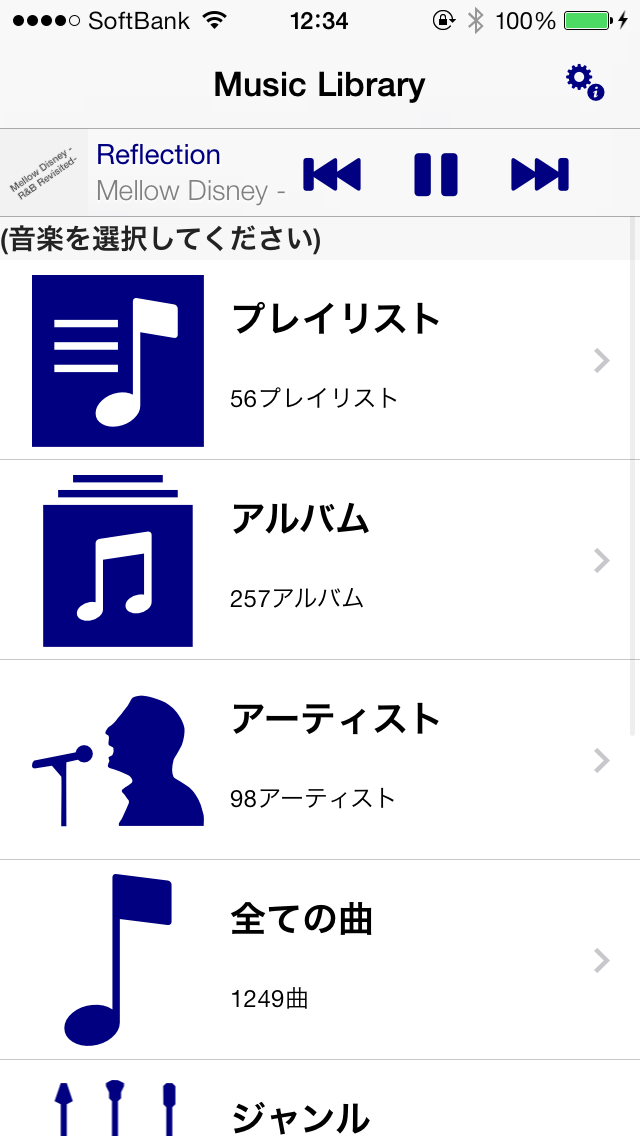
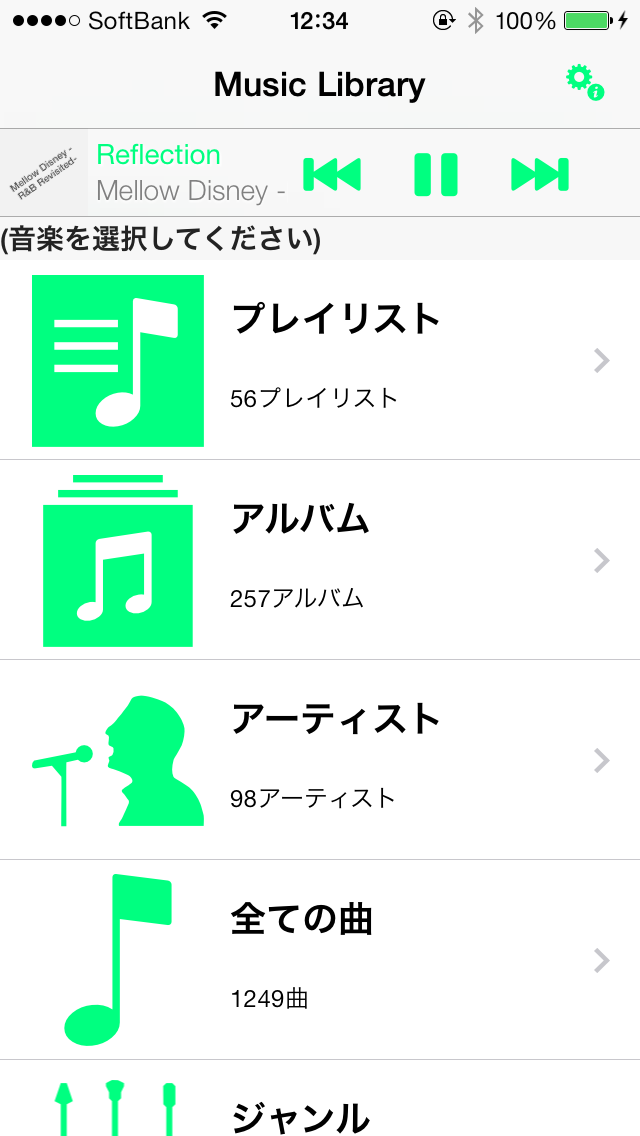
    ここではあらかじめ定義されている50色がどのようなイメージになるかカラーサンプルをご紹介します

    Screen color list
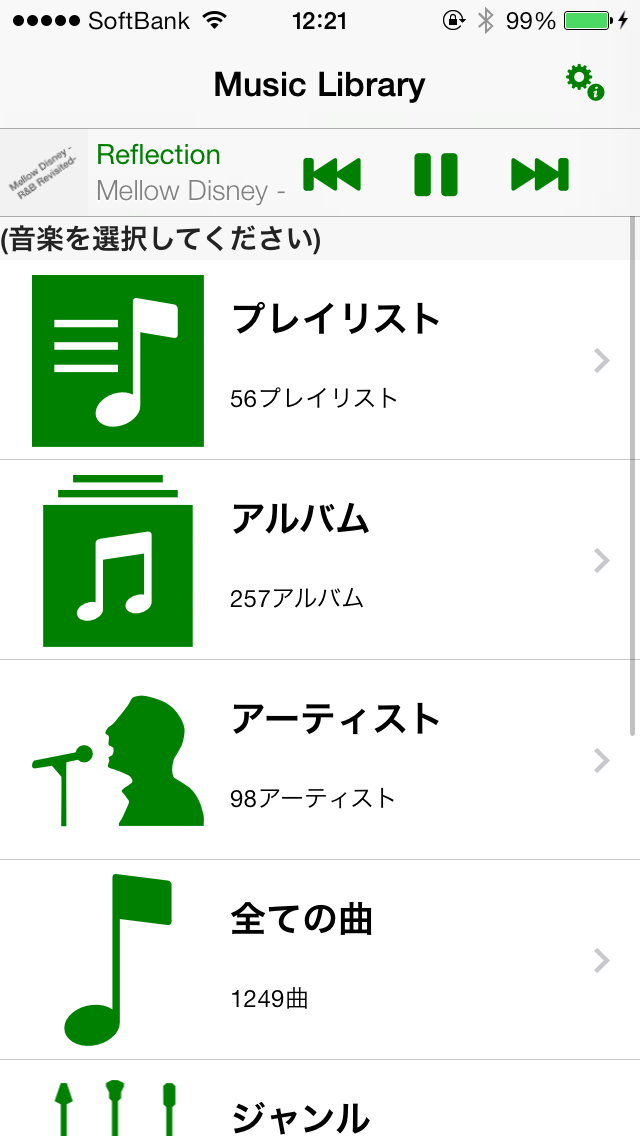
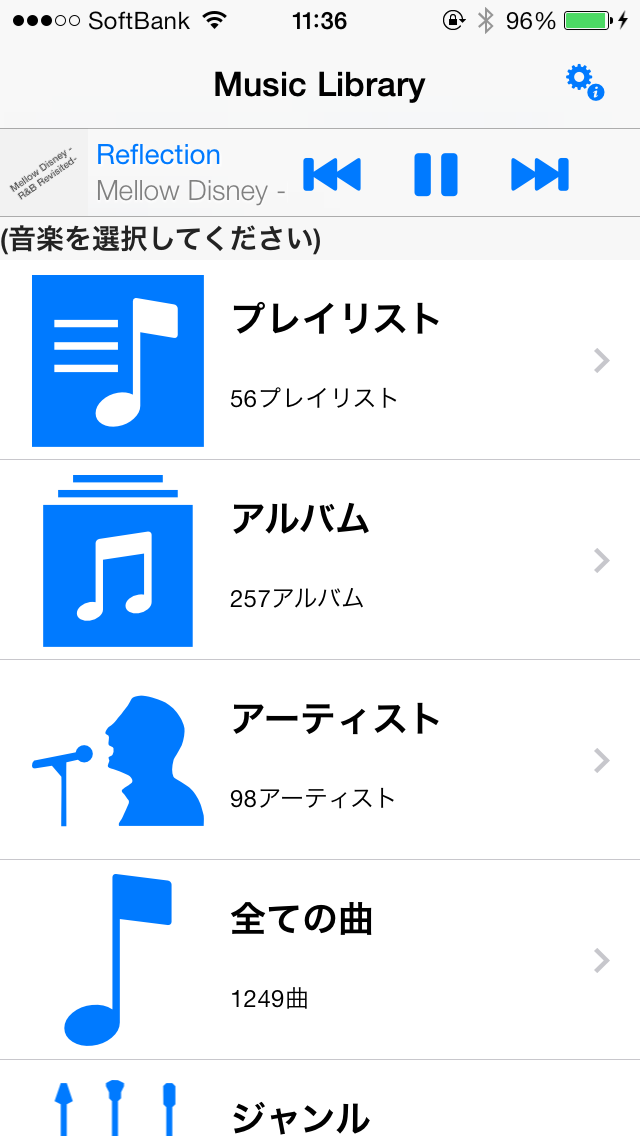
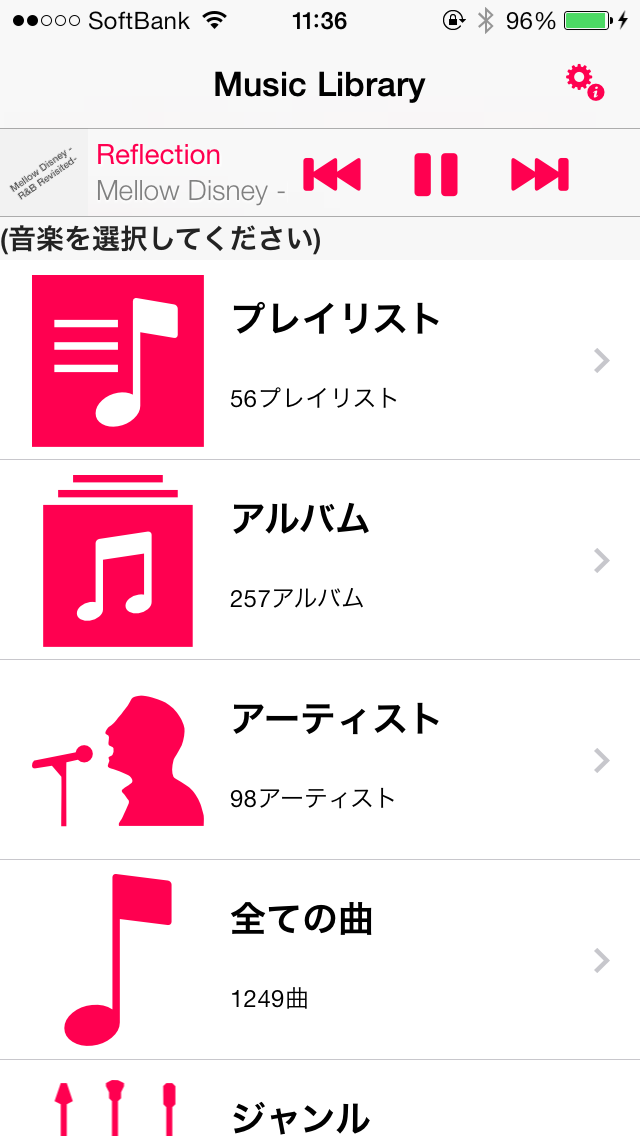
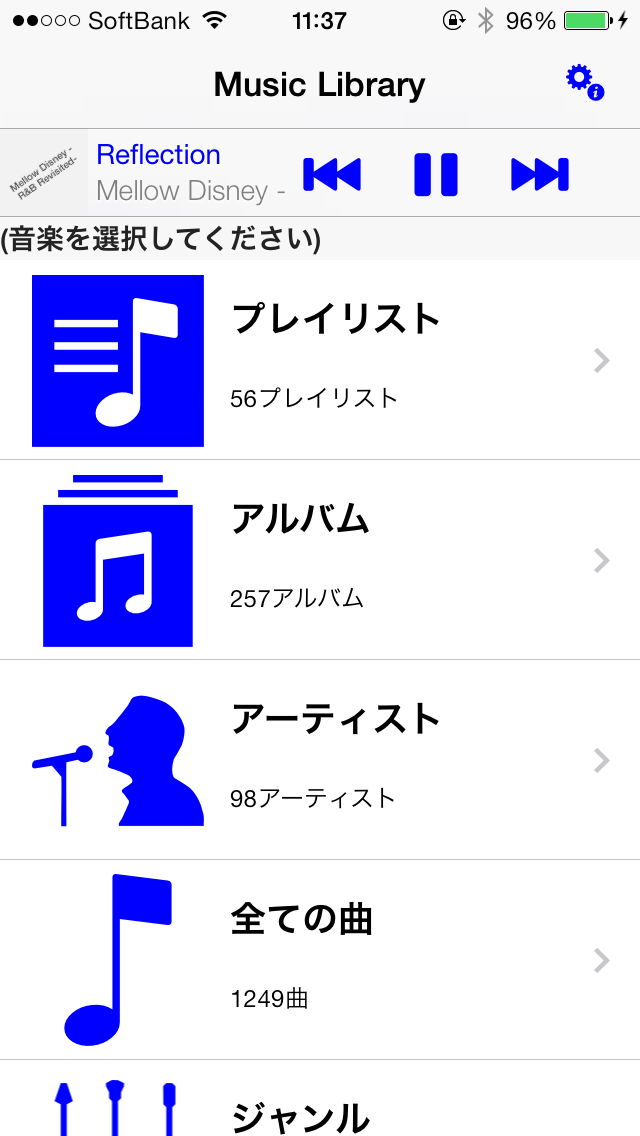
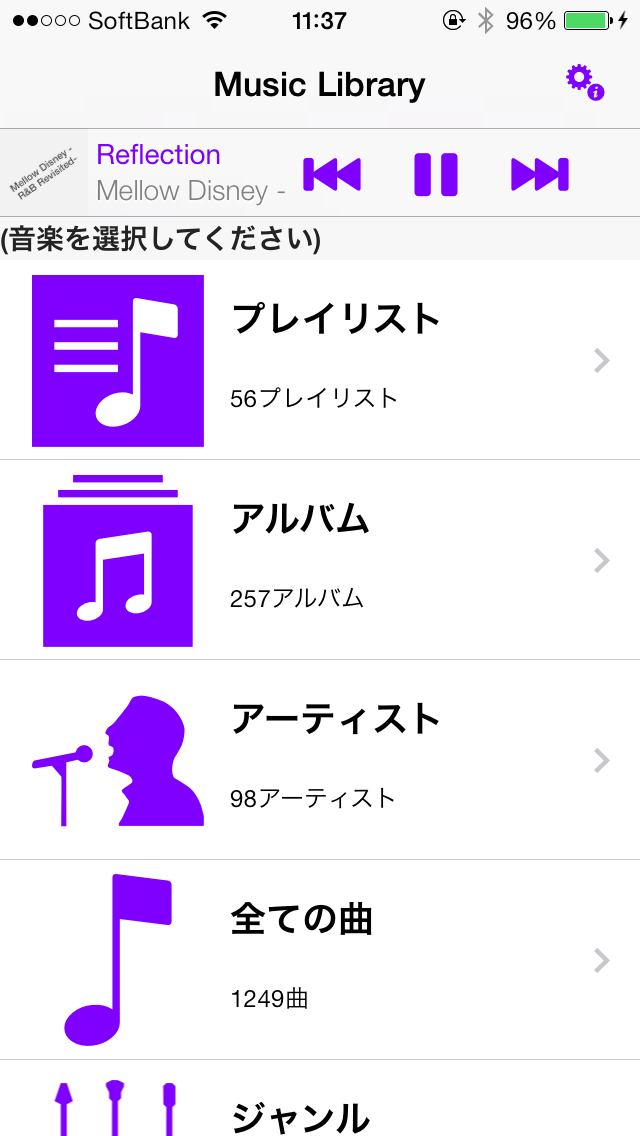
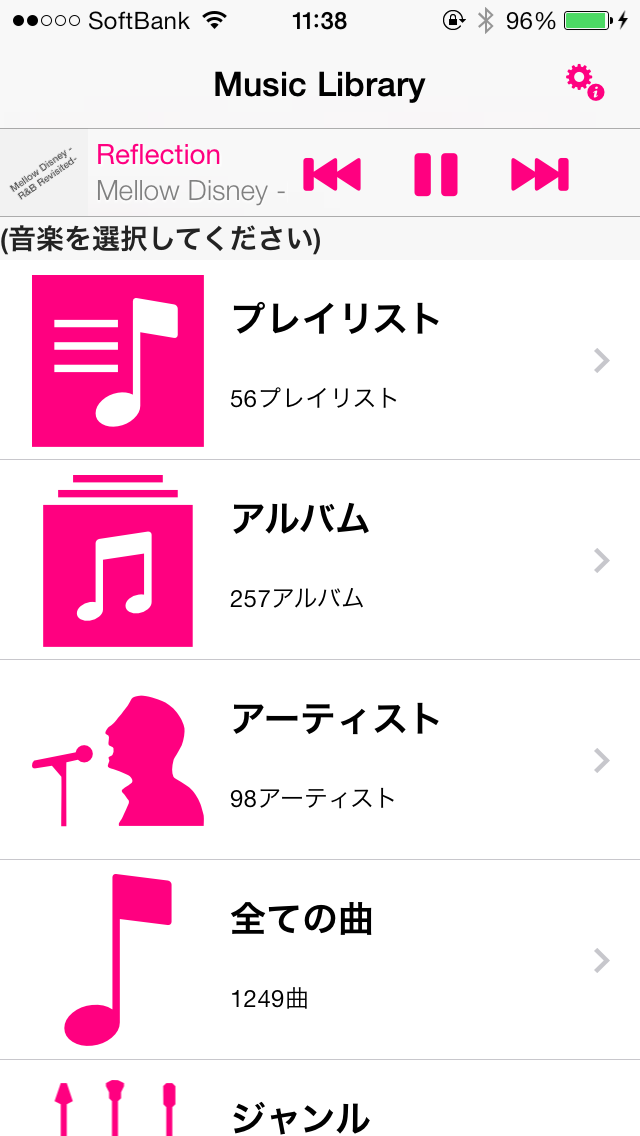
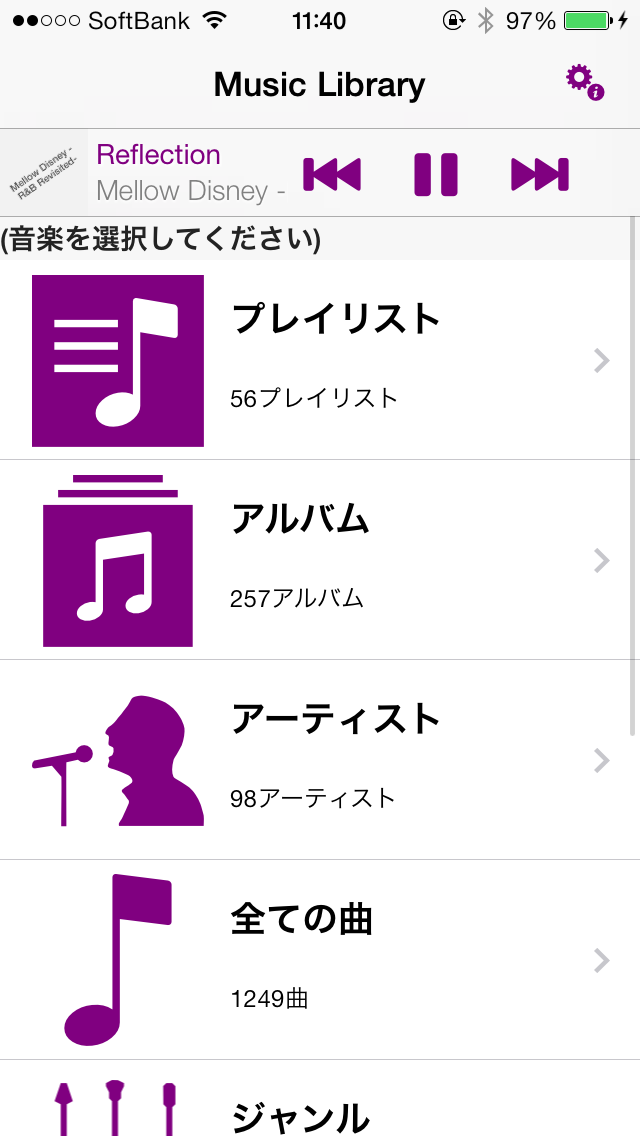
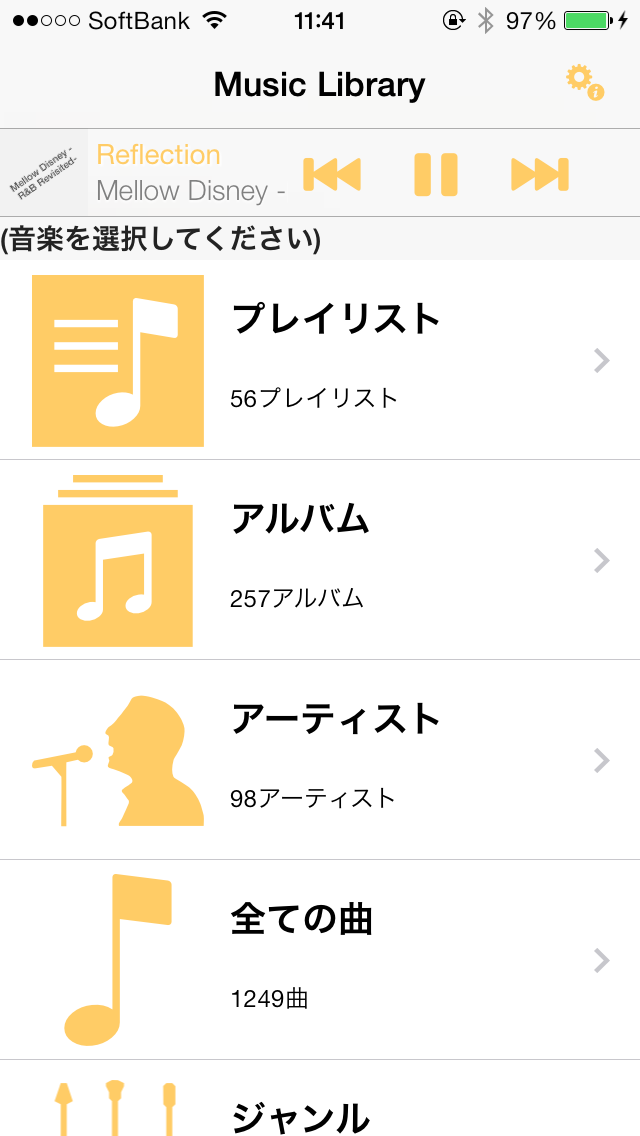
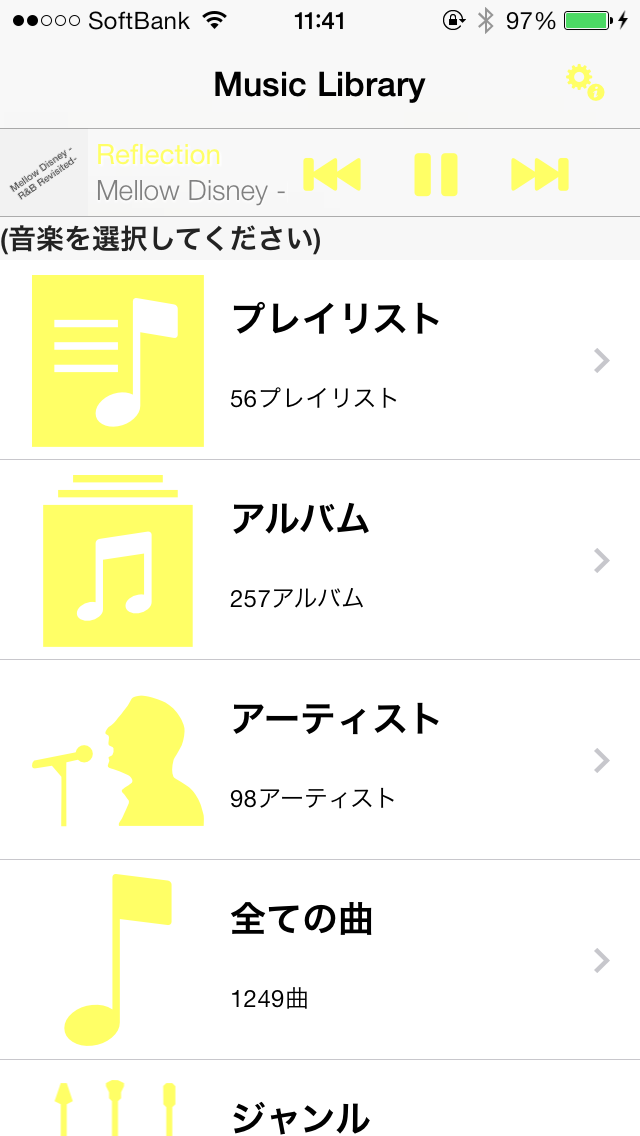
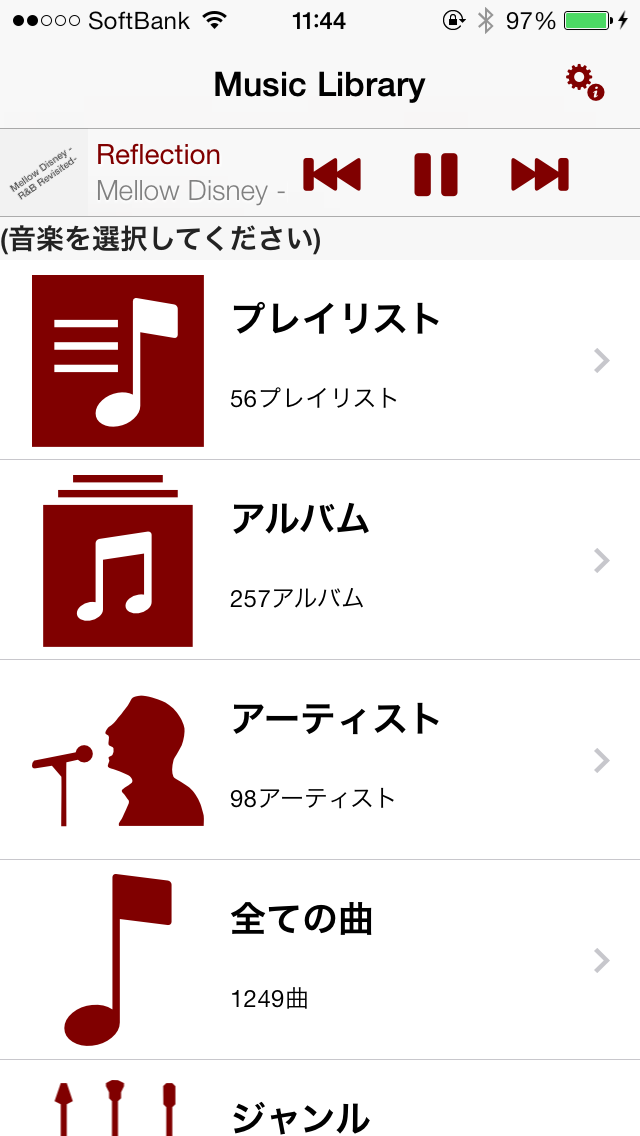
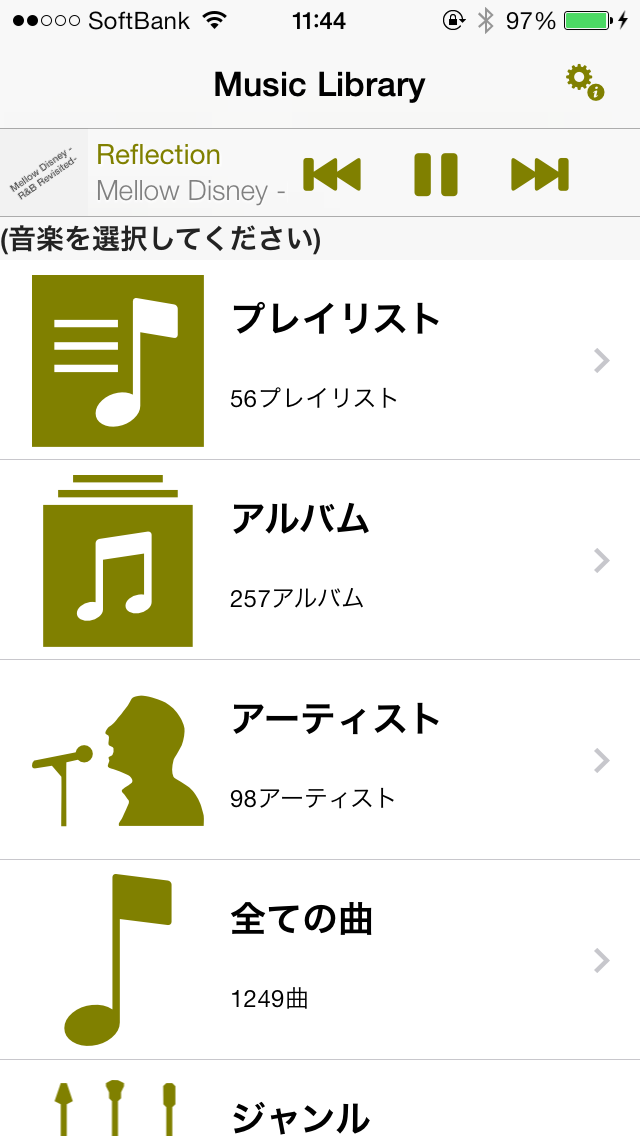
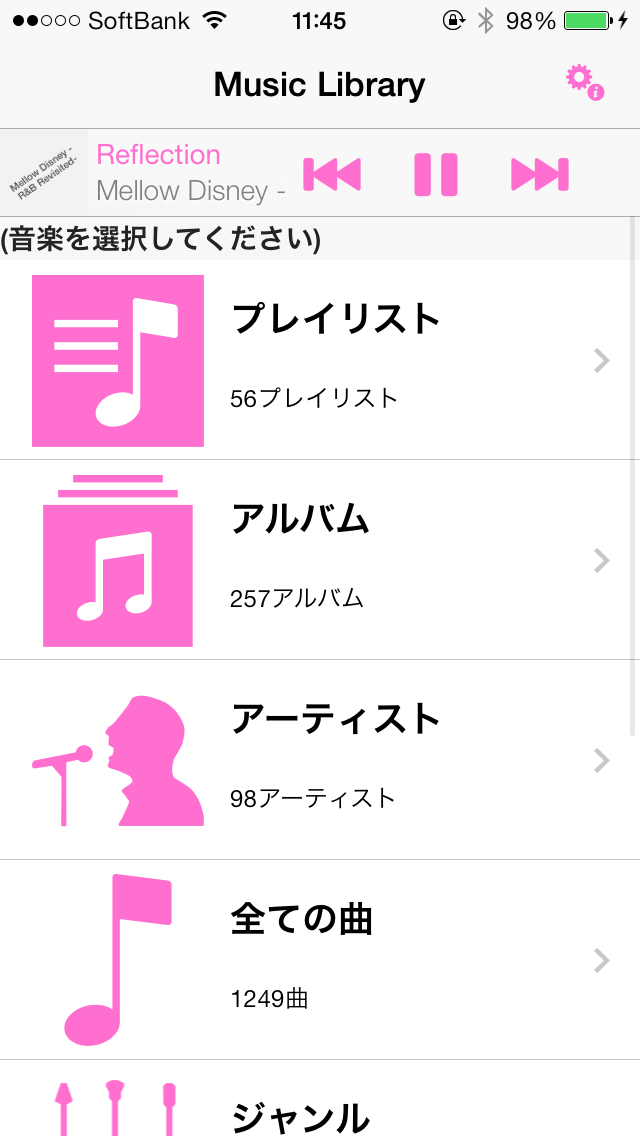
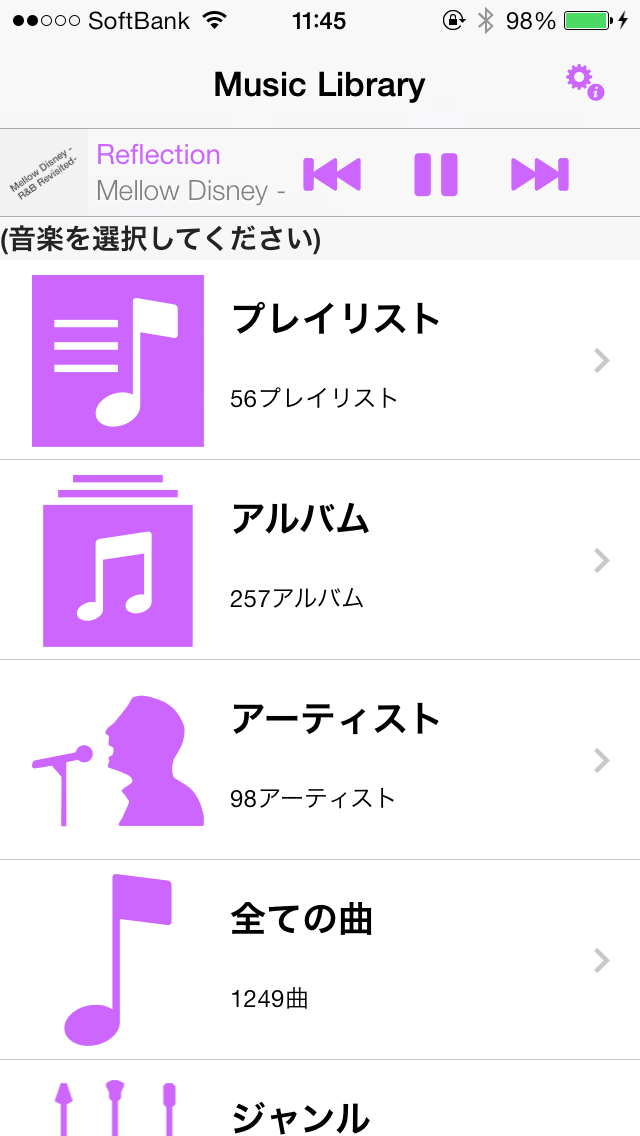
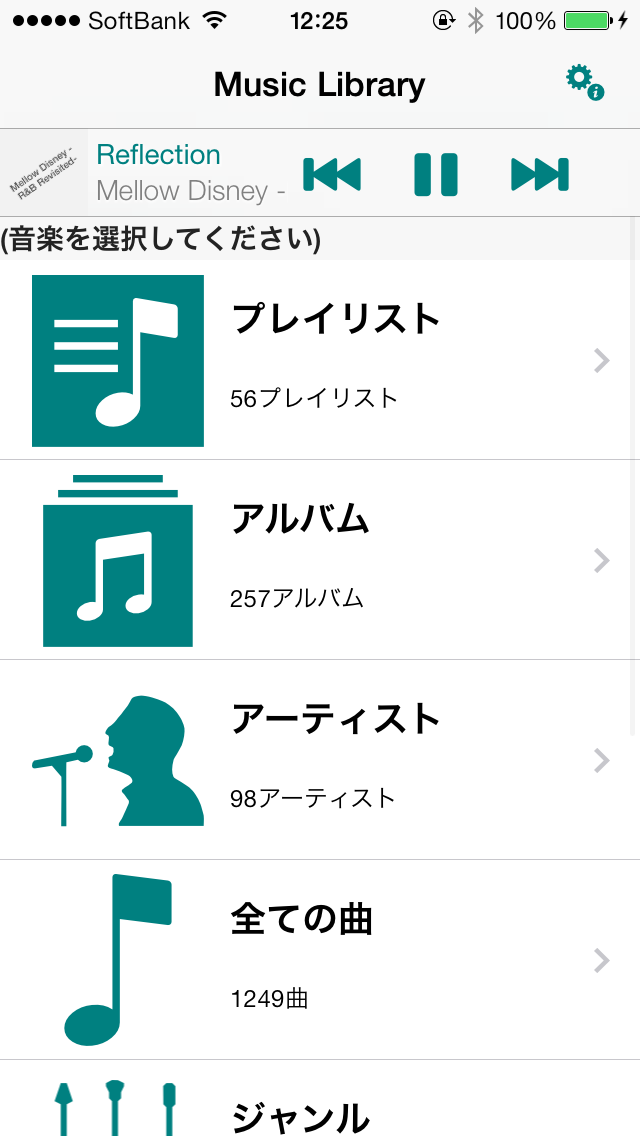
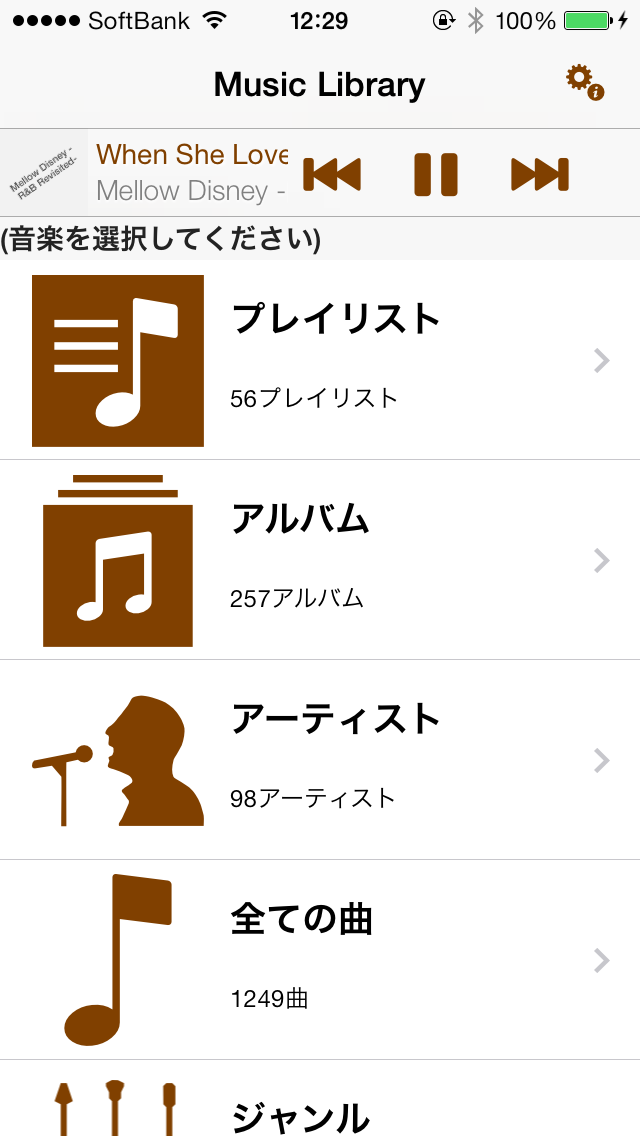
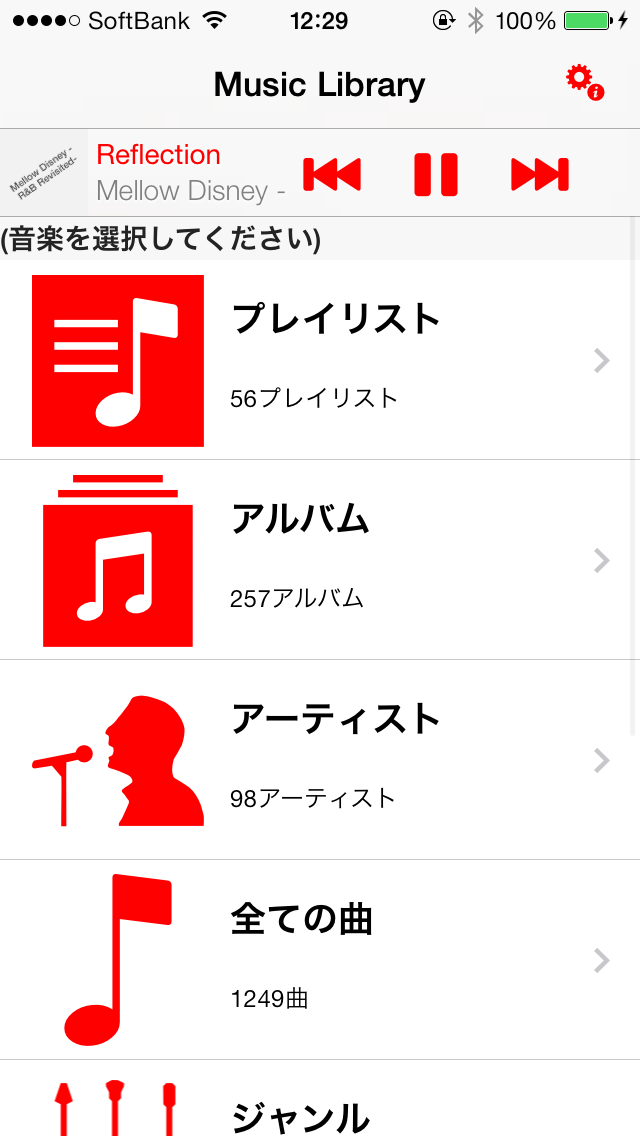
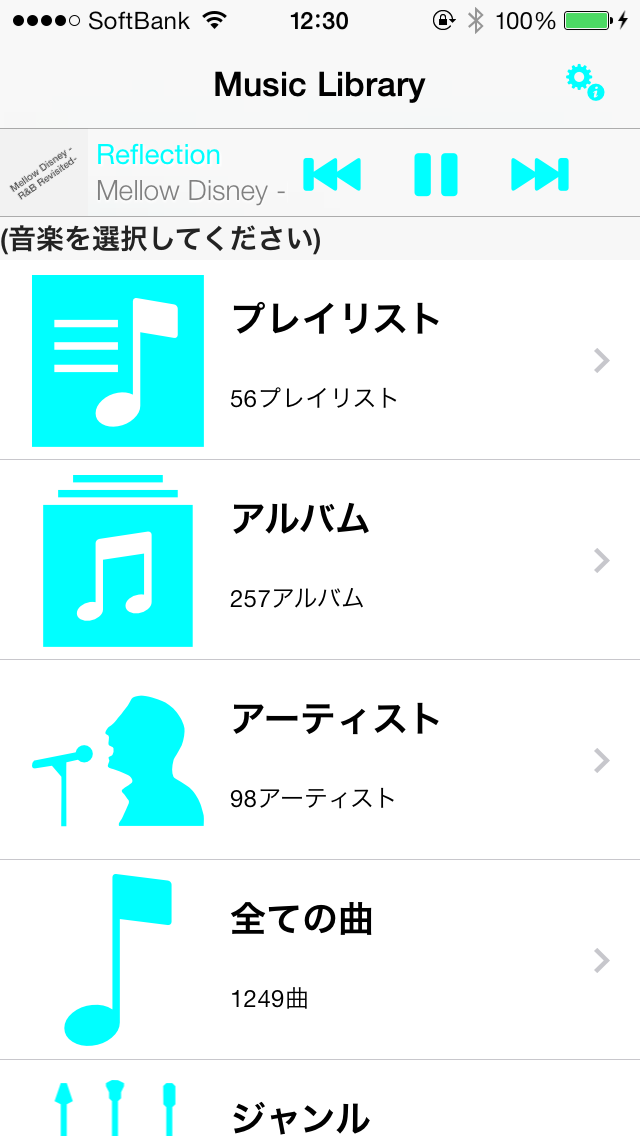
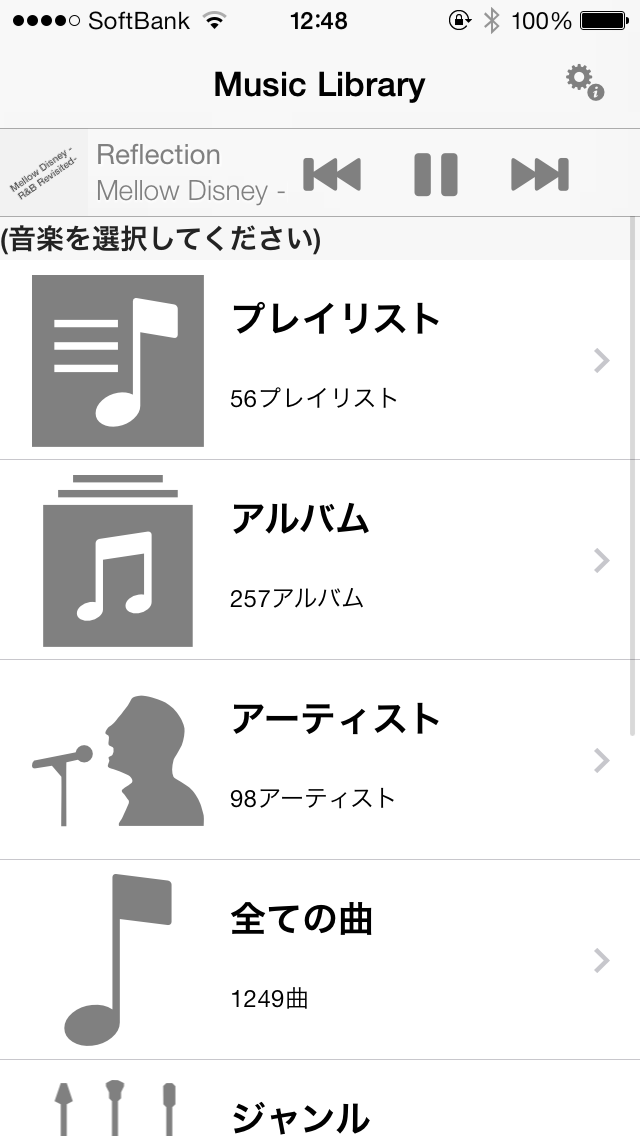
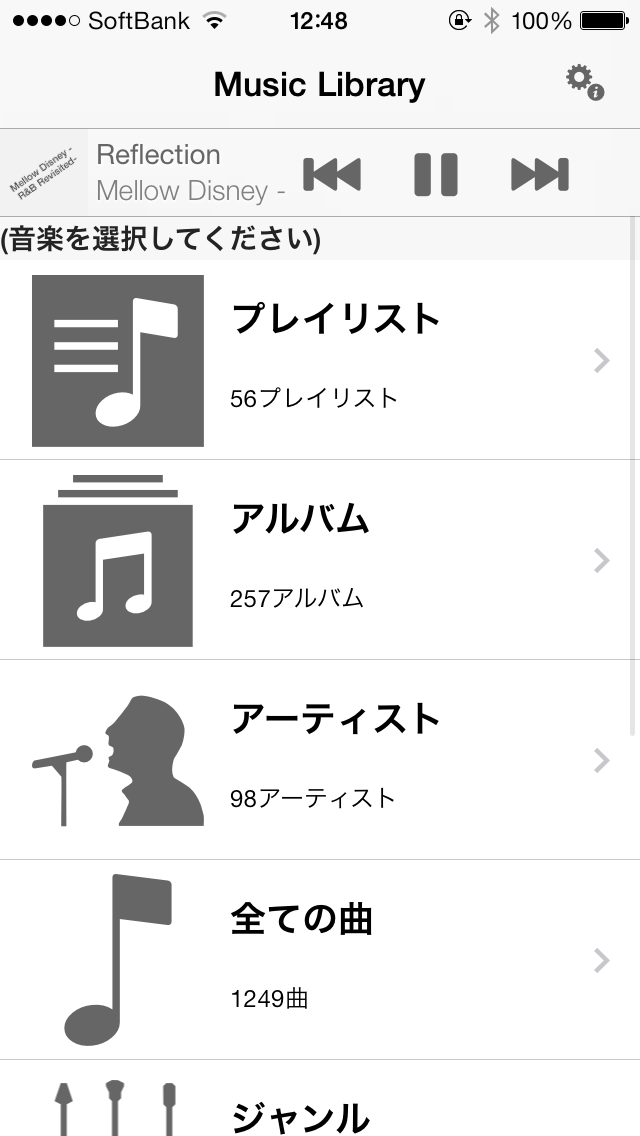
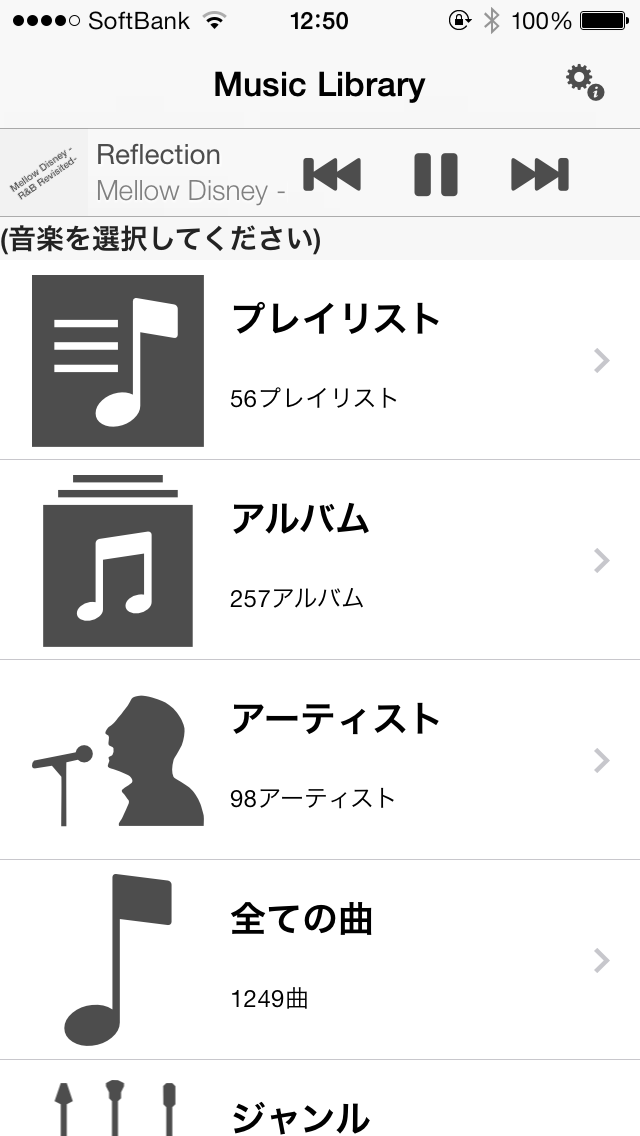
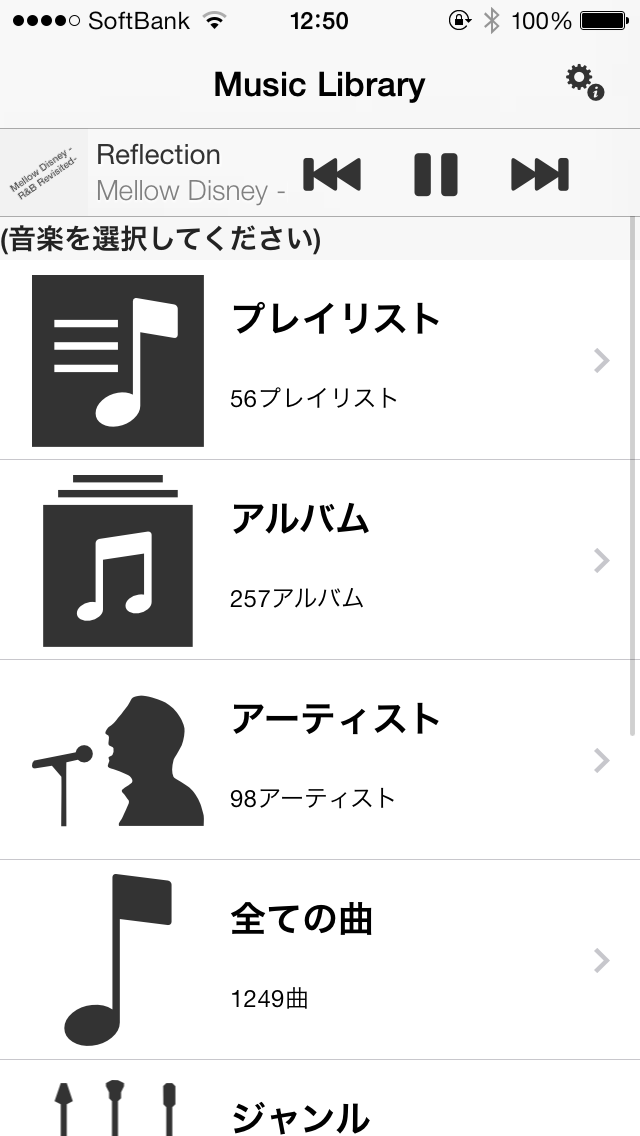
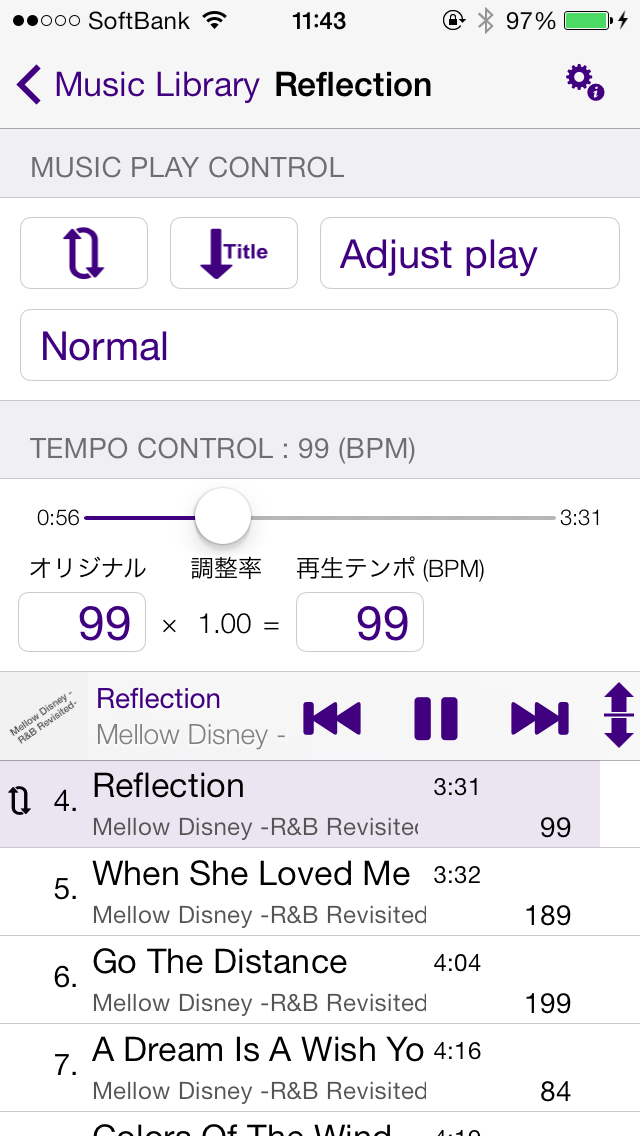
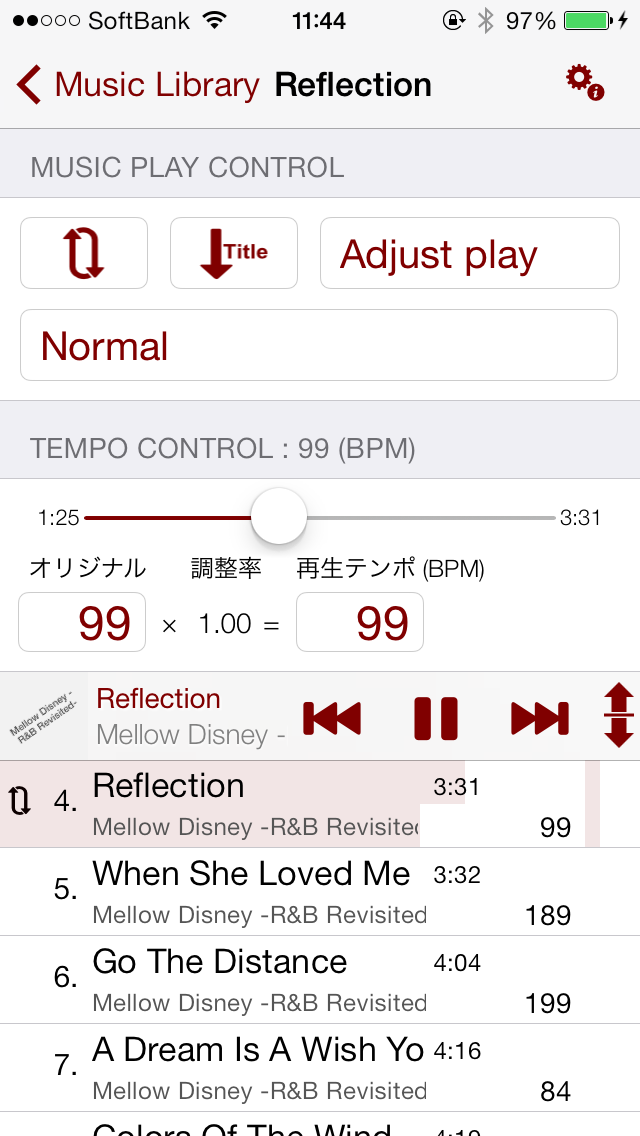
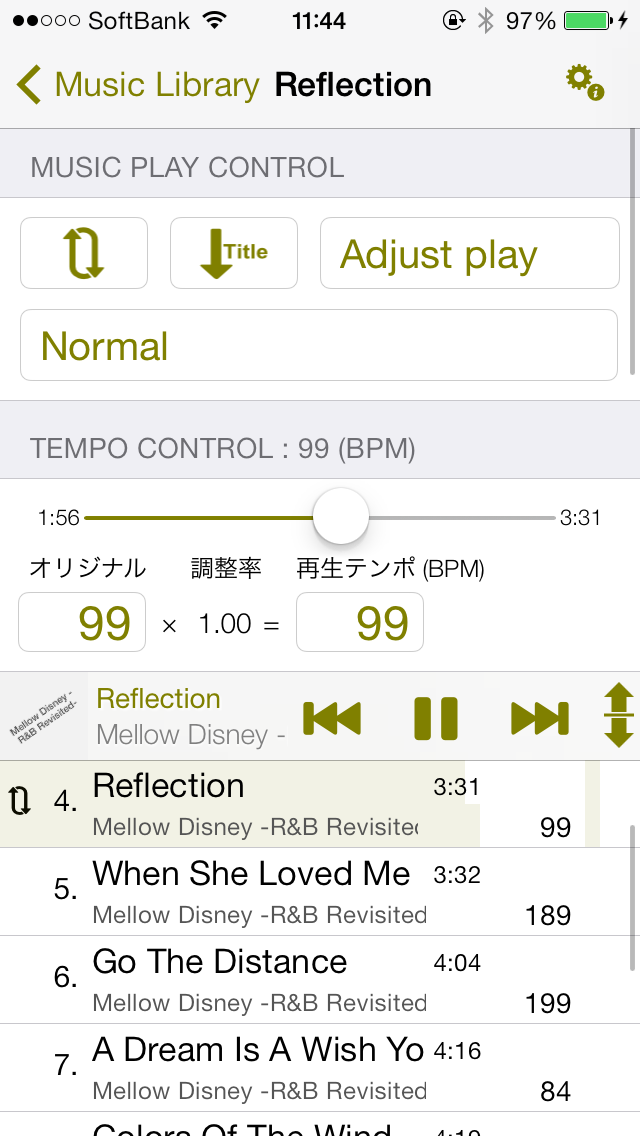
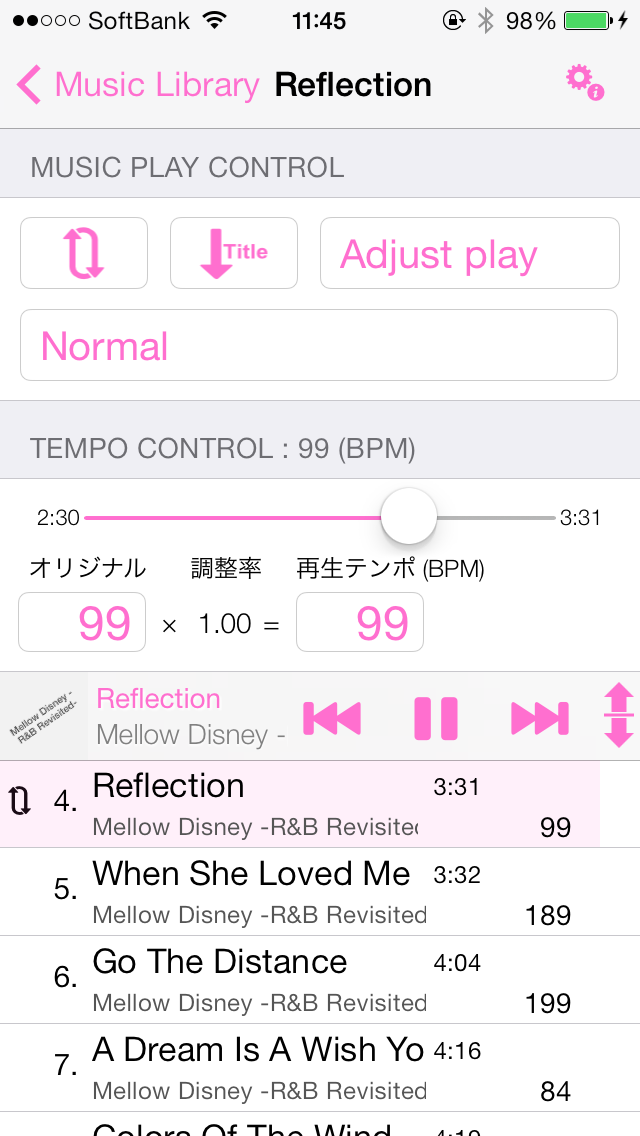
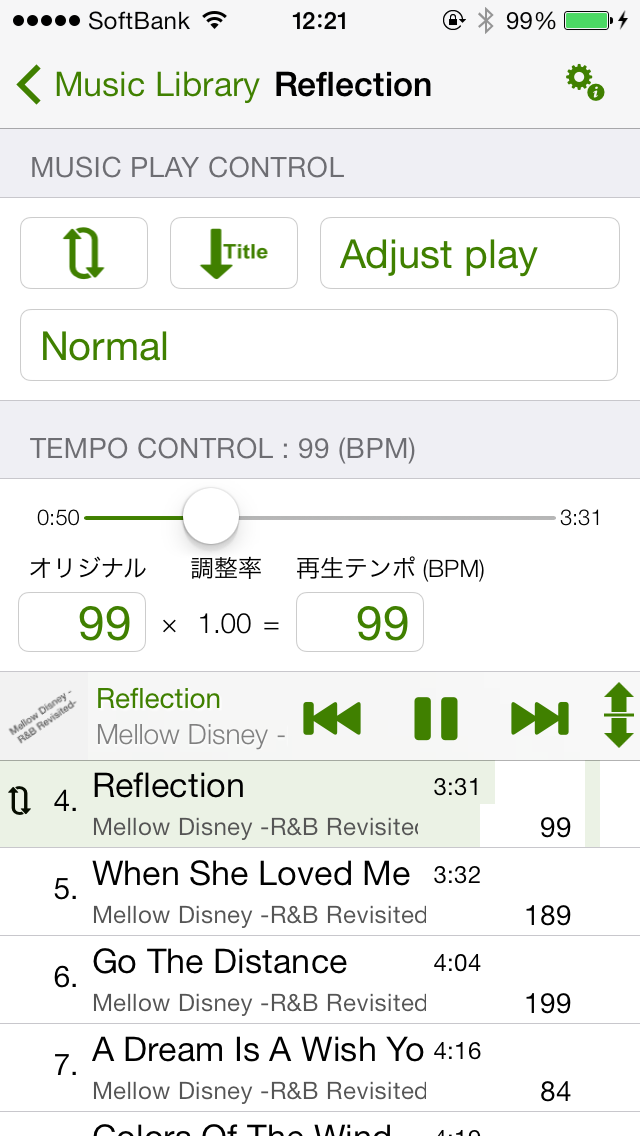
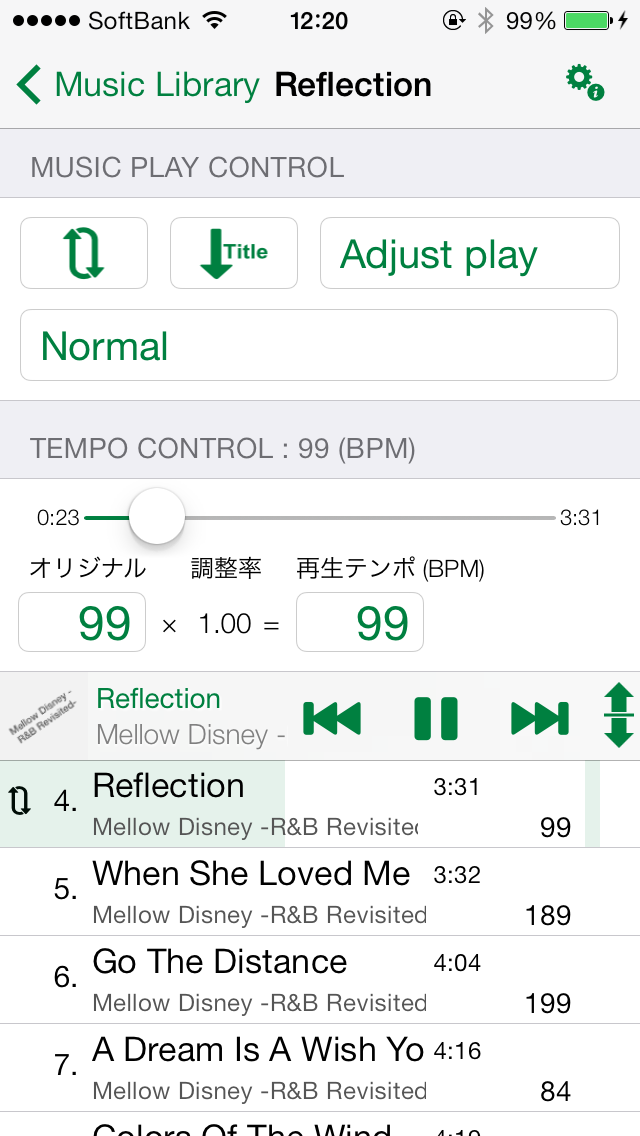
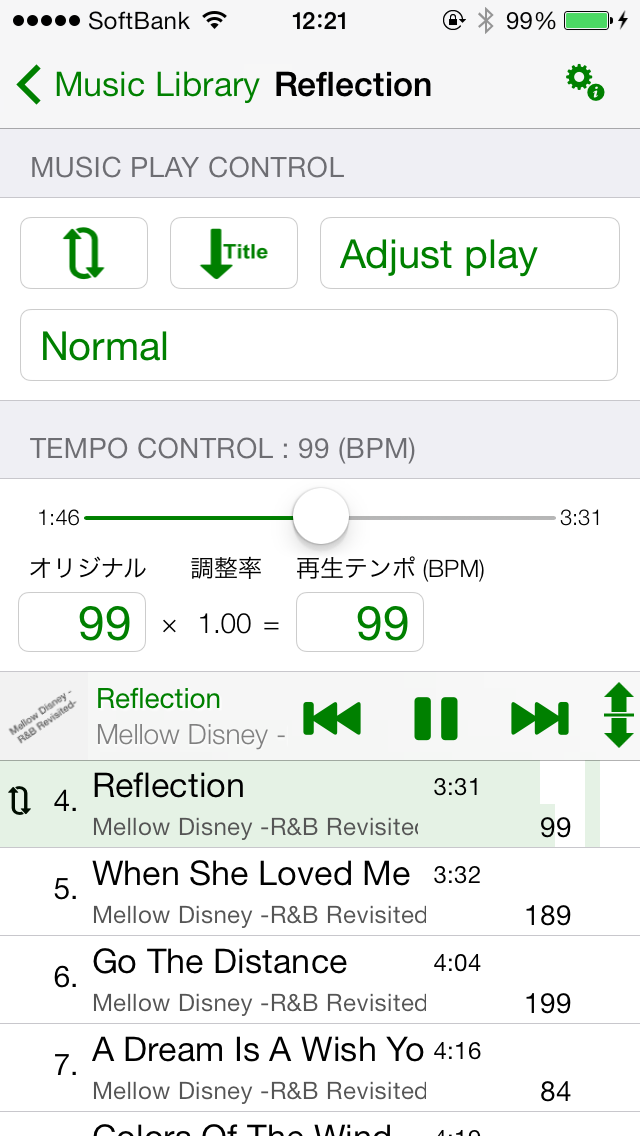
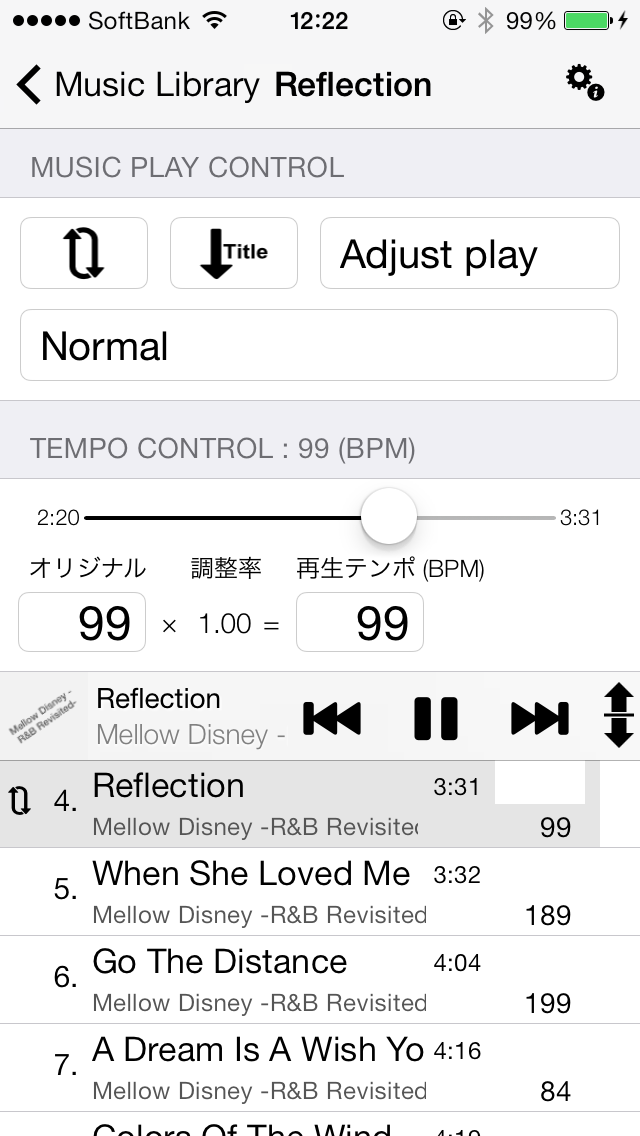
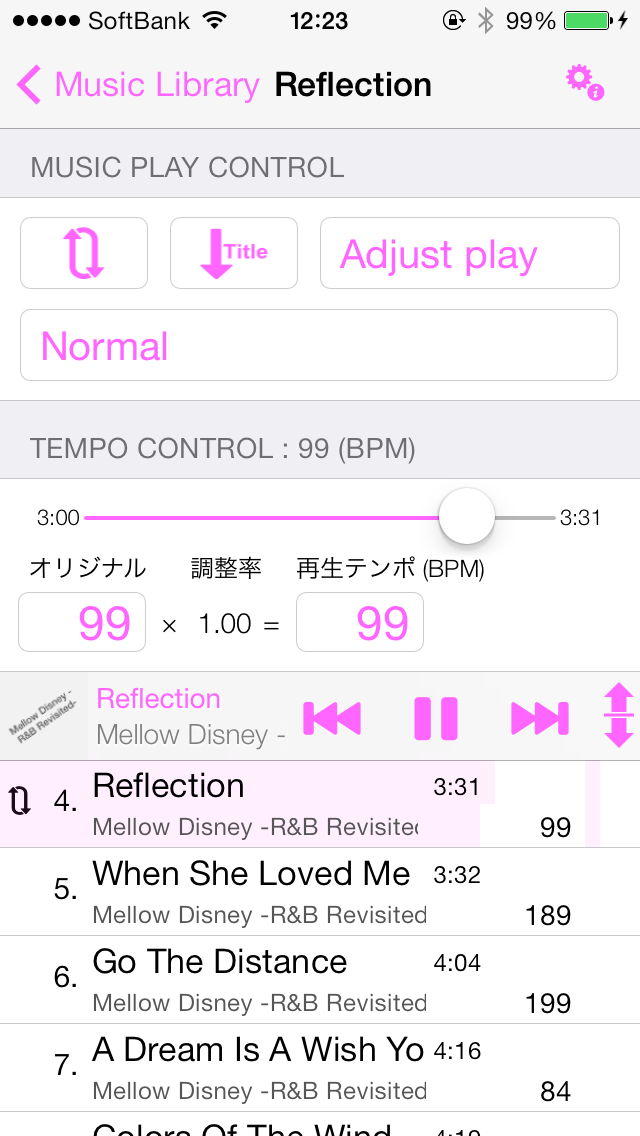
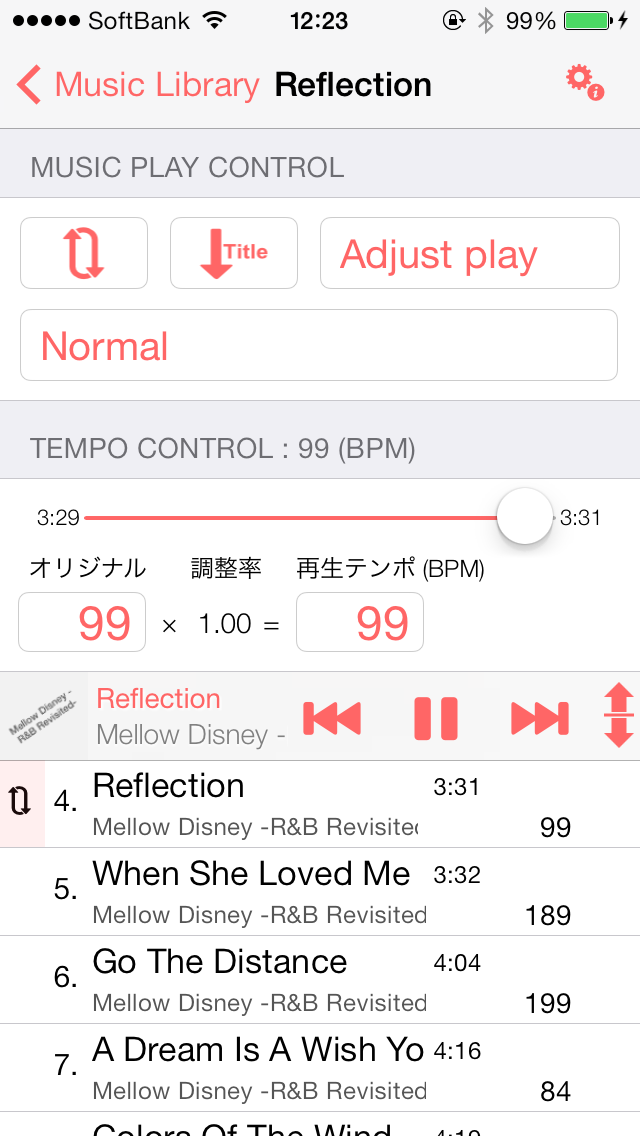
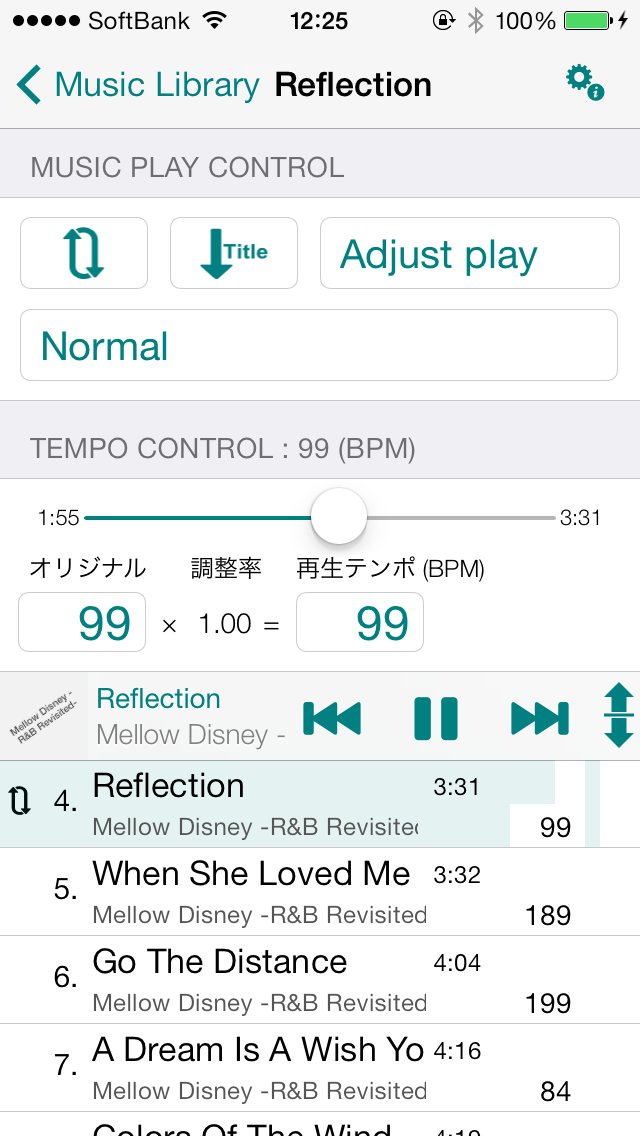
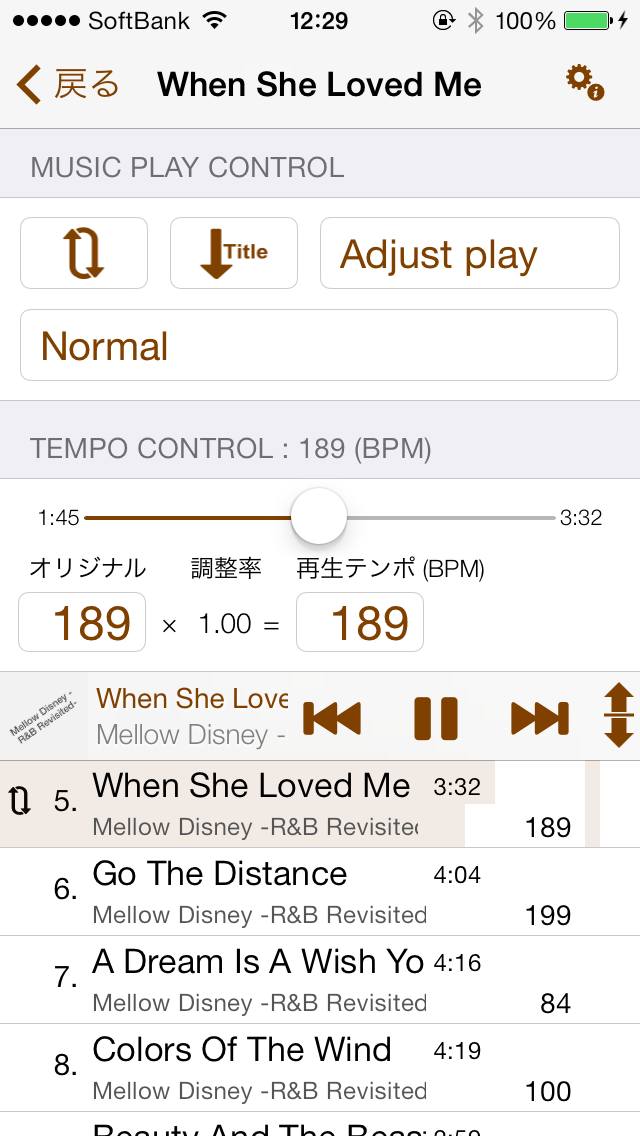
    Default Color(The default color)Music App(Music App)Blueberry(Blueberry)Grape(Grape)Strawberry(Strawberry)Plum(Plum)Cantaluope(Cantaloupe)Banana(Banana)Tangerine(Orange)Lemon(Lemon)The lime(Lime)Eggplant(Nasbi)Cayenne(Hot pepper)Asparagus(Asparagus)Carnation(Carnation)Lavender(Lavender)Orchid(Orchid)Flora(Flora)Honeydew(Honey dew melon)Fern(Fern)Moss(MOSS)Clover(Clover)Licorice(Liquorice)Bubblegum(Bubble gum)Salmon(Salmon)Teal(Teal)Mocha(Mocha)Maraschino(Maraschino)Turquoise(Turquoise)Sky(Sky)Aqua(Aqua)Ice(Ice)Spindrift(Sea spray)Maroon(Maroon)Midnight(Midnight)SeaFoam(Seafoam)Ocean(Ocean)Spring(Spring)Magenta(Magenta)Pink(Pink)Mercury(Mercury)Silver(Silver)Magnesium(Magnesium)Aluminum(Aluminum)Nickel(Nickel)Tin(Tin plate)Steel(Steel)Iron(Iron)Tungsten(Tungsten)Lead(Reed)


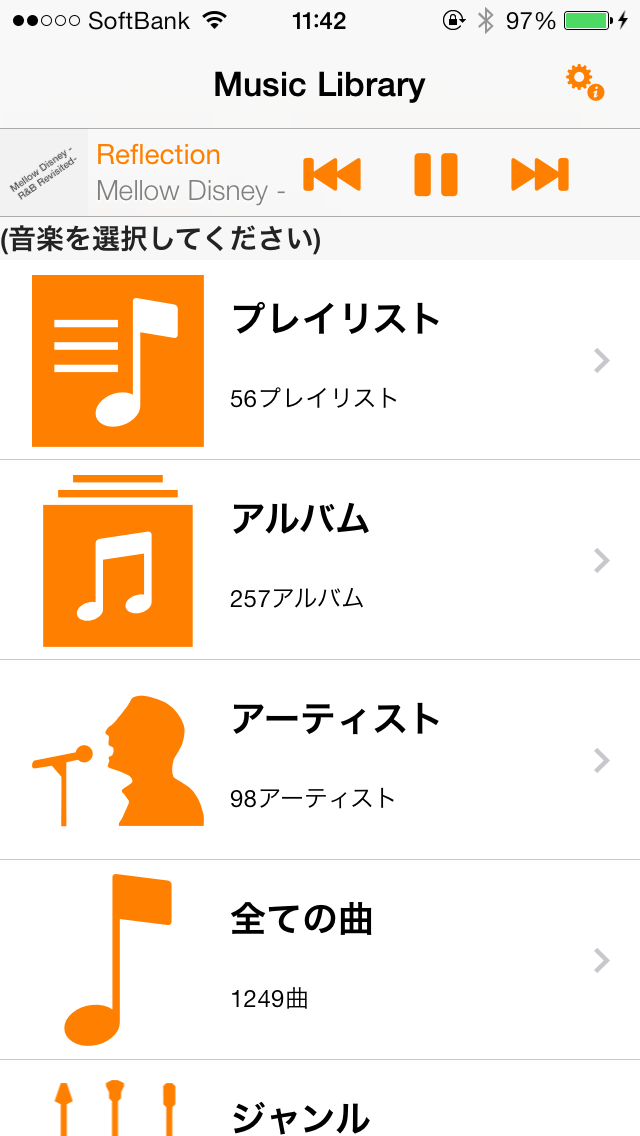
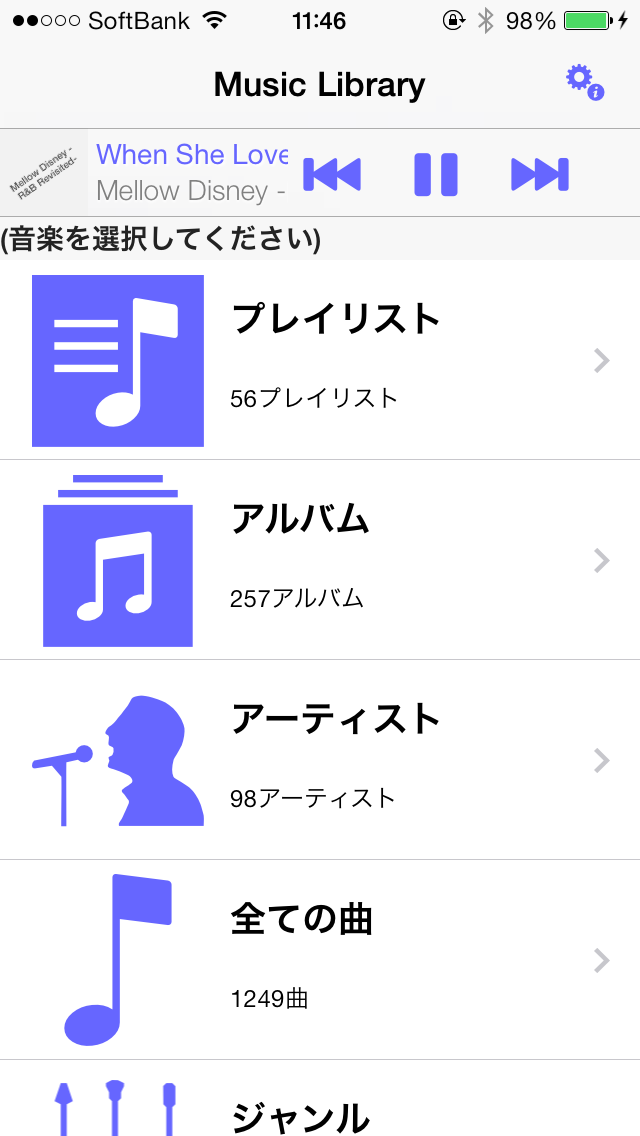
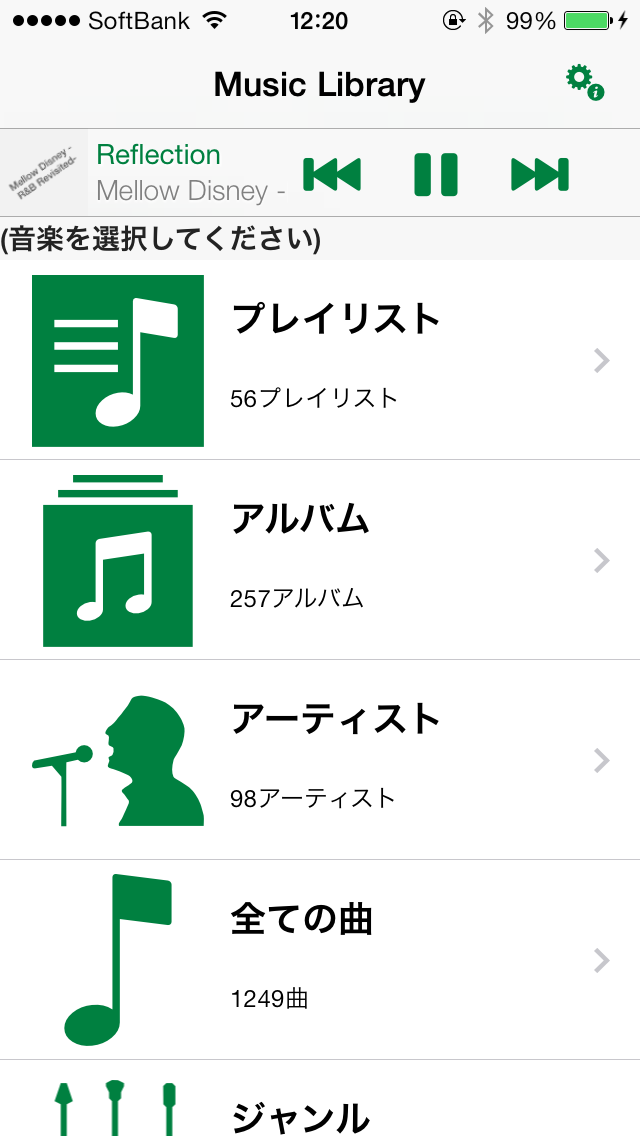
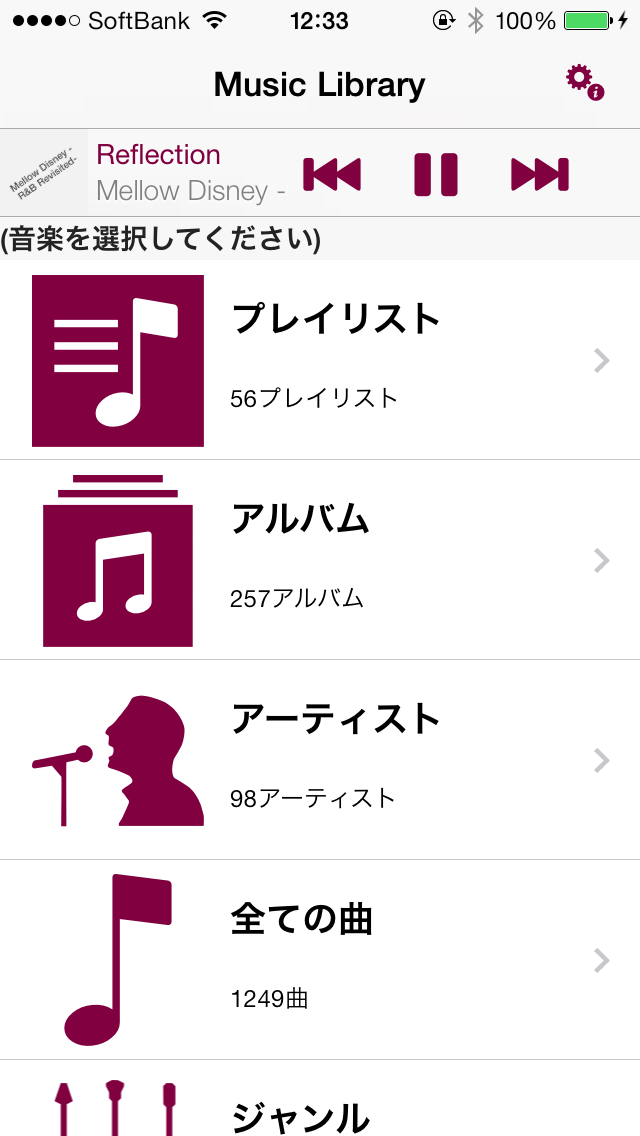
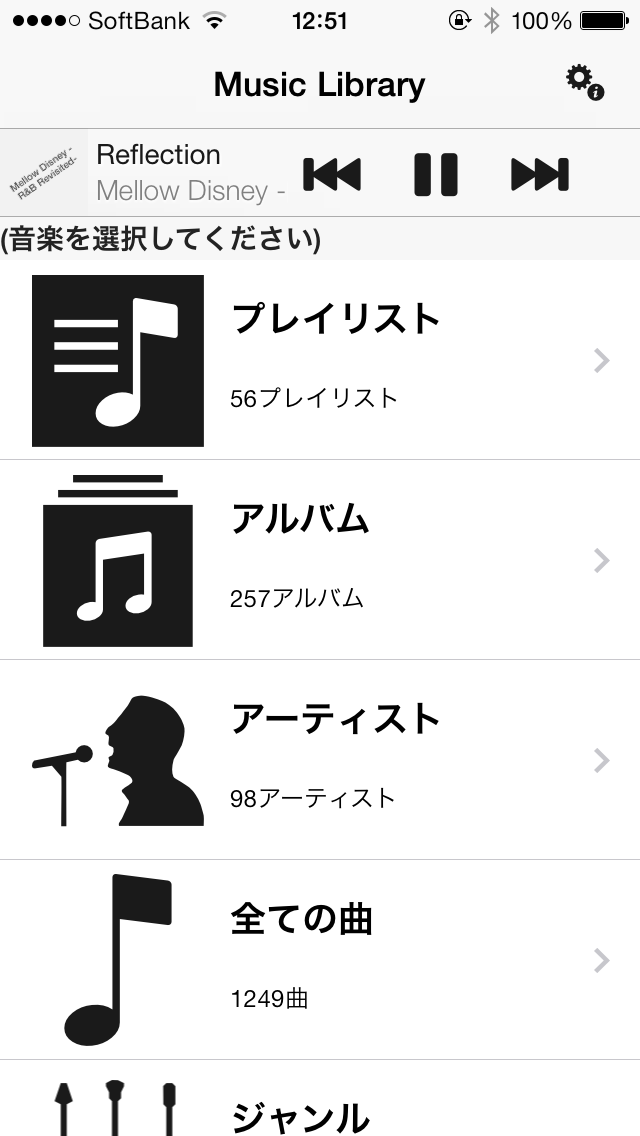
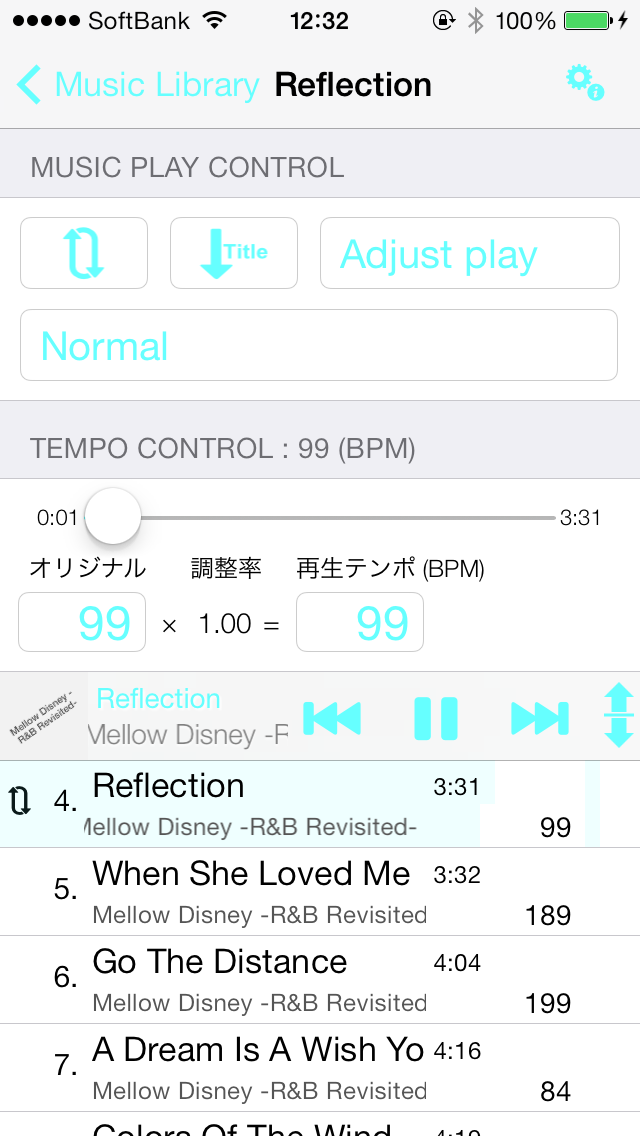
    Default Color(The default color)


    Default Color(The default color)Default Color(The default color)


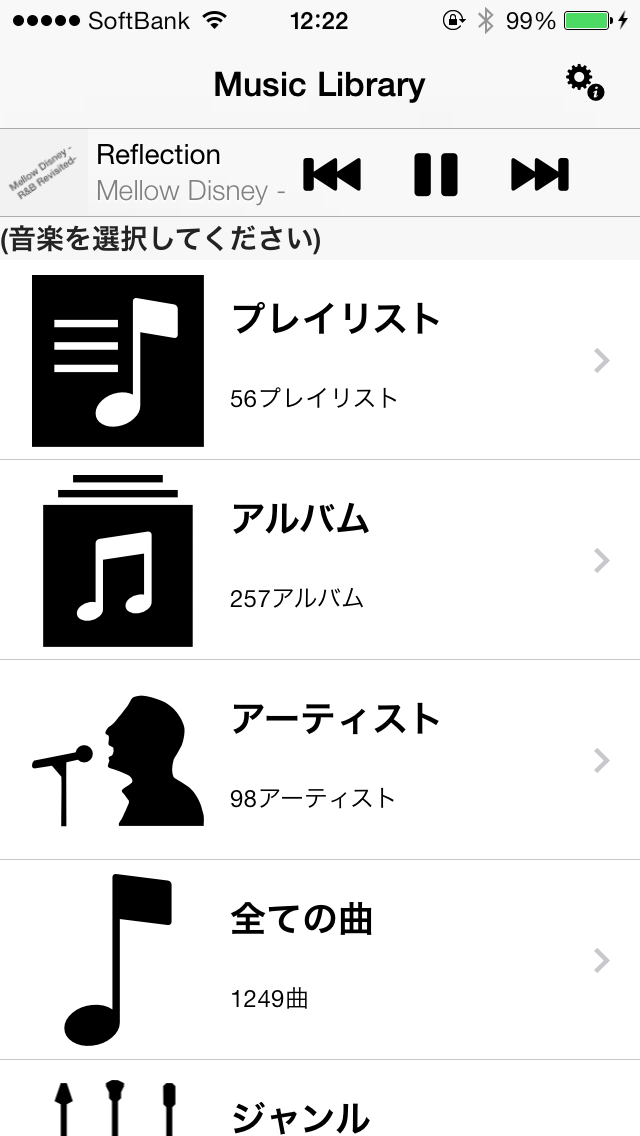
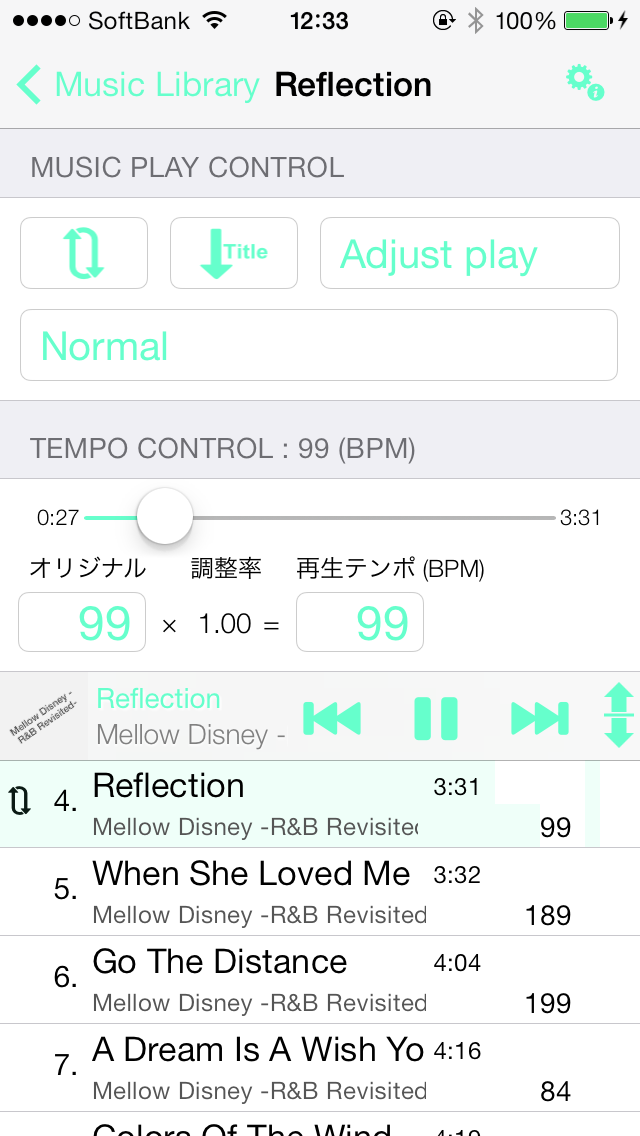
    Music App(Music App)


    Music App(Music App)Music App(Music App)


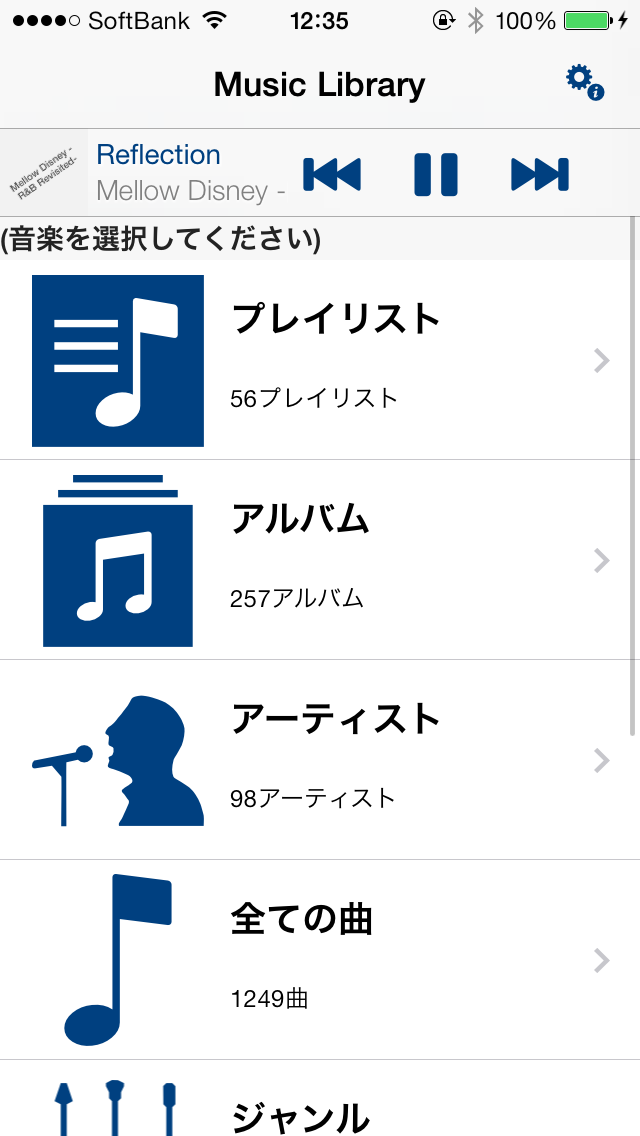
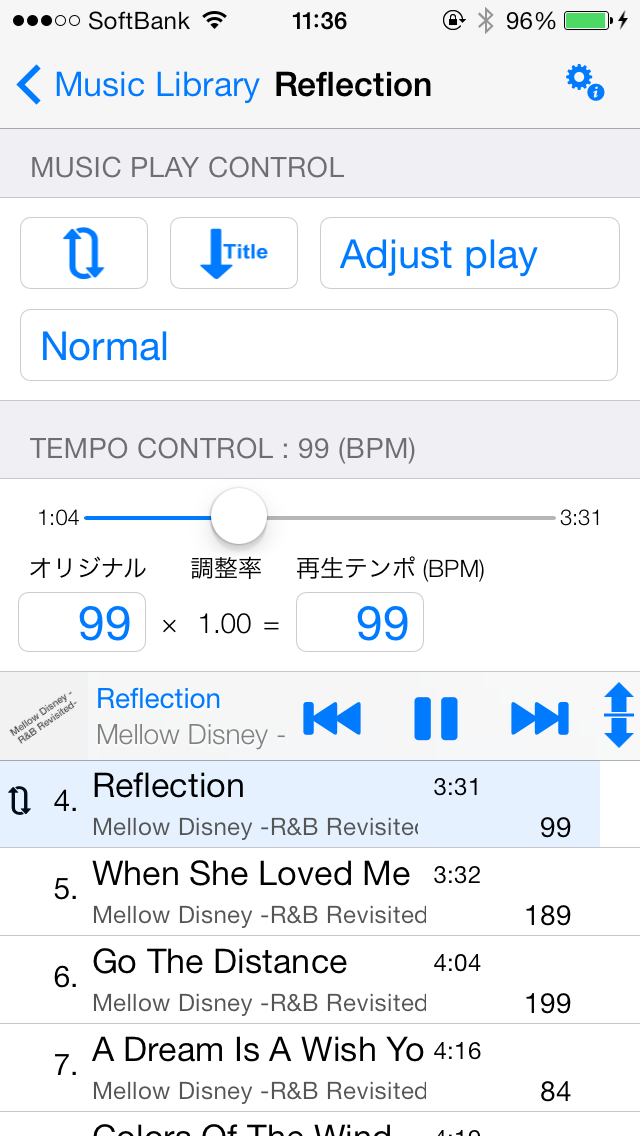
    Blueberry(Blueberry)


    Blueberry(Blueberry)Blueberry(Blueberry)


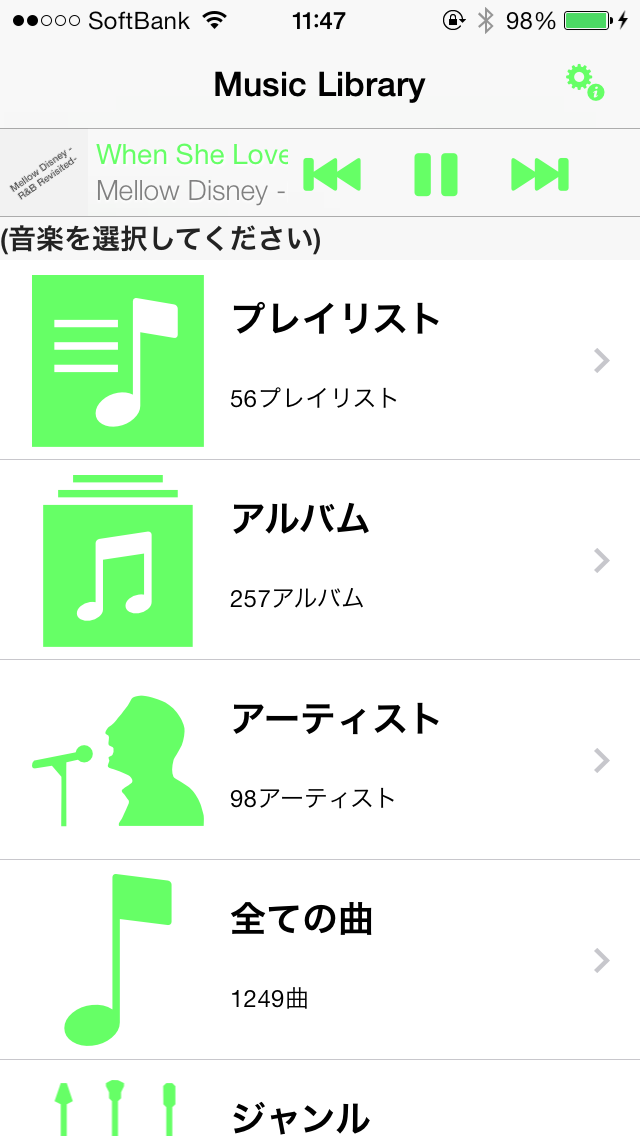
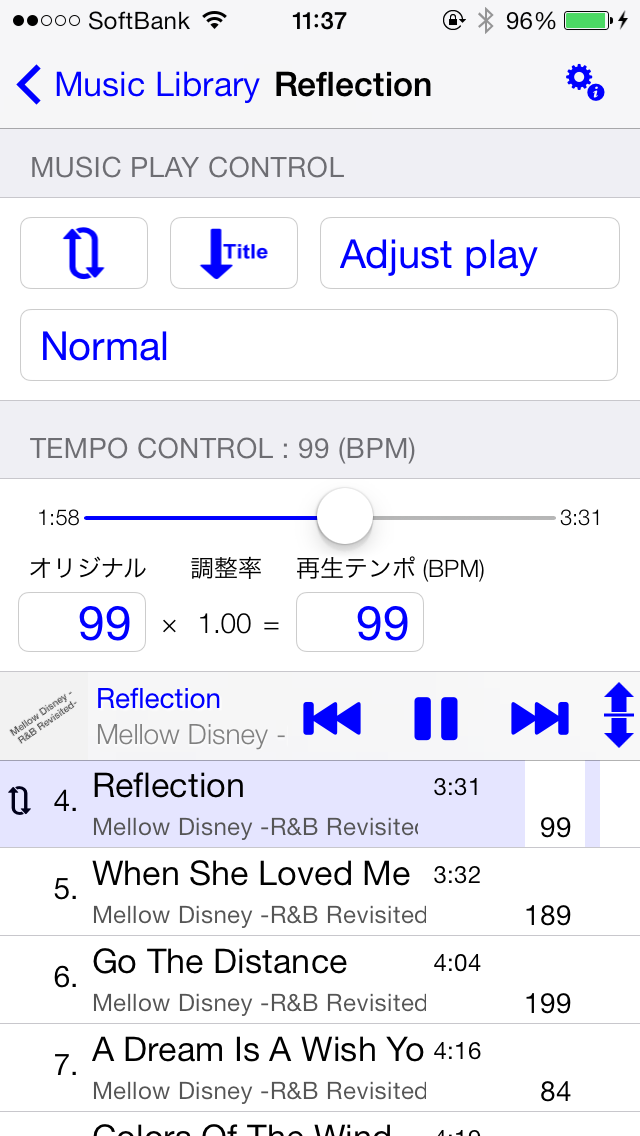
    Grape(Grape)


    Grape(Grape)Grape(Grape)


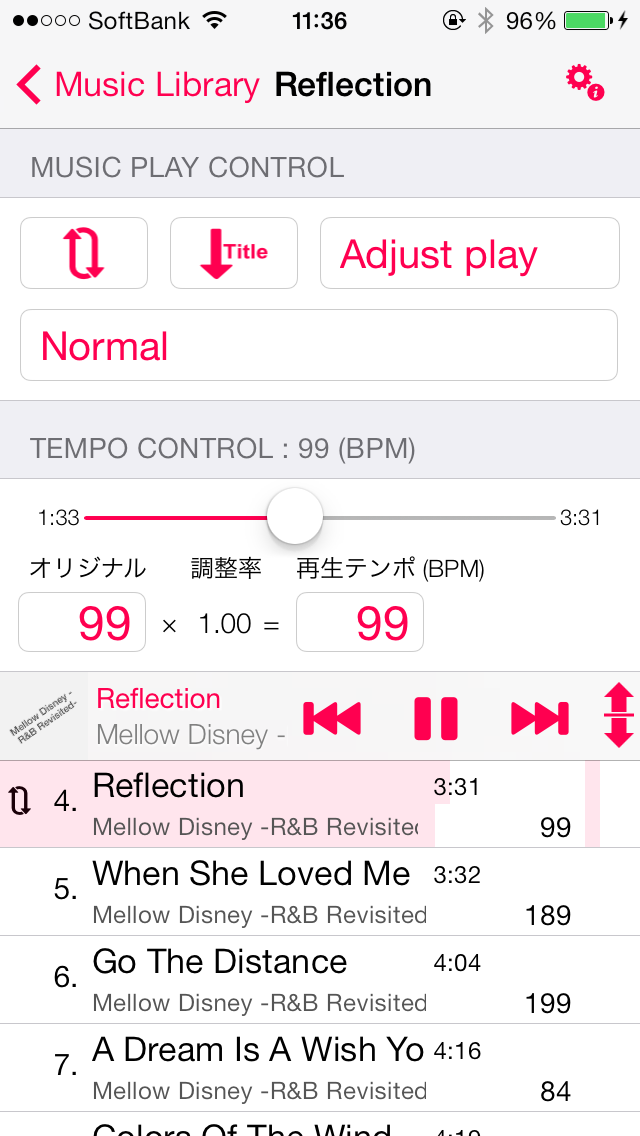
    Strawberry(Strawberry)


    Strawberry(Strawberry)Strawberry(Strawberry)


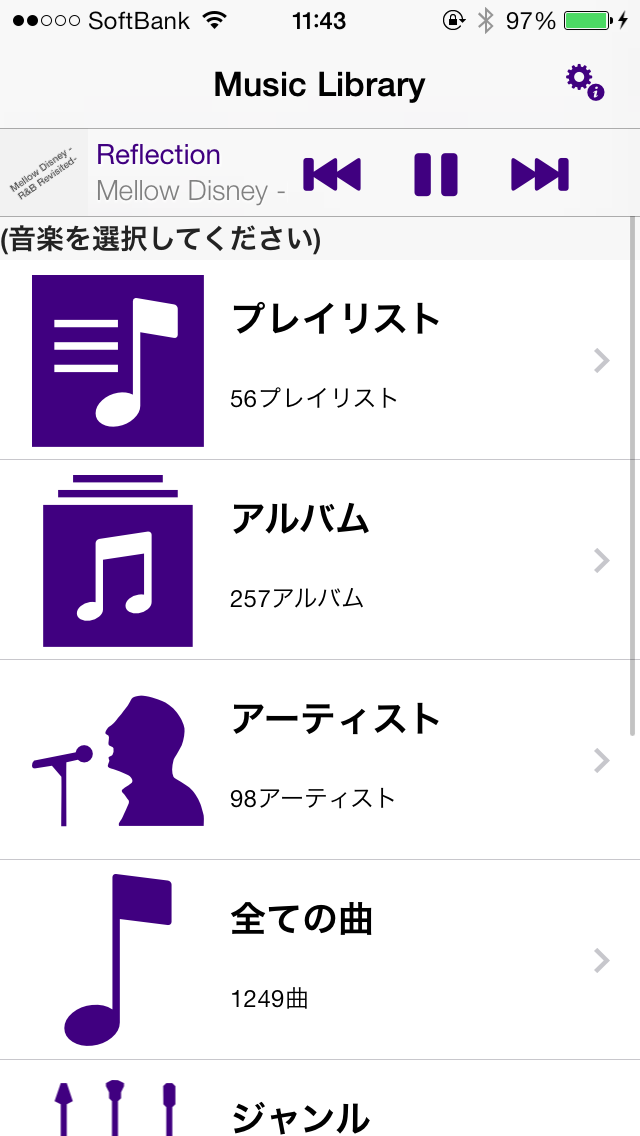
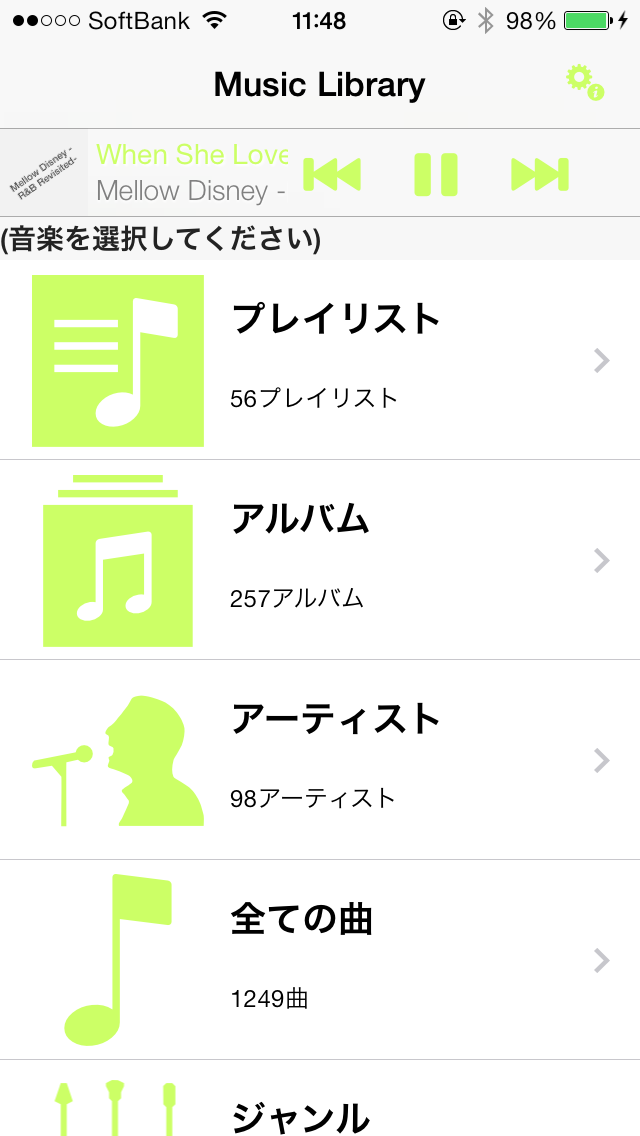
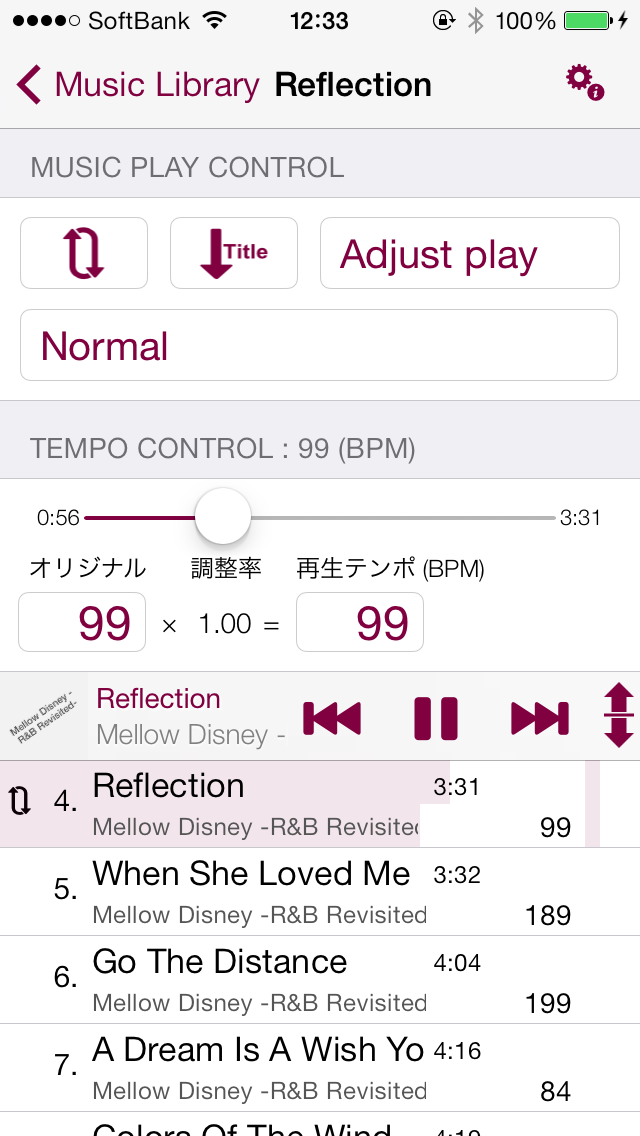
    Plum(Plum)


    Plum(Plum)Plum(Plum)


    Cantaluope(Cantaloupe)


    Cantaluope(Cantaloupe)Cantaluope(Cantaloupe)


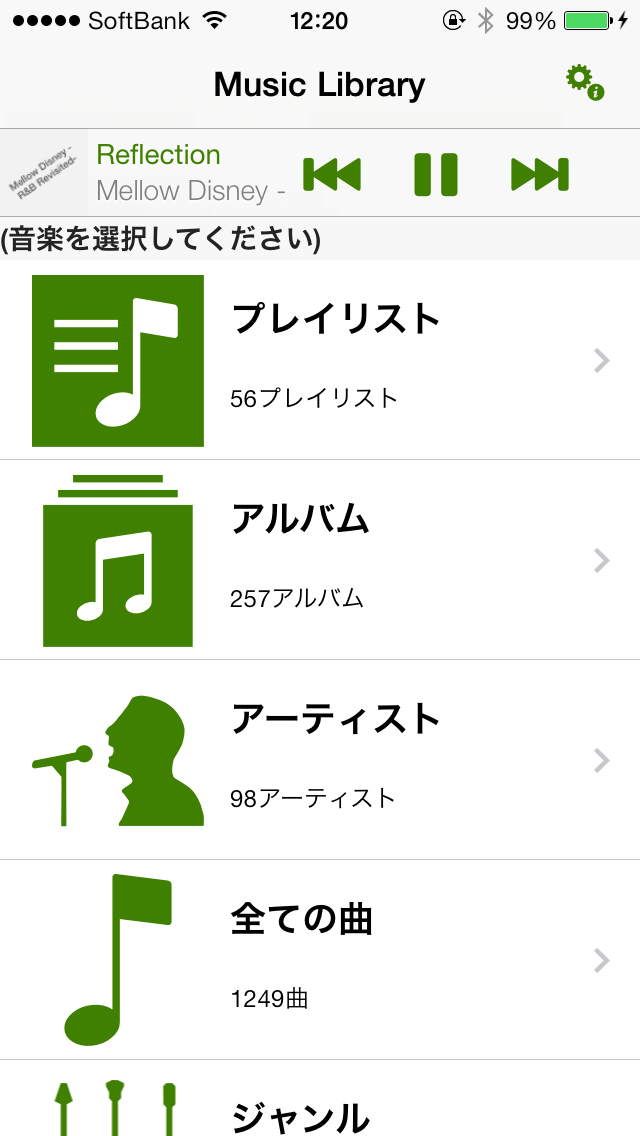
    Banana(Banana)


    Banana(Banana)Banana(Banana)


    Tangerine(Orange)


    Tangerine(Orange)Tangerine(Orange)


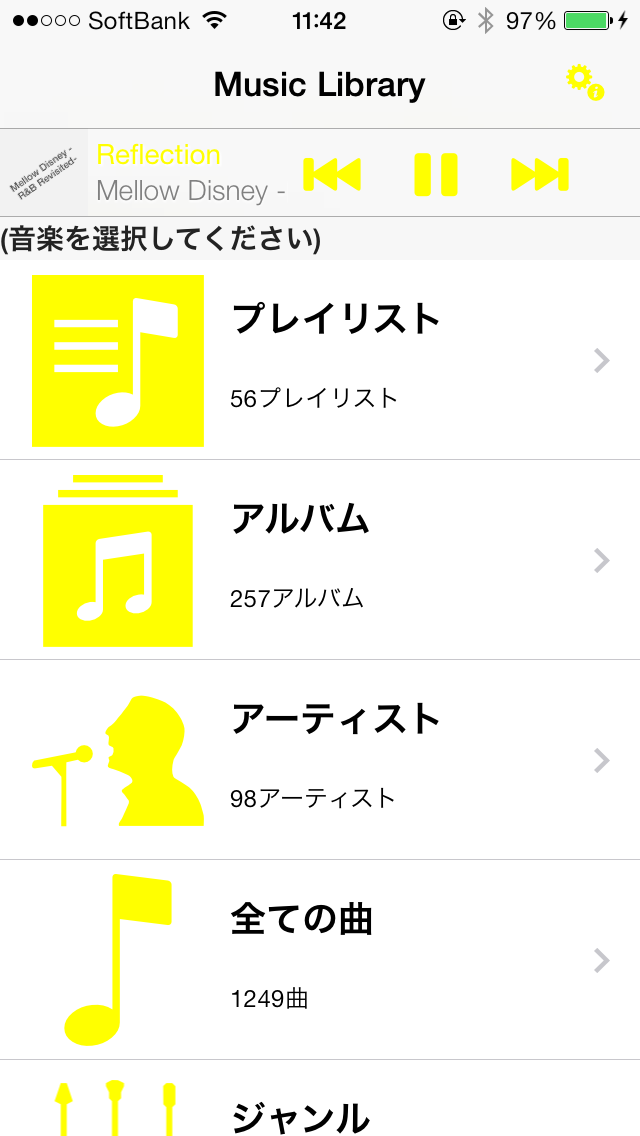
    Lemon(Lemon)


    Lemon(Lemon)Lemon(Lemon)


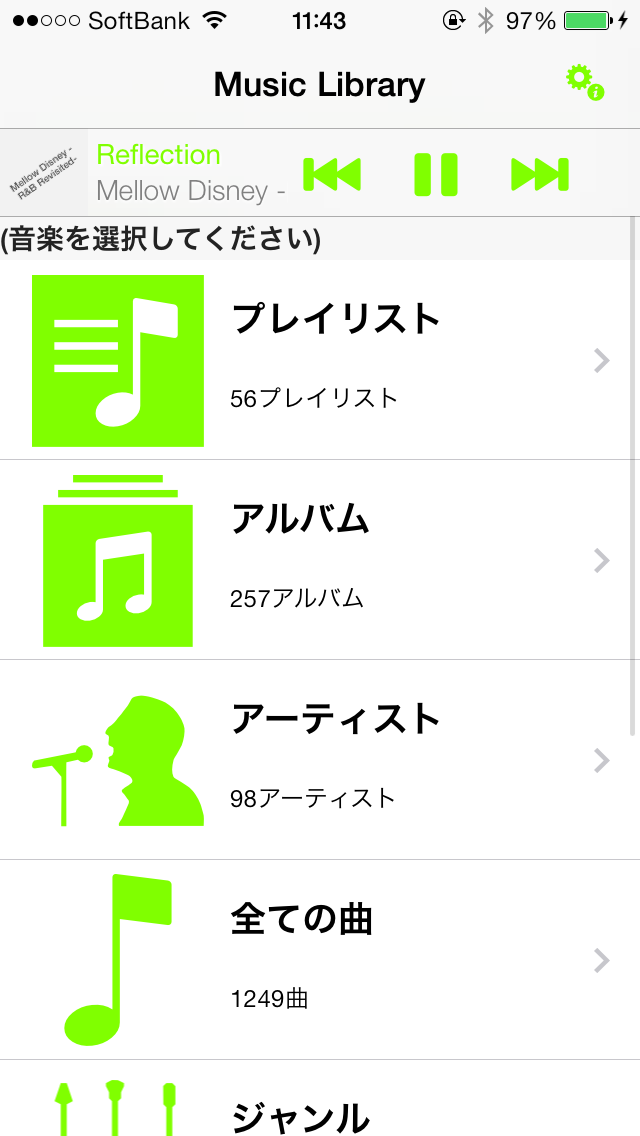
    The lime(Lime)


    The lime(Lime)The lime(Lime)


    Eggplant(Nasbi)


    Eggplant(Nasbi)Eggplant(Nasbi)


    Cayenne(Hot pepper)


    Cayenne(Hot pepper)Cayenne(Hot pepper)


    Asparagus(Asparagus)


    Asparagus(Asparagus)Asparagus(Asparagus)


    Carnation(Carnation)


    Carnation(Carnation)Carnation(Carnation)


    Lavender(Lavender)


    Lavender(Lavender)Lavender(Lavender)


    Orchid(Orchid)


    Orchid(Orchid)Orchid(Orchid)


    Flora(Flora)


    Flora(Flora)Flora(Flora)


    Honeydew(Honey dew melon)


    Honeydew(Honey dew melon)Honeydew(Honey dew melon)


    Fern(Fern)


    Fern(Fern)Fern(Fern)


    MOSS(MOSS)


    Moss(MOSS)Moss(MOSS)


    Clover(Clover)


    Clover(Clover)Clover(Clover)


    Licorice(Liquorice)


    Licorice(Liquorice)Licorice(Liquorice)


    Bubblegum(Bubble gum)


    Bubblegum(Bubble gum)Bubblegum(Bubble gum)


    Salmon(Salmon)


    Salmon(Salmon)Salmon(Salmon)


    Teal(Teal)


    Teal(Teal)Teal(Teal)


    Mocha(Mocha)


    Mocha(Mocha)Mocha(Mocha)


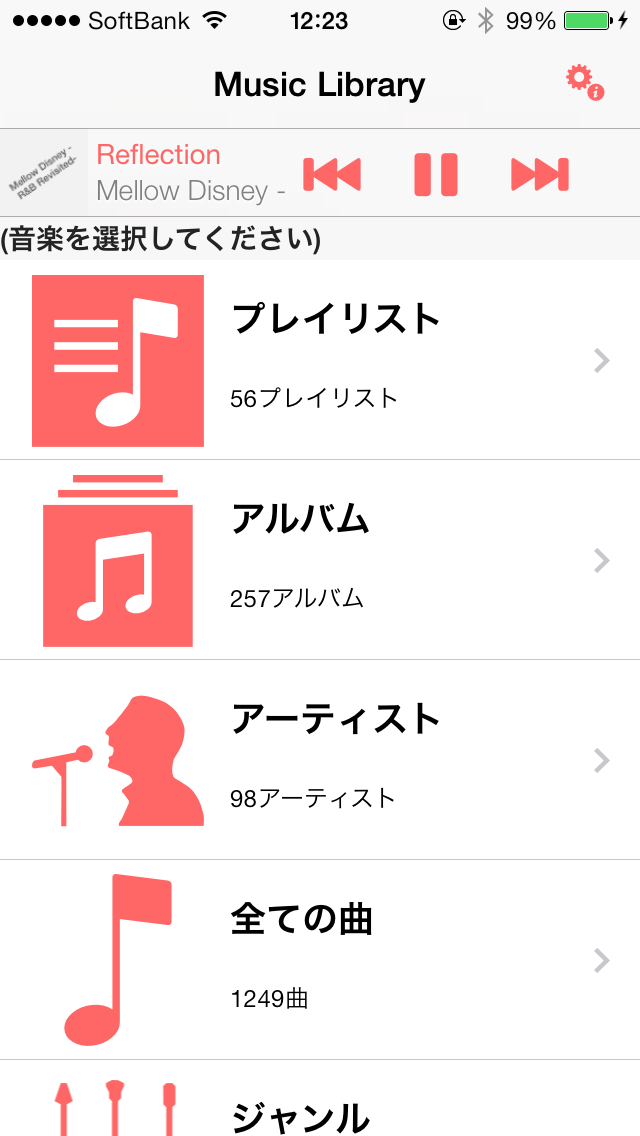
    Maraschino(Maraschino)


    Maraschino(Maraschino)Maraschino(Maraschino)


    Turquoise(Turquoise)


    Turquoise(Turquoise)Turquoise(Turquoise)


    Sky(Sky)


    Sky(Sky)Sky(Sky)


    Aqua(Aqua)


    Aqua(Aqua)Aqua(Aqua)


    Ice(Ice)


    Ice(Ice)Ice(Ice)


    Spindrift(Sea spray)


    Spindrift(Sea spray)Spindrift(Sea spray)


    Maroon(Maroon)


    Maroon(Maroon)Maroon(Maroon)


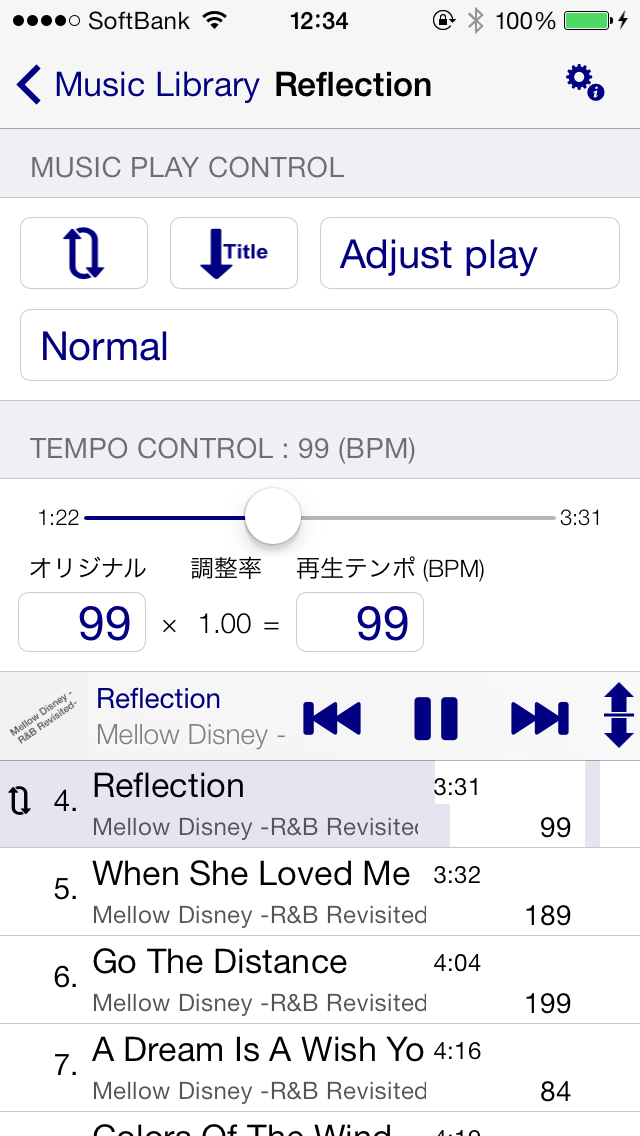
    Midnight(Midnight)


    Midnight(Midnight)Midnight(Midnight)


    SeaFoam(Seafoam)


    SeaFoam(Seafoam)SeaFoam(Seafoam)


    Ocean(Ocean)


    Ocean(Ocean)Ocean(Ocean)


    Spring(Spring)


    Spring(Spring)Spring(Spring)


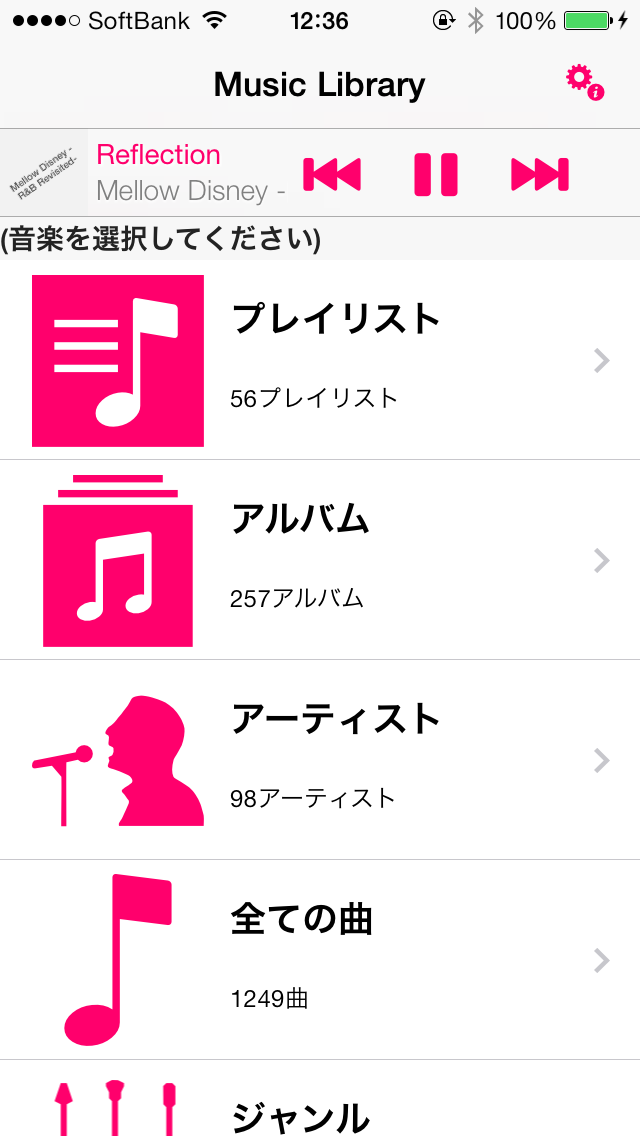
    Magenta(Magenta)


    Magenta(Magenta)Magenta(Magenta)


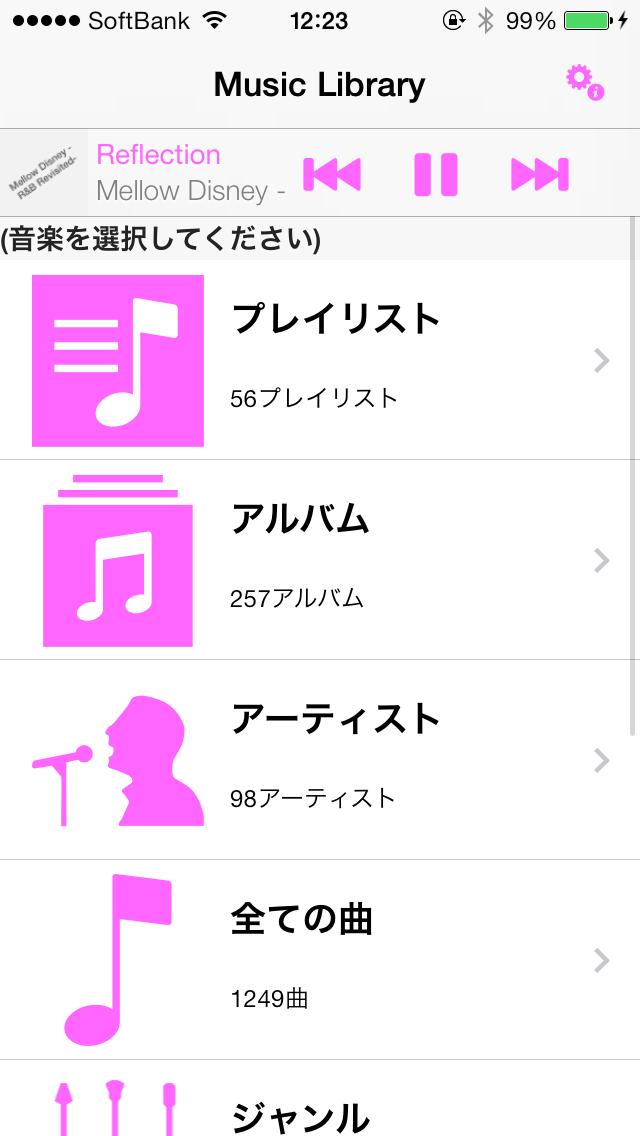
    Pink(Pink)


    Pink(Pink)Pink(Pink)


    Mercury(Mercury)


    Mercury(Mercury)Mercury(Mercury)


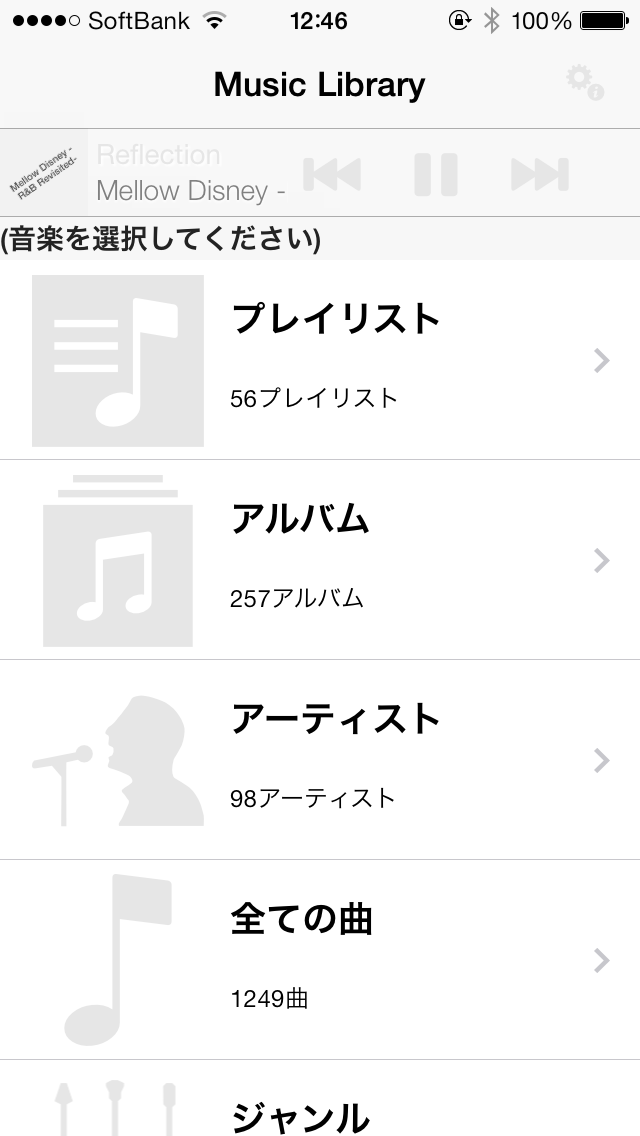
    Silver(Silver)


    Silver(Silver)Silver(Silver)


    Magnesium(Magnesium)


    Magnesium(Magnesium)Magnesium(Magnesium)


    Aluminum(Aluminum)


    Aluminum(Aluminum)Aluminum(Aluminum)


    Nickel(Nickel)


    Nickel(Nickel)Nickel(Nickel)


    Tin(Tin plate)


    Tin(Tin plate)Tin(Tin plate)


    Steel(Steel)


    Steel(Steel)Steel(Steel)


    Iron(Iron)


    Iron(Iron)Iron(Iron)


    Tungsten(Tungsten)


    Tungsten(Tungsten)Tungsten(Tungsten)


    Lead(Reed)


    Lead(Reed)Lead(Reed)


  • About tempo settings 'pin' button

    Tempo settings screenThe "pin" button can be turned on/off each time you tap it.、What turns on is、One of Min/Mid/Max。

    The "pin" button is、This has the effect of temporarily fixing the value of that item.。When you change a certain item、Of the remaining two items, the item with the "pin" button turned on will not be changed.、Changes items that are OFF in conjunction with each other.。

    (Example # 1)Min:105 Mid:115 Max:125in、When the Mid “pin” button is turned on、
    ・If you change Max to 135、Mid remains unchanged and Min becomes 95.。
    ・If you change Min to 110、Mid will not change and Max will be 120。

    (Example # 2) Min:105 Mid:115 Max:125in、When Min's "pin" button is turned on、
    ・If you change Max to 135、Min will not change and Mid will be 120.。
    ・If you change Mid to 120、Min will not change and Max will be 135。

    If you directly operate an item for which the "pin" button is turned on, it will change as specified.、The other two items will also follow。

    *This explanation、For Walking Player v1.10 and above。The "lock" button in Walking Player v1.02 and earlier has been renamed to "pin" button in v1.10.。

    previous v1.02('lock' button)And since v1.10('pin' button)The difference is、For example, Min:105 Mid:115 Max:125in、Min's "lock"(Or pin.)” button to ON.、If you try to reduce Max below 105、For the "lock" button、As long as you lock the Min value、Could not reduce Max below 105。
    For the "pin" button、Based on the user's operational intent、Allowed Max value to be reduced below 105 along with pinned Min value。As a result, the button was changed from "lock" to "pin" as it became more like "temporary fixing" rather than "fixing".。

  • About the 'lock' button on the tempo setting screen

    *This explanation、For Walking Player v1.0~v1.02。
    about v1.10 or later "About tempo settings 'pin' buttonPlease refer to。

    Tempo settings screenThe "lock" button can be turned on/off each time you tap it.、What turns on is、One of Min/Mid/Max。

    The "lock" button is、It has the effect of fixing the value of that item.、Even if you change the value of other items, items with the "lock" button turned on will not change.。

    (Example # 1)Min:105 Mid:115 Max:125in、When the Mid “lock” button is turned on、
    ・If you change Max to 135、Mid remains unchanged and Min becomes 95.。
    ・If you change Min to 110、Mid will not change and Max will be 120。

    (Example # 2) Min:105 Mid:115 Max:125in、When Min's "lock" button is turned on、
    ・If you change Max to 135、Min will not change and Mid will be 120.。
    ・If you change Mid to 120、Min will not change and Max will be 135。

    If you directly operate an item for which the "lock" button is turned on,、changes as specified。

  • On the playback tempo changes

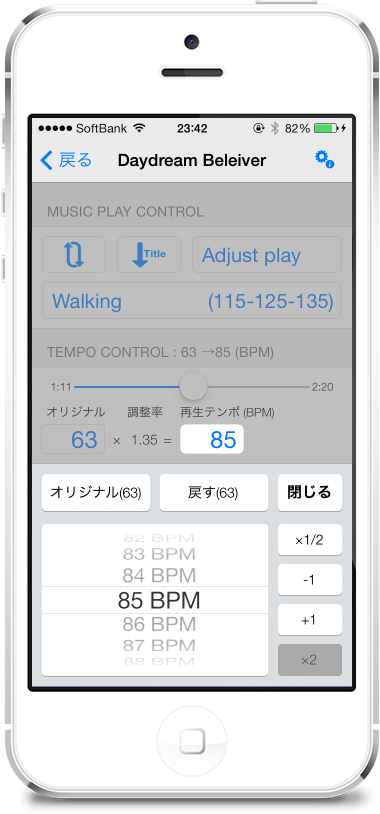
    Player screen”, tap “Playback tempo display”、A screen like the one below will appear.、You can freely change the tempo of the song being played。

    Playback tempo changes

    (Description of the screen parts)

    • The original button
      Set the playback tempo to the original song tempo。
    • 'Back' button
      Returns the playback tempo to the tempo at the start of this screen display.。
    • "x1/2" button、"x2" button
      Playback tempo 1/2、or double。
    • "-1" button、“+1” button
      Increase playback tempo by -1 or +1。
      Long press this button to repeat、Press and hold to change playback tempo in real time。
    • Picker(Drum)
      Changes the playback tempo to the specified value。The playback tempo changes after the drums come to rest。
    • The 'exit' button
      Exit this screen。Tap the semi-transparent panel at the top of the screen or、Even if the song being played ends、This screen will close。

    (Supplemental information)

    • Adjusting the tempo to match your own pace while walking、Picker(Drum)Rather than adjusting by turning、"-1" button、It is better to adjust with the "+1" button because the playback tempo changes in real time.、It's easy to do。
  • About the manual tempo measurement

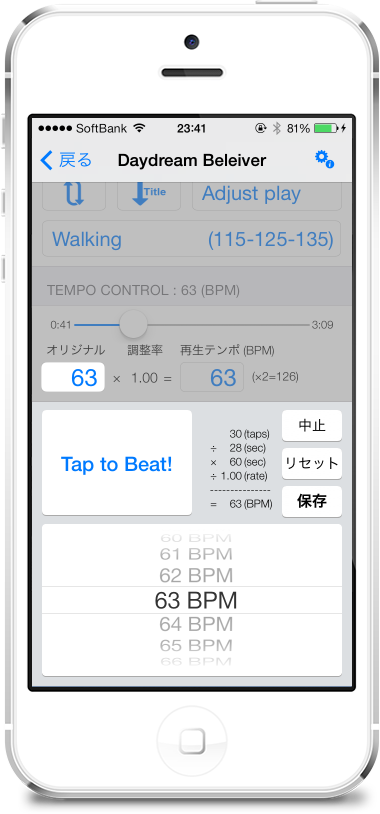
    再生中の曲のテンポを手動で測定するには、「Player screen」の「オリジナルテンポ表示」をタップします
    すると以下のような画面が表示されます
    Manual tempo measuring screen

    (Tempo measuring method)

    1. 再生中の曲の拍子にあわせて「Tap to Beat!」のボタンを繰り返しタップします
    2. タップするたびにテンポ値が再計算され、Picker(Drum)の選択数値が変化します
    3. For a while(10-About 20 times)タップを繰り返していると、Picker(Drum)の選択数値がだんだん安定してきます
    4. 安定した数値になったらそれがその曲の測定テンポです
    5. そのまま「保存」ボタンを押すと測定テンポが登録されます

    (Supplemental information)

    • タップに失敗してやり直したい場合は「リセット」ボタンを押します「リセット」ボタンを押すとピッカー(Drum)の選択値が「CLEAR」になります
    • 「CLEAR」を選択している状態で「保存」ボタンを押すと現在登録されている手動測定テンポ値がクリアされます手動測定テンポ値をクリアすると音楽プロパティまたは自動解析テンポの値がオリジナルテンポとして使用されます
    • 正しいテンポがあらかじめ分かっている場合は「Tap to Beat」をタップせず自分でピッカー(Drum)を回して直接テンポ値を指定してもかまいません
    • この画面を終了するには「中止」ボタンを押すか画面上部の半透明パネルをタップしますこの場合測定中のテンポは反映されません。Also、Even if the song being played ends、This screen will close。
    • タップのタイミングはきっちり正確でなくても大丈夫ですテンポ計算は何秒間に何回タップしたかで計算しますので重要なのはタップ回数ですタップタイミングのふらつきは全く問題ありません。however、少ないタップ回数で早めに測定値を安定させたい場合はファーストタップのタイミングをなるべく正確にしてくださいファーストタップのタイミングがずれると測定値が安定するのに時間がかかるようになりますファーストタップを失敗して測定値がなかなか安定しない場合は一旦「リセット」ボタンを押して再測定したほうがよいかもしれません
  • About play in the song list coloring
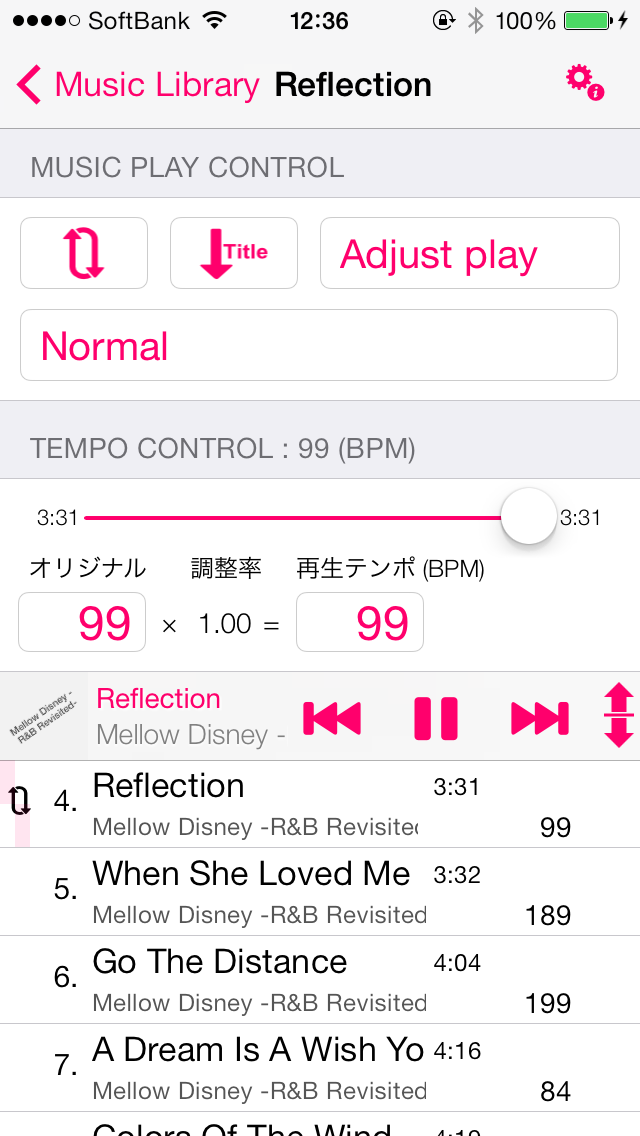
    再生中曲一覧は、4種類の背景色で色分けされています

    • White background color(→ screen example)
      指定テンポ範囲内の曲ですこの曲はテンポを調整せず元の速度で再生します
    • Pale yellow background color(→ screen example)
      指定テンポ範囲外のためテンポを調整して再生する曲です再生モードを「Adjust play」モードにした時のみ表示されますテンポ調整値は行の右端に「オリジナルテンポ↓再生テンポ」の形で表示します
    • A light gray background color(→ screen example)
      指定テンポ範囲外のため再生をスキップする曲です再生モードを「Skip play」モードにした時のみ表示されます
    • Dark grey background color(→ screen example)
      再生不可の曲ですこの曲はWalking Playerでは再生できません再生不可の曲を一覧から排除したい場合はPlay song list settings screenで「再生非対応の曲を一覧に表示する」をOFFにします。Mostly DRM(Copyright protection)付きの曲が再生不可の曲になりますDRM付きの曲の詳細は「I have a play and song is grayed out and cannot play?」を参考にしてください
  • Original tempo information for more information

    オリジナルテンポは以下の3つのテンポ情報を元にして決定します

    • Manual measuring tempo
      Manual tempo measuring screenを使って登録したテンポデータです
    • Music properties
      Music information called ID3 tag during the music files(曲名アーティスト名等)を書き込む領域がありその中に曲のテンポ(BPM:BeatPerMinute)を登録するためのフィールドがありますこのBPMフィールドの値をここでは「音楽プロパティ」と呼んでいますこの値はパソコン上のiTunesアプリでも確認できます。(iTunesを起動し楽曲を右クリックして表示されるメニューから「プロパティ」を選択すると「情報」タブの中にBPM値が表示されます。)
      ただこの音楽プロパティ(BPM value)が音楽ファイルの中に最初から登録されていることはめったにありません
    • Automatic analysis tempo
      手動測定テンポも音楽プロパティも登録されていない場合Walking Playerは音楽データを読み込んで曲のテンポを自動解析しますその解析結果が「自動解析テンポ」になります

    オリジナルテンポは
    手動測定テンポが登録されていればそれを最優先で使用します
    手動測定テンポが登録されてない時音楽プロパティを第二優先で使用します
    手動測定テンポも音楽プロパティも登録されていない場合自動解析テンポを使用します


  • About the display of the playing time

    The playback time of the song displayed in the "playback position display slider" and "playback song list" is、The actual playback time will be displayed, reflecting the tempo adjustment rate.。

    for example、Original tempo 100BPM、When playing a song with a playing time of 4 minutes 45 seconds at 125 BPM by adjusting the tempo、The actual playback time is 4 minutes 45 seconds x 100 ÷ 125 = 3 minutes 48 seconds.、「3:48" is displayed.。

  • About the floating bar

    フローティングバーには現在再生中の曲と再生制御のためのボタンが表示されます曲再生中に曲選択画面に戻った場合曲選択画面にフローティングバーが継続表示され再生中の曲の制御ができます

  • Judgment in the tempo setting range

    If the original tempo and the specified tempo range are far apart、Adjust the multiple to determine whether it is within the range。
    (Example # 1) If the original tempo is 60BPM and the playback tempo range is 115-135BPM、If you double the original tempo, it becomes 120BPM.、It is determined that the playback tempo is within the range.。At this time、next to the playback tempo display.(x 2 = 120)” is displayed as a supplementary explanation.。

    (Example # 2) If the original tempo is 50BPM and the playback tempo range is 115-135BPM、If the original tempo is doubled, it will be 100BPM.、4If you convert it to 200BPM, it becomes 200BPM.、Because neither falls within the playback tempo range.、It is judged to be out of range.。